CloudLink: Error ERR_SSL_KEY_USAGE_INCOMPATIBLE When Opening CloudLink Web UI
Summary: Opening CloudLink Web UI with Chrome or Edge receives the error "ERR_SSL_KEY_USAGE_INCOMPATIBLE," Mozilla and Firefox open CloudLink Web UI without any issues.
This article applies to
This article does not apply to
This article is not tied to any specific product.
Not all product versions are identified in this article.
Symptoms
Opening CloudLink Web UI with Chrome or Edge receives the below error:
Error ERR_SSL_KEY_USAGE_INCOMPATIBLE
Cause
The issue is due to the Chrome or Edge browser security settings.
The issue is found in Chrome version 119.0.6045.160 (Official Build).
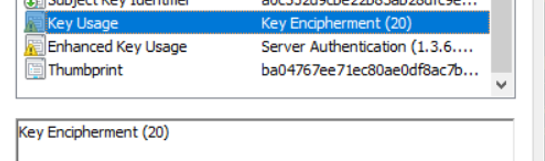
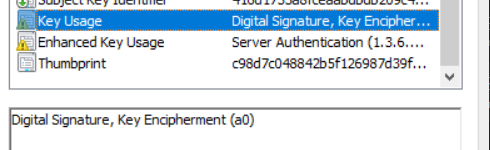
The reason is that the CloudLink 7.1.x self-signed certificate does not have Digital Signature in Key Usage.
CloudLink 7.x cert:
CloudLink 8 cert:
The issue is found in Chrome version 119.0.6045.160 (Official Build).
The reason is that the CloudLink 7.1.x self-signed certificate does not have Digital Signature in Key Usage.
CloudLink 7.x cert:
CloudLink 8 cert:
Resolution
In Chrome, you can apply a workaround by adding the below in regedit.
[HKEY_LOCAL_MACHINE\SOFTWARE\Policies\Google\Chrome]
"RSAKeyUsageForLocalAnchorsEnabled"=dword:00000000
You have to restart browser for the change to take effect. However, this reduces security in Chrome and is not a recommended solution.
Preferred workarounds:
- Use a different browser to access the CloudLink 7.1.x UI. Firefox and Internet Explorer still appear to be working with CloudLink 7.1.x, although Internet Explorer is not supported and some functionality may be missing. Even though Internet Explorer doesn't appeared to be installed on a Windows computer you still might be able to open a tab by going to Internet Options > Programs > Manage add-ons > Learn more about toolbars and extensions.
- Generate a custom CA signed web SSL cert that includes Digital Signature in Key Usage.
- Upgrade to CloudLink 8.1 or higher
Here are the instructions to use OpenSSL to generate a self-signed certificate intended to replace CloudLink 7.x webSSL certs that work with Chrome and Edge.
- On a Linux server with OpenSSL installed, create a file called template.cfg by running command vi template.cfg and paste the information within the box below.
- Modify the blue entries and replace with relevant information.
[req]
default_bits           = 2048
distinguished_name     = req_distinguished_name
req_extensions         = v3_req

[req_distinguished_name]
C =Country(2 letter code)
ST =State
L =Locality(city)
O =Organization
OU =OrgUnit
CN =CommonName

C_default =US
ST_default =utah
L_default =salt lake city
O_default =dell
OU_default =dell
CN_default =cloudlinknode1

[ v3_req ]
subjectAltName   = @alt_names
keyUsage         = keyEncipherment, digitalSignature
extendedKeyUsage = serverAuth, clientAuth

[alt_names]
IP      = 192.XXX.XX.XXX
DNS.1   = cloudlinknode1
- Run the command:
openssl req -newkey 2048 -keyout cloudlinknode1.key -config template.cfg -x509 -days 730 -out cloudlinknode1.crt -extensions v3_req -nodes
This outputs two files: cloudlinknode1.crt and cloudlinknode1.key. You'll upload these files into CloudLink UI in Server > TLS. Also, save these files and keep them somewhere safe. I set -days to 730 which is 2 years but you can adjust as needed.
- This must be done separately for each CloudLink node.
Affected Products
CloudLink SecureVM, PowerFlex rack, ScaleIOArticle Properties
Article Number: 000219861
Article Type: Solution
Last Modified: 01 Apr 2026
Version: 7
Find answers to your questions from other Dell users
Support Services
Check if your device is covered by Support Services.