Error Validating Policy Message in Dell Remote Management Console
Summary: In version 9.5 and later of Dell Security Management Server, we get an "Error Validating Policy" message in RMC if there is an existing policy syntax issue.
This article applies to
This article does not apply to
This article is not tied to any specific product.
Not all product versions are identified in this article.
Symptoms
Affected Products:
- Dell Security Management Server
- Dell Data Protection | Enterprise Edition
- Dell Security Management Server Virtual
- Dell Data Protection | Virtual Edition
Affected Versions:
- v9.5 and later
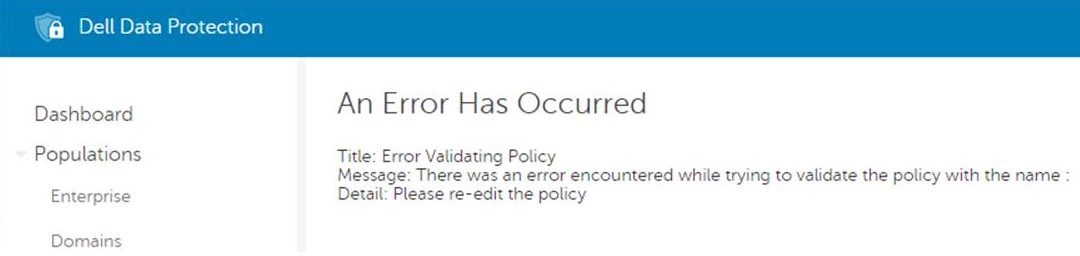
Note: This was reported as an "internal server error" in previous 9.x versions.
Cause
Not Applicable
Resolution
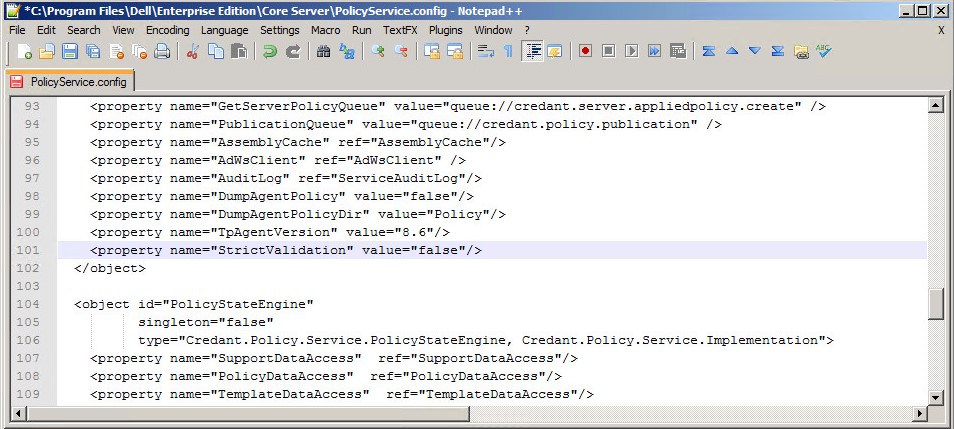
This policy check can be disabled by modifying the core server configuration file PolicyService.config with the property name StrictValidation, changing the value from 'true' to 'false'.
In the core server logs we get the exact policy and value that is causing issues:
2016-10-24 09:43:01,657 ERROR POLICY [57] - Invalid Value for 90039 - Script Control Approve Scripts in Folders (and Subfolders): \ApprovedScripts\
2016-10-24 09:43:01,657 ERROR POLICY [57] - Exception in ArbitrateValue: uid - 90039
System.ArgumentException: Invalid Value for 90039
    at Credant.Policy.Policy.set_Value(String value):q!
    at Credant.Policy.Enterprise.Assembler.ArbitrateValue(Policy currentPolicy)
Dell Security Management Server
Steps to editing PolicyService.config
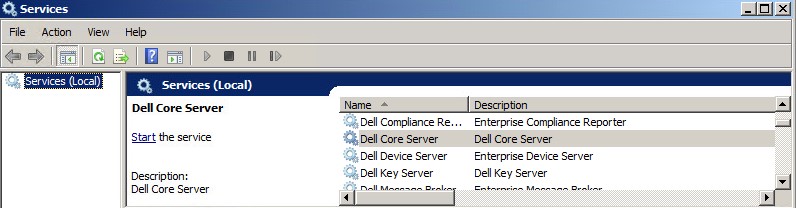
- Open Services on the Dell Security Management Server
- Stop the Dell Core Server Service.
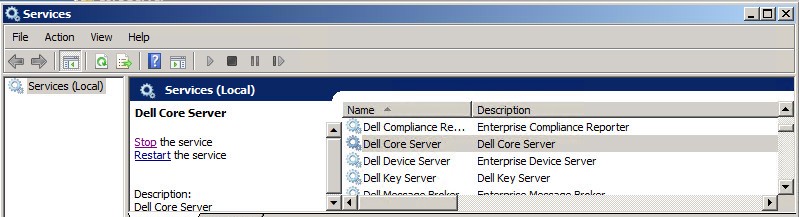
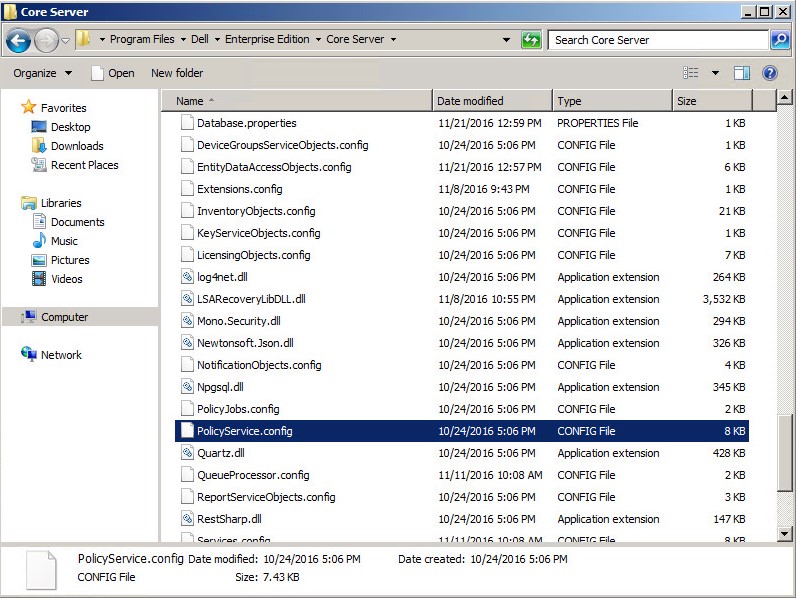
- Go to
C:\Program Files\Dell\Enterprise Edition\Core Serverand editPolicyService.configwith a text editor.
- Scroll down the file to locate
StrictValidation.
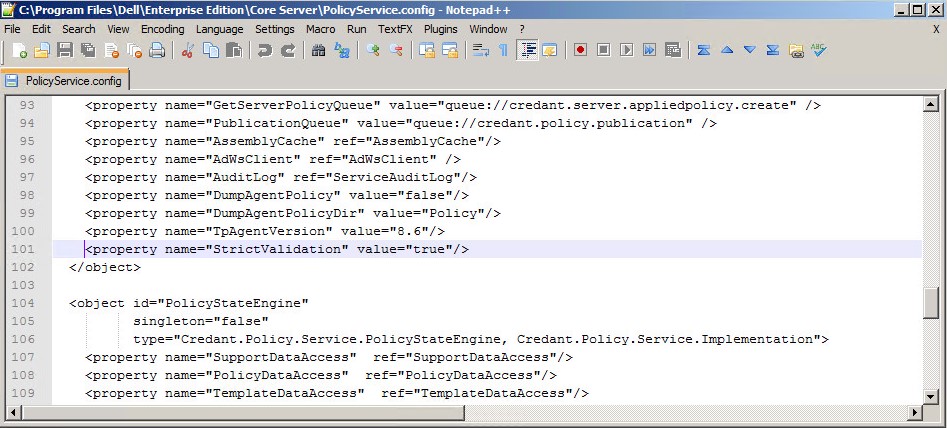
- Change
StrictValidationfrom true to false (located below).
- Save
Policyservice.configand exit the text editor. - Start the Dell Core Server Service.
Dell Security Management Server Virtual
v9.11 and Later
Steps to editing PolicyService.config:
- Open the Virtual Appliance.
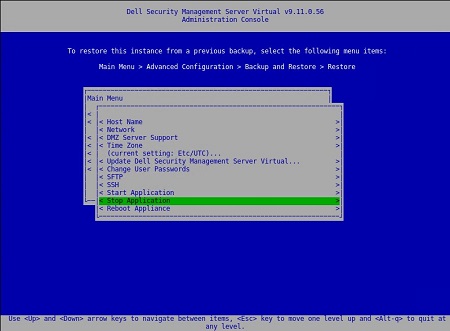
- Go to Basic Configuration.
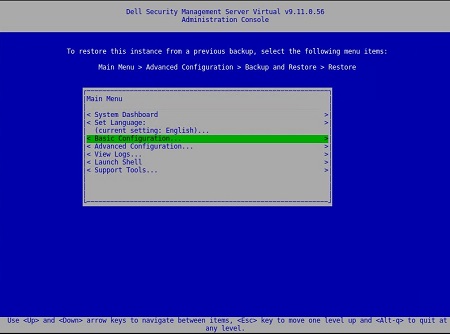
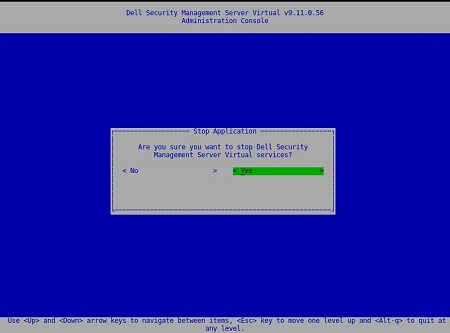
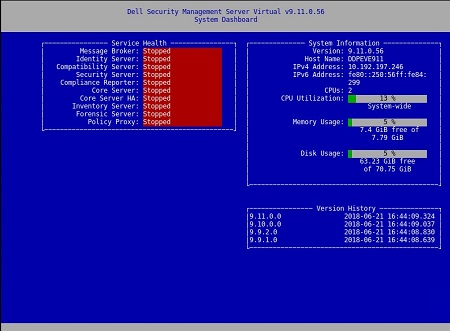
- Under Basic Configuration, scroll down to Stop Application (shown below).
- Confirm service shutdown.
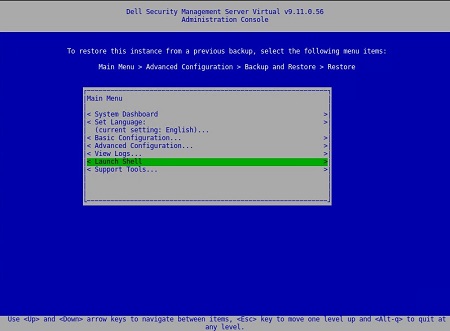
- From the Main Menu, scroll down to Launch Shell.
- Switch user from
dellconsoletodellsupport:su dellsupport.

- Go to the core-server folder:
cd /opt/dell/server/core-server.

- Type command:
sudo vi PolicyService.config.

- Enter i to edit file (notice at the bottom of the file –INSERT--, this indicates you can edit).
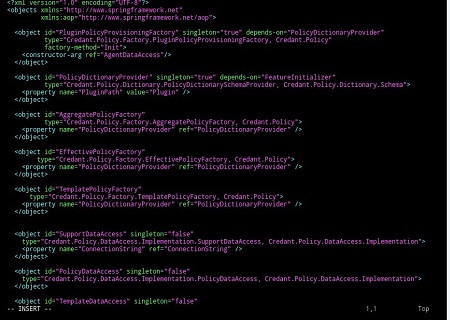
- Scroll down the file to locate
StrictValidation.
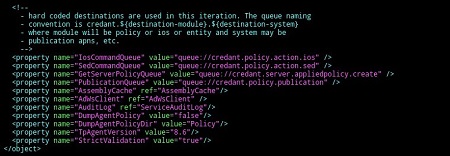
- Change
StrictValidationfrom true to false (located below).
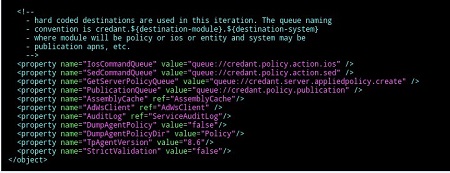
- Press Esc (notice the –-INSERT- - disappears).
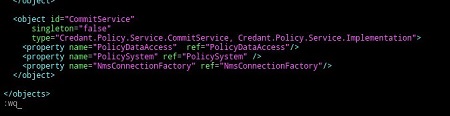
- Type
:wq(as shown below) this saves the changes that have been made.
- After typing
:wqand pressing enter, you see the below:
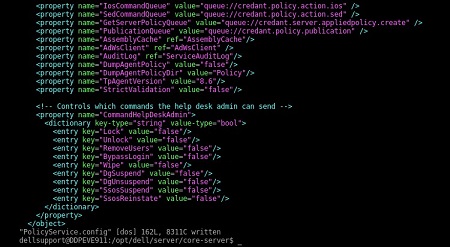
- Notice that you return back to the core-server path. Type exit, to leave that specified path.

- The next path, enter exit once more. You return to the Main Menu on the Virtual Appliance.
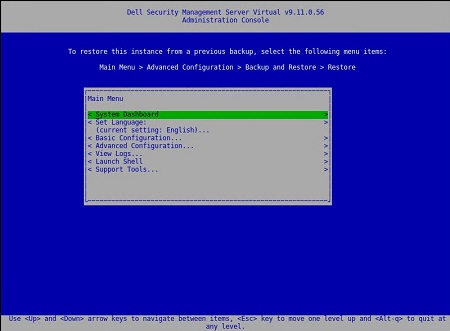
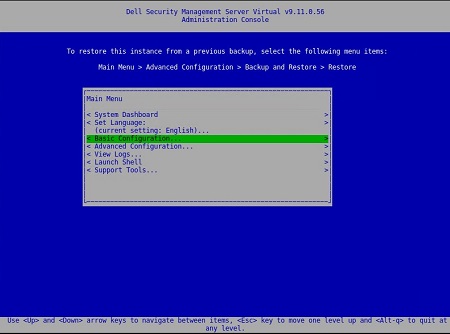
- Select Basic Configuration.
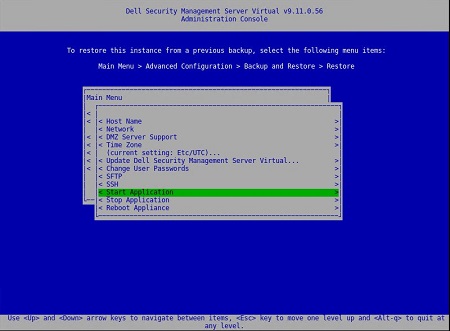
- Scroll down to Start Application.
- You receive the below prompt:
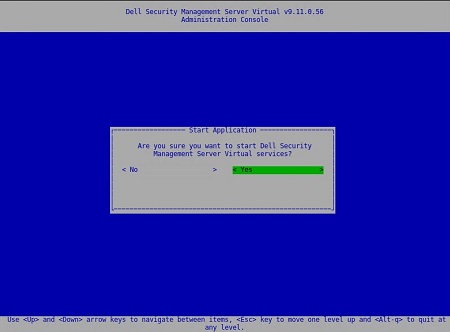
- Select Yes. Services begin to start.
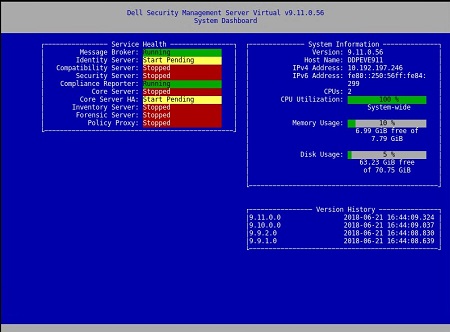
After Server Status indicates Running on each service, you will no longer receive: Error Validating Policy
v9.5 to 9.10
Steps to editing PolicyService.config
- Open the Virtual Appliance.
- Go to Basic Configuration.
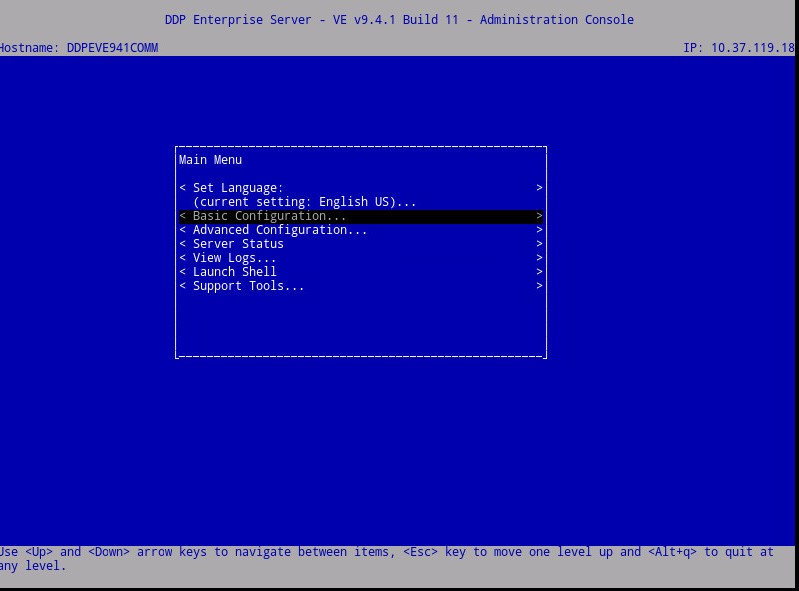
- Under Basic Configuration, scroll down to Stop Application (shown below).
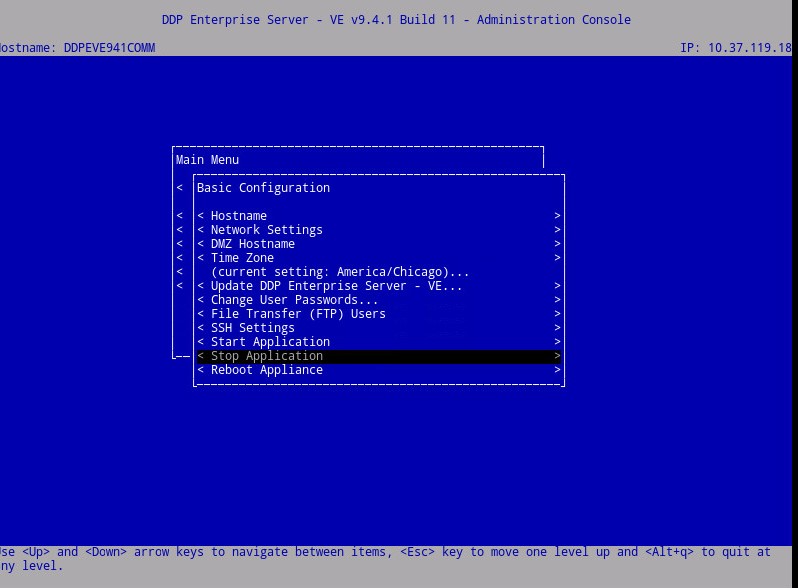
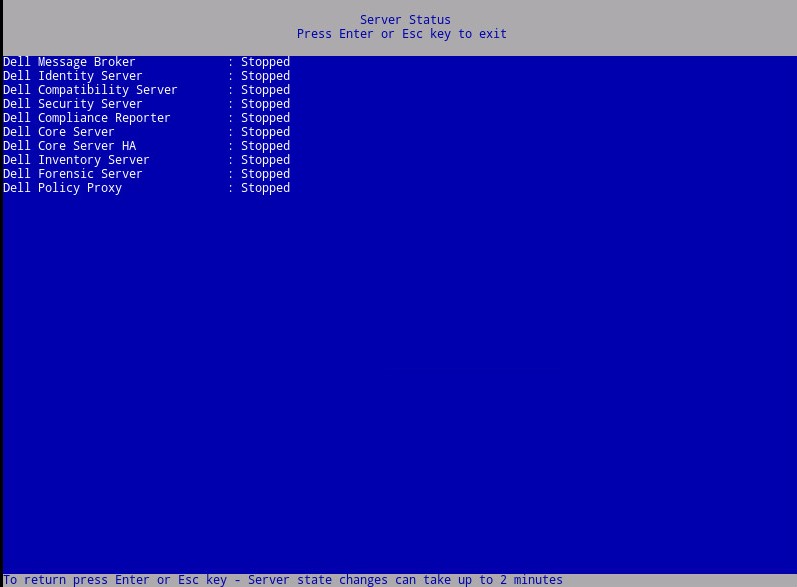
- From Main Menu, scroll down to Launch Shell.
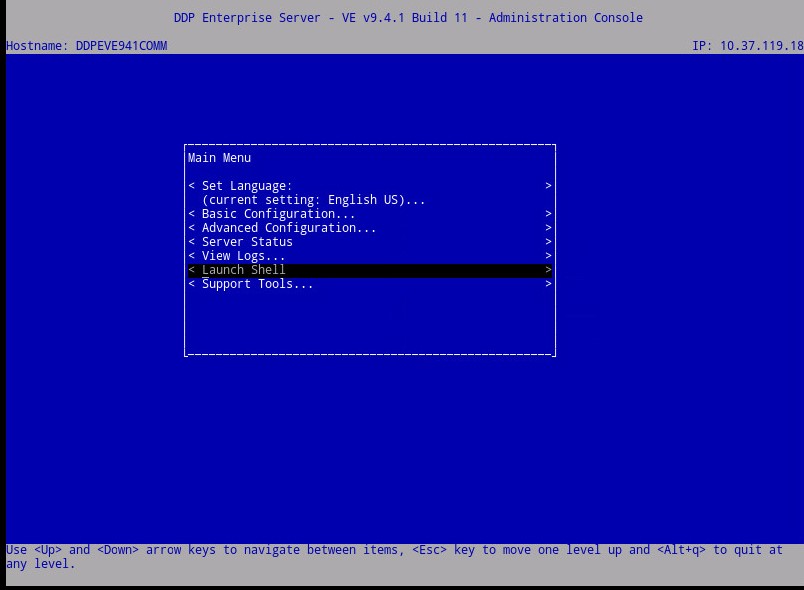
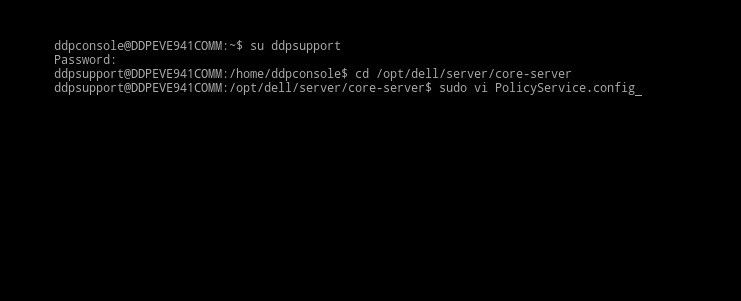
- (Shown below) Switch user from
ddpconsoletoddpsupport:su ddpsupport - Go to the core-server folder:
cd /opt/dell/server/core-server - Type command:
sudo vi PolicyService.config
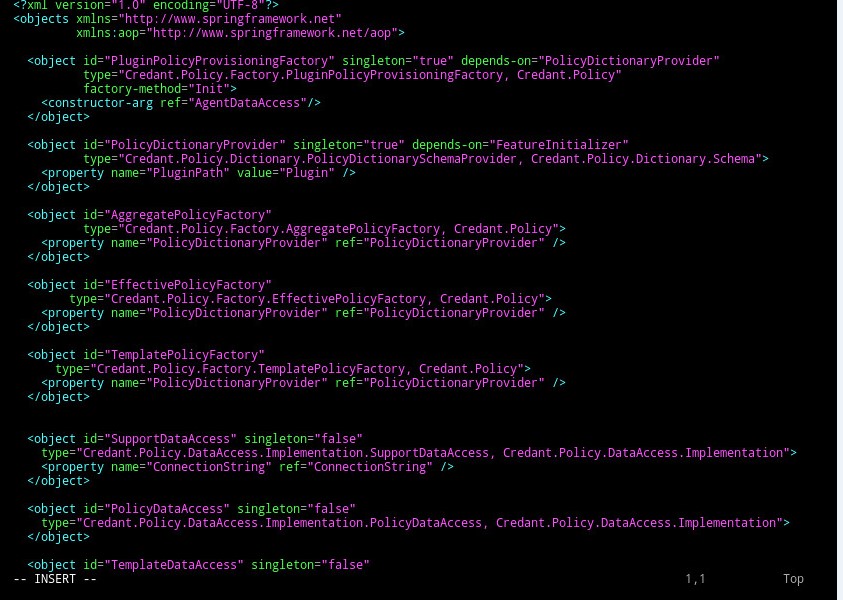
- Enter
ito edit file (notice at the bottom of the file –INSERT--, this indicates you can edit).
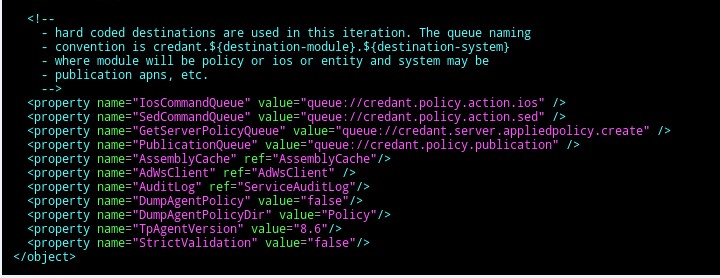
- Scroll down the file to locate
StrictValidation
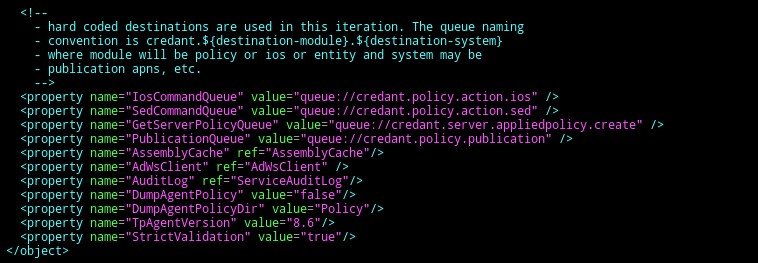
- Change
StrictValidationfrom true to false (located below).
- Press
Esc(notice the –-INSERT- - disappears).
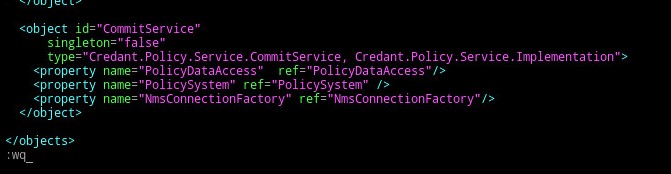
- Type
:wq(as shown below) this saves the changes that have been made.
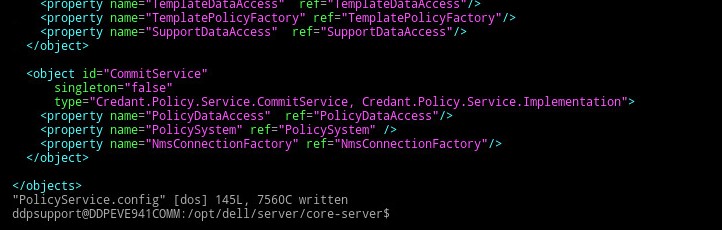
- After typing
:wqand pressing enter, you see the below:
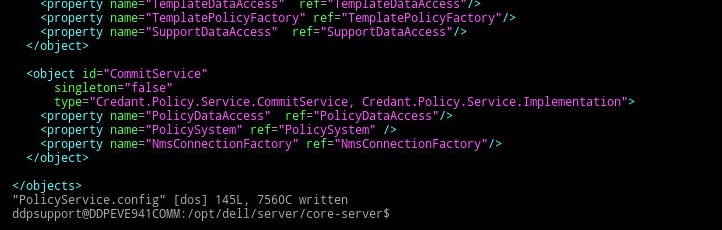
- Notice that you return back to the core-server path. Enter exit, to leave that specified path.
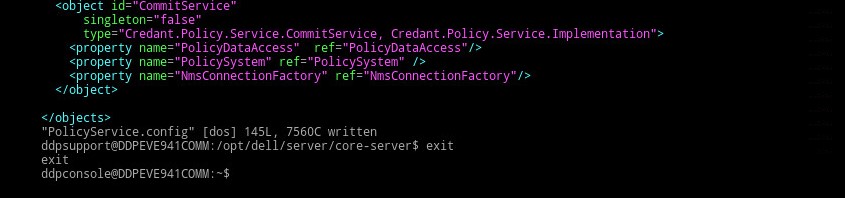
- The next path, enter exit once more. You return to the Main Menu on the VE Appliance.
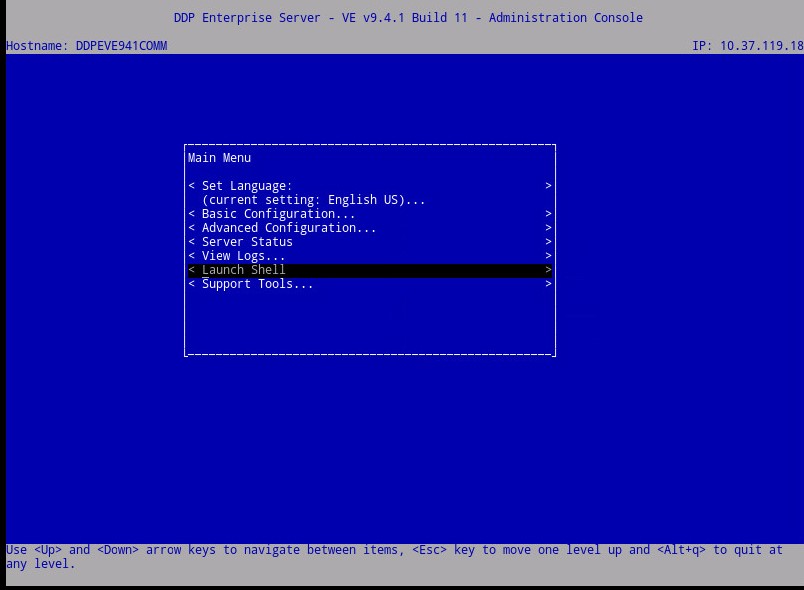
- Scroll up to Basic Configuration.
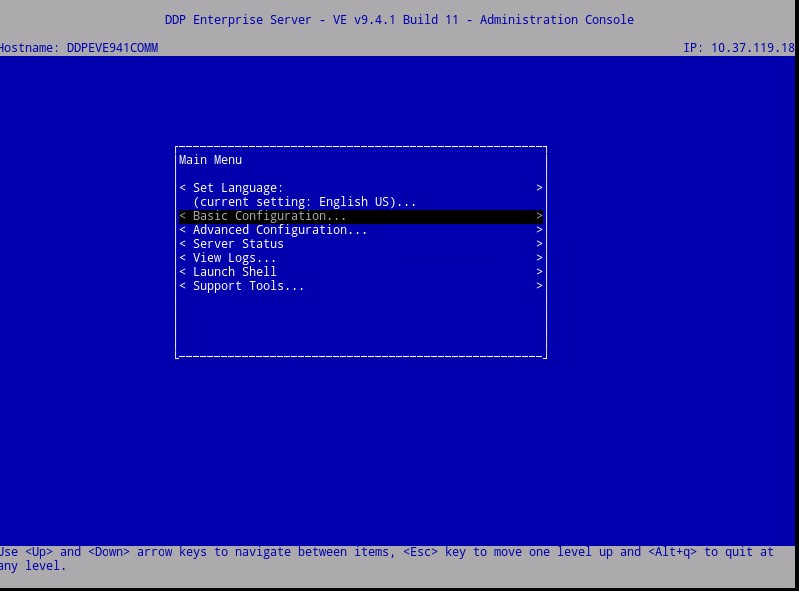
- Scroll down to Start Application.
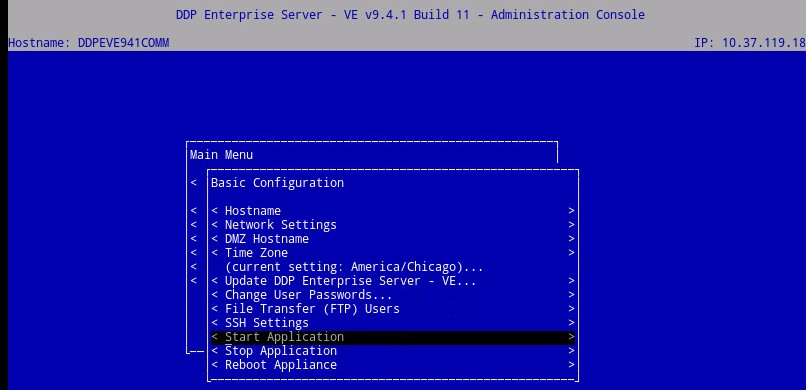
- You receive the below prompt:

- Select Yes. Services begin to start.
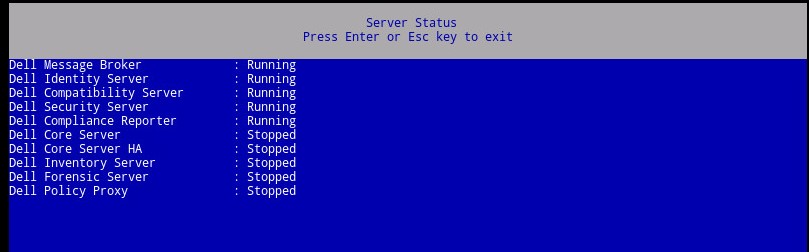
After Server Status indicates Running on each service, you will no longer receive: Error Validating Policy
Affected Products
Dell EncryptionArticle Properties
Article Number: 000129785
Article Type: Solution
Last Modified: 31 Aug 2026
Version: 9
Find answers to your questions from other Dell users
Support Services
Check if your device is covered by Support Services.