PowerFlex 3.x How to Find iDRAC IP Address from PFxM and Reset iDRAC
Summary: This article explains how to find iDRAC IP address from PowerFlex Manager PFxM, and how to reset iDRAC settings from iDRAC web interface.
This article applies to
This article does not apply to
This article is not tied to any specific product.
Not all product versions are identified in this article.
Instructions
How to find the iDRAC IP address from PowerFlex 3.0 Manager
1. Click the service from your service list.

2. Select the service that the host you where the needed iDRAC is located.
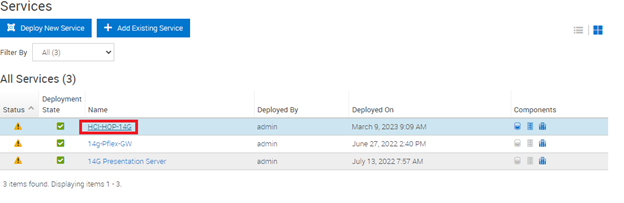
3. Select the host that you want to access its iDRAC from and click it.
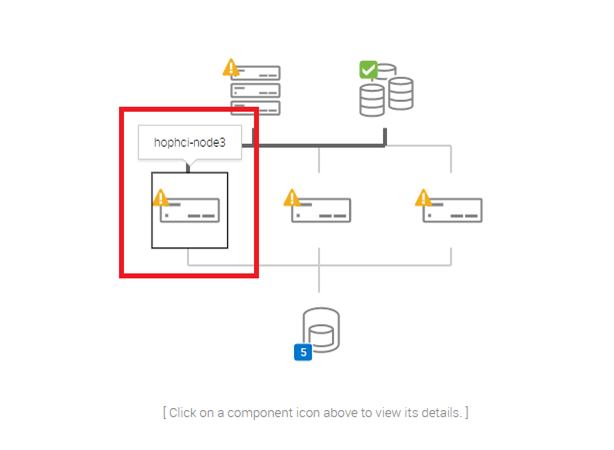
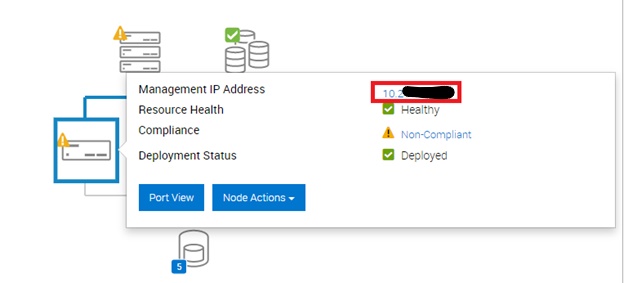
4. From the pop-up, you will see the iDRAC IP for the example labnode3. Click it, and it opens a new window.
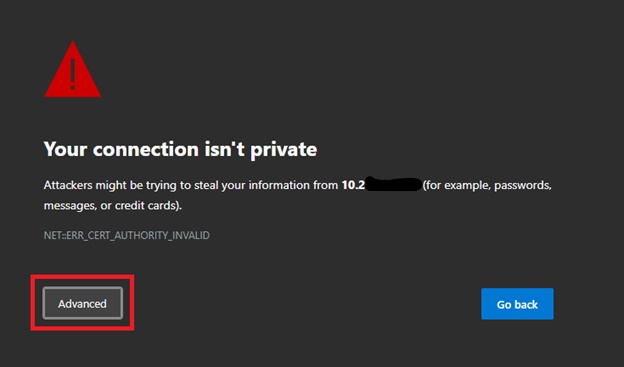
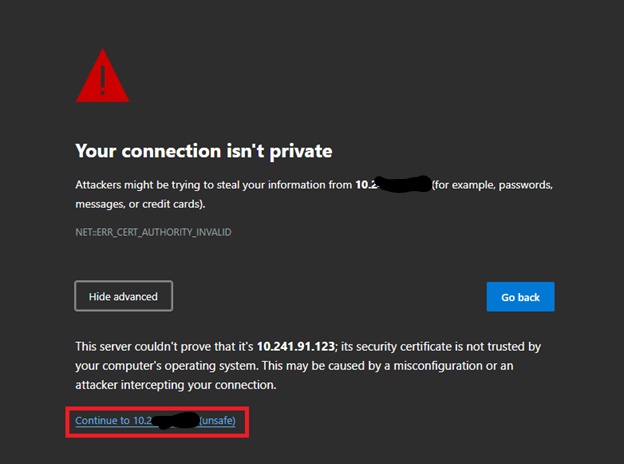
5. If you see the 'Your connection is not private' screen, click 'Advanced', and then 'Proceed.'
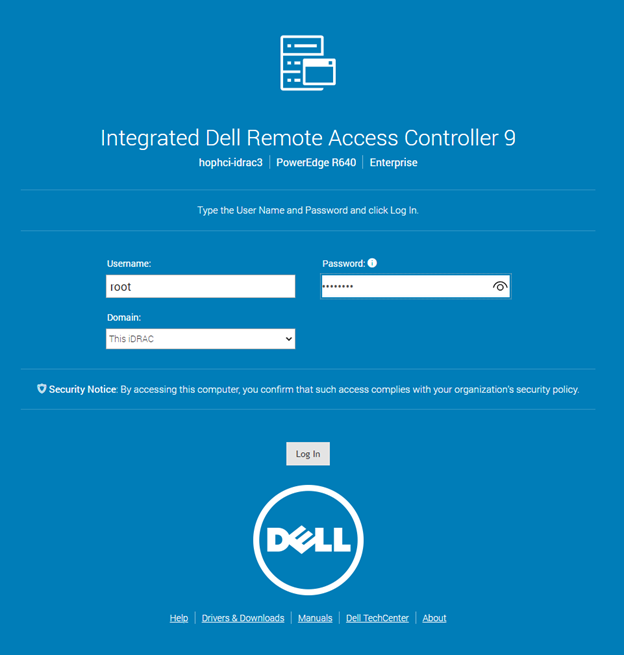
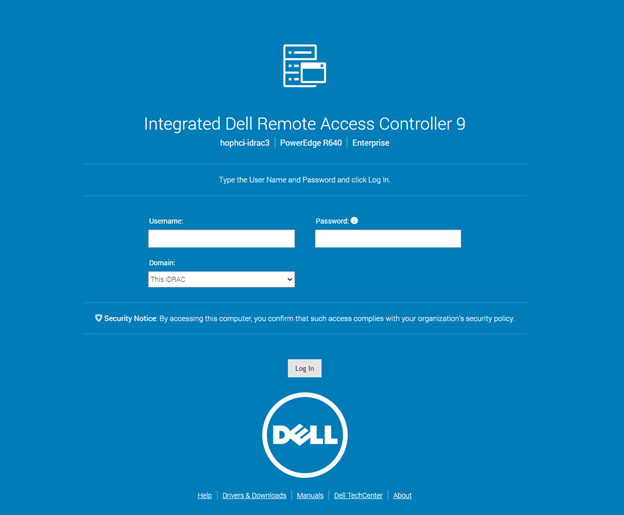
6. Log in to the iDRAC using your set credentials.
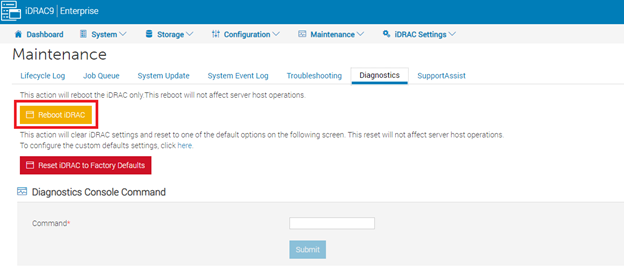
7. Once you are at the Dashboard click 'Maintenance', and then 'Diagnostics' on the next screen.


8. On this screen, click the yellow button that says 'Reboot iDRAC.'
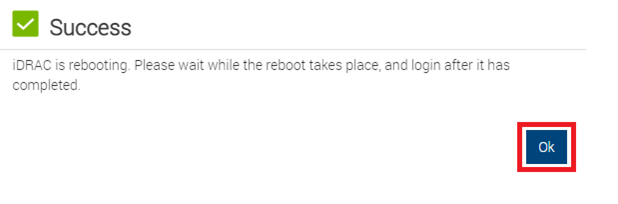
9. On the warning page click 'Ok' and then 'Ok' on the next box

10 Manually refresh the page every 1-2 min. You will see a 'Cannot be displayed' page for several minutes. Keep refreshing the page until you can log back in again.

Other Methods to restart iDRAC -
-
Using SSH -
-
Use an SSH tool to log in to the iDRAC and enter the following command:

-
-
Using the System Identification Button -
-
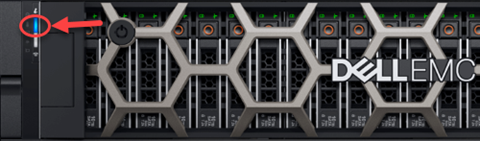
For systems with an iDRAC, the System Identification Button is a small button that is marked "i" typically on the front and back of the system. In order to reset the iDRAC, without rebooting the Operating System, press and hold the System Identification button for at least 16 s. Stop pressing the button when the cooling fans start spinning at full speed and the front LCD (if present) is off. Now the iDRAC restarts without changing any saved settings. It may take a minute or longer until the remote controller restarts.
-
Fourteen Gen and current systems:
- 13 Gen and older:
-


Additional Information
Affected Products
PowerFlex rack, ScaleIOArticle Properties
Article Number: 000308021
Article Type: How To
Last Modified: 20 Aug 2025
Version: 4
Find answers to your questions from other Dell users
Support Services
Check if your device is covered by Support Services.