PowerVault ME5: Available alert and event notification options
Summary: Most administrators do not open PowerVault Manager every day to check the system status. If a fault develops, the problem may not become obvious for a long time due to the levels of redundancy provided by the array. It is highly recommended that Dell ME array administrators configure at least one notification path so they can quickly respond to any critical events that may arise on the system. ...
Instructions
There are several product features with PowerVault ME series that administrators can use to configure alert notification or integrate with existing monitoring solutions. Most product administrators or operators want to receive an email notification, the steps to configure this are below.
PowerVault ME notification options
As best suits your business configure one or more of these methods to monitor your array health status.
- APEX AIOps Infrastructure Observability (formerly CloudIQ).
- Email on product alert event or event history log event.
- Forward SNMP traps to a network monitoring station.
- Forward product events to a syslog server.
- Use custom REST API scripts to query the array status.
- Using OpenManage Enterprise (OME) to monitor PowerVault ME arrays.
SupportAssist with APEX AIOps Infrastructure Observability (formerly CloudIQ)
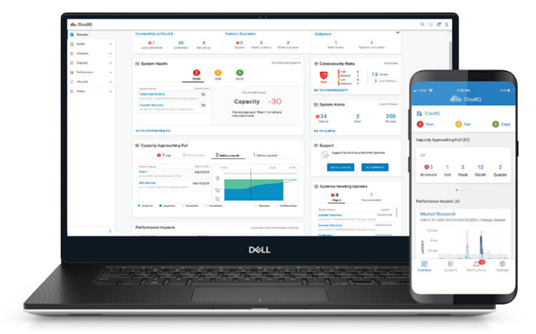
APEX AIOps Infrastructure Observability Overview (CloudIQ) is a free service available to Dell infrastructure products (Servers, Storage, and Switches) customers with ProSupport or ProSupport Plus warranty cover. Administrators can view the health status and other metrics about their monitored Dell infrastructure product devices over Internet browser or smartphone app. APEX AIOps can be configured to send alerts or status reports to your email address. More information about the service can be found in Dell APEX AIOps Infrastructure Observability: A Detailed Review
To avail of this service with Dell PowerVault ME5 series:
-
Enable and configure SupportAssist on PowerVault ME5 series.
- To configure SupportAssist using a direct connection, see PowerVault ME5: How to enable SupportAssist using direct connection.
- To configure SupportAssist with a secure connect gateway, see PowerVault ME5: How to configure SupportAssist to Connect using Gateway Server.
-
Check the option to Enable APEX AIOps (CloudIQ), if not done in the previous step.
-
Log in to https://apex-aiops.dell.com/
Note: You need a Dell support business account, if you have not registered, see How to Register for Access to Dell Technologies Online Support or Upgrade an Existing Account. -
Onboard the PowerVault ME array in APEX AIOps (CloudIQ). For instructions see APEX AIOps Observability: General Procedures to Onboard PowerVault ME Series Arrays
-
Optional: Dell CloudIQ app is available for Android (Google Play
) or IOS smartphones. (Apple Store
Configuring PowerVault ME5 to send an email on alert or additional product event history logs.
The Notifications panel (Settings > Notifications) provides options to send system alert notifications to users through email, SNMP trap hosts, or a remote syslog server.
-
Alerts
An email is sent when an alert is triggered by the PowerVault ME5 system. -
Event history logs
Email alerts are only sent on event history entries when configured using command-line interface. Use the following commands:show email-parameters,set dns-parametersandset email-parametersto configure this option. For more information, see the Dell PowerVault ME5 Series Storage System CLI Reference Guide.
To view alerts using PowerVault Manager.
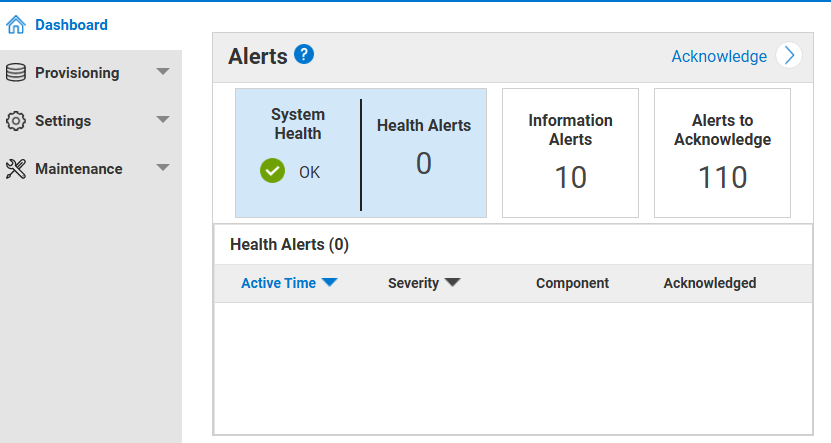
- Click System Health | Health Alerts to view a scrollable list of unresolved health alerts that are affecting system health.
- Click Information Alerts to view a scrollable list of unresolved informational alerts that notify you of actions to take to improve system performance.
- Click Alerts to Acknowledge to view a scrollable list of all resolved and unresolved health and information alerts that need acknowledgment. Alerts are removed from the list after they are acknowledged and resolved.
- Click Acknowledge or the slide-over arrow next to it to open the Alerts panel expanded view.
If you are having a problem with the system, review the event history (Maintenance > Support > Event History) to view event details and recommended actions before calling technical support. Information shown might enable you to resolve the problem. Event descriptions are covered in the Events and event messages section of the Dell PowerVault ME5 Series Storage System Owner’s Manual
Viewing email settings using command-line interface (CLI)
# show email-parameters
Email Parameters (SMTP)
-----------------------
Email Notification: Enabled
Email Address 1: helpdesk@mydomain.com
Email Address 2: sanadmin@mydomain.com
Email Address 3:
Log Destination:
Security Protocol: None
Server Port: 25
Email Server: 10.0.0.11
Email Domain: mydomain.com
Email Sender: ME5SANarray
Email Sender Password: Not Configured
Alert Notification: all               <--- All alerts are sent,  The severity level can be changed using set email-parameters command
Event Notification: none
Include Logs: Disabled

Success: Command completed successfully. (2025-03-27 11:03:00)
Examples using command-line interface to configure email alerts.
/* configure DNS */

set dns-parameters nameservers 10.0.0.10,10.0.0.20 controller both


/* example configure email alerts */

set email-parameters server 10.0.0.11 domain mydomain.com sender ME5SANarray email-list helpdesk@mydomain.com,sanadmin@mydomain.com,, notification-level none port 25


/* example configure email alerts  */

set email-parameters server 10.0.0.11 sender ME5SANarray security-protocol tls port 587 sender-password Abcd_1234 domain mydomain.com notification-level warn include-logs enabled email-list sysadmin@mydomain.com,JSmith@domain2.com,,logcollector@mydomain.com


/* command to send a test alert */

test notification
Configure PowerVault ME5 to send SNMP traps.
The Notifications panel (Settings > Notifications) provides options to send system alert notifications to users through email, SNMP trap hosts, or a remote syslog server.
For more information about SNMP support on PowerVault ME5, see PowerVault ME5: Information About SNMP Support and MIB Location
Configure PowerVault ME5 to forward events to a syslog server.
The Notifications panel (Settings > Notifications) provides options to send system alert notifications to users through email, SNMP trap hosts, or a remote syslog server.
The Syslog panel lets you set remote syslog notifications to allow alerts to be logged by the syslog of a specified host computer. Syslog is a protocol for sending alert messages across an IP network to a logging server. This feature supports User Datagram Protocol (UDP), but not Transmission Control Protocol (TCP).
Administrators can configure using the command-line interface (CLI):
set syslog-parameters notification-level warn host 10.1.1.10 host-port 514
For information about events and recommended actions see the Events Description section of the Dell PowerVault ME5 Series Storage System Owner’s Manual.
Using PowerVault native API or REST API (Redfish and Swordfish).
Administrators & developers may write their own scripts or applications to automate provisioning resources on the array, monitoring array health, reporting on system status or gathering I/O performance metrics. Administrators or developers have two options: (1) Use the native API described in the Using a script to access the CLI section of the PowerVault ME5 Series Storage System CLI Reference Guide. (2) Use Redfish RESTful API for Storage System Management see GitHub - Seagate/SystemsRedfishPy: Cross platform Python tool for provisioning and managing storage systems using the RESTful Redfish/Swordfish API.
Using OpenManage Enterprise (OME) to monitor PowerVault ME arrays.
Organizations can deploy Dell OpenManage Enterprise to monitor various Dell devices in their organization. This may suit businesses that do not allow Internet connectivity and need a central management console to monitor their devices. For information about deploying OME see Support for Dell OpenManage Enterprise
Create a storage device discovery job by using HTTPS protocol for PowerVault devices. You need one controller management IP address, PowerVault ME5 user credentials. OME established a TCP connection to the PowerVault ME management port on port 443.
Steps
- From the Device Type drop-down menu, select DELL STORAGE.
- When prompted, select:
- PowerVault ME: To discover the storage devices using the HTTPS protocol like the PowerVault ME.
- Enter the IP address, hostname, or IP range in IP/Hostname/Range.
- Under Settings, depending on your initial selection — enter the User Name and Password for Storage HTTPS
- Complete the tasks in Create a device discovery job