Media Player Locks Up or Bluescreens When Using a Headset With a Dell Computer
Summary: Using a headset with the 3.5 mm audio jack may cause media players to lock up or may cause a 0x1A bluescreen on some Dell laptops.
This article applies to
This article does not apply to
This article is not tied to any specific product.
Not all product versions are identified in this article.
Symptoms
When plugging a headset into the 3.5 mm audio jack and then playing locally-stored music, a media player locks up with no sound output. When left with no change, this may lead to the computer experiencing a 0x1A "MEMORY_MANAGEMENT" bluescreen. This issue can occur with any media player. This includes Media Player and third-party media players.
When Media Player locks up, restarting Media Player causes the error code 0x800705AA with an error message that says, "We can’t open <FILENAME>. It uses unsupported encoding settings." In the error message, <FILENAME> represents the name of the file that is being opened. This error is not seen with a third-party media player.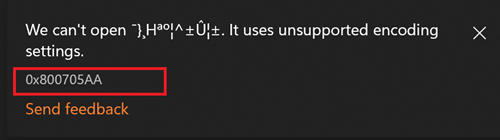
The symptoms disappear after closing the media player for around two to four minutes. Audio can be played using the 3.5 mm audio jack and the media player as expected.
Affected Platforms:
- Dell 14 DC14255 (using Realtek Audio Driver v6.0.9873.1 or v6.0.9859.1)
- Dell 14 Plus 2-in-1 DB04255 (using Realtek Audio Driver v6.0.9865.1)
- Dell 14 Plus DB14255 (using Realtek Audio Driver v6.0.9865.1)
- Dell 16 Plus DB16255 (using Realtek Audio Driver v6.0.9865.1)
- Dell Pro 14 Essential PV14255 (using Realtek Audio Driver v6.0.9873.1)
- Dell Pro 14 PC14255 (using Realtek Audio Driver v6.0.9826.1)
- Dell Pro 16 PC16255 (using Realtek Audio Driver v6.0.9826.1)
Affected Audio Driver:
- Realtek Audio Driver v6.0.9826.1
- Realtek Audio Driver v6.0.9859.1
- Realtek Audio Driver v6.0.9865.1
- Realtek Audio Driver v6.0.9873.1
Cause
Compatibility issues with the audio driver cause this issue.
Resolution
Workarounds
- Workaround option 1: Play music first, then plug in the headset to the 3.5 mm audio jack.
- Workaround option 2: Use a USB Type-C headset, a Bluetooth headset, or the internal speaker.
- Workaround option 3: Close Media Player for around 2 to 4 minutes and then try again.
Long-term solution
The engineering department is working on a fix to be released in Realtek Audio Driver version v6.9882.1 and later. The updated driver is posted to the computer's support page once it is made available.
Affected Products
Dell 14 Plus 2-in-1 DB04255, Dell 14 Plus DB14255, Dell 16 Plus DB16255, Dell 14 DC14255, Dell Pro 14 PC14255, Dell Pro 16 PC16255, Dell Pro 14 Essential PV14255Article Properties
Article Number: 000369694
Article Type: Solution
Last Modified: 16 Sept 2025
Version: 1
Find answers to your questions from other Dell users
Support Services
Check if your device is covered by Support Services.