PowerEdge: How to configure the iDRAC8 Network IP
Summary: This article explains how to configure the IP address for iDRAC8.
This article applies to
This article does not apply to
This article is not tied to any specific product.
Not all product versions are identified in this article.
Instructions
NOTE: This article is part of the PowerEdge 13G startup page available here.
Configure the iDRAC8.
The Integrated Dell Remote Access Controller (iDRAC) is designed to make system administrators more productive and improve the overall availability of Dell systems. iDRAC alerts administrators to system issues, help them perform remote system management, and reduces the need for physical access to the system.
1. Options to set up the iDRAC IP address.
You must configure the initial network settings based on your network infrastructure to enable the communication to and from iDRAC. You can set up the IP address using one of the following interfaces:
- iDRAC Settings utility - Recommended
- Lifecycle Controller (see Lifecycle Controller User’s Guide)
- Dell Deployment Toolkit (see Dell Deployment Toolkit User’s Guide)
- For blades, using the CMC Web interface (see Dell Chassis Management Controller Firmware User’s Guide)
NOTE: When using blade servers, you can configure the network setting using the Chassis LCD panel only during initial configuration of CMC. After the chassis is deployed, you cannot reconfigure iDRAC using the Chassis LCD panel.
2. Setting up the iDRAC IP using "iDRAC Setting Utility" (F2 during startup)
You can set up the IP address or use the default iDRAC IP address 192.168.0.120. To configure initial network settings, including setting up DHCP or the static IP for iDRAC. By default, the dedicated iDRAC network card is disabled. The iDRAC is sharing the network card on LOM 1 (LAN on Motherboard). In the case of blade servers, the iDRAC network interface is disabled by default.
NOTE: If you are using a shared LOM, you must use another system on the network to access the iDRAC as your network will not return the request down the same network port.
Example setting up iDRAC IP using iDRAC settings utility (F2 during startup):
Turn on the managed system.
Press <F2> during Power-on Self-test (POST).

In the System Setup Main Menu page, click iDRAC Settings. The iDRAC Settings page is displayed.

Click Network. The Network page is displayed.
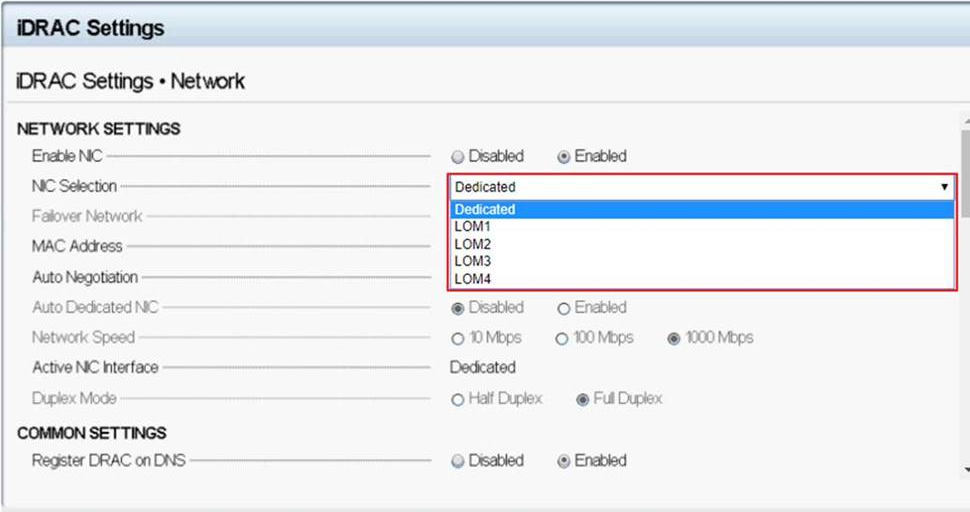
Specify the network settings. Under Enable NIC, select Enabled.
- Shared LOM (1, 2, 3 or 4) will share one of the NIC on the motherboard.
- Dedicated NIC uses the dedicated network interface.
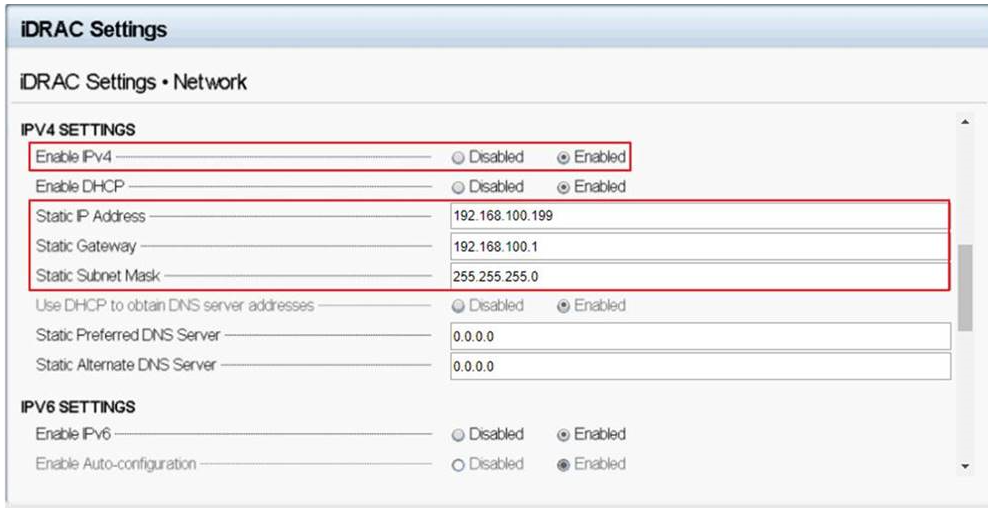
Set the IPv4 or IPv6 network settings, depending on the local configuration.
Click Back, click Finish, and then click Yes. The network information is saved, and the system reboots.

iDRAC configuration is now completed. The iDRAC Web User Interface can now be reached with any supported browser (IE, Firefox, Chrome, Safari). In that case, the iDRAC responds on the IP "192.168.0.120."
If there is any access issue:
- Try to ping the iDRAC IP to check that the network configuration has been replied.
- Check which LOM (network card) has been selected in the iDRAC network settings. The LOM can be shared with the server network cards or use the dedicated iDRAC NICs.
NOTE: After you configure iDRAC IP address, ensure that you change the default username and password after setting up the iDRAC IP address.
Once the iDRAC IP is configured, you can access to the interface with a supported browser. Which username and password used are explained in the article What is the default password for iDRAC?
NOTE: In the iDRAC settings, it is possible to enable directory login (Microsoft AD or LDAP).
When you connect to the iDRAC interface, the following message is displayed "There is a problem with this website's security certificate." This is normal as the SSL certificate from the iDRAC an external provider. To connect, click "Continue to this website."
The login interface of iDRAC8
Affected Products
iDRAC8Products
OEMR R220, OEMR R230, OEMR R320, OEMR R330, OEMR R420, OEMR R430, OEMR R520, OEMR R530, OEMR R620, OEMR R630, OEMR R720, OEMR R720xd, OEMR R730, OEMR R730xd, OEMR R820, OEMR R830, OEMR R920, OEMR R930, OEMR T320, OEMR T330, OEMR T420, OEMR T430
, OEMR T620, OEMR T630, OEMR XL R220, OEMR XL R230, OEMR XL R330, OEMR XL R620, OEMR XL R630, OEMR XL R720, OEMR XL R720xd, OEMR XL R730, OEMR XL R730XD, PowerEdge Rack Enclosure 2420, PowerEdge Rack Enclosure 4220, PowerEdge Rack Enclosure 4620S, PowerEdge Rack Enclosure 4820, PowerEdge C4130, PowerEdge C5125, PowerEdge C5220, PowerEdge C5230, PowerEdge C6220 II, PowerEdge c6300, PowerEdge c6320, PowerEdge c6320p, Poweredge FC430, Poweredge FC630, Poweredge FC830, PowerEdge FD332, PowerEdge FM120x4 (for PE FX2/FX2s), PowerEdge M420, PowerEdge M520, PowerEdge M520 (for PE VRTX), PowerEdge M600, PowerEdge M605, PowerEdge M610x, PowerEdge M620, PowerEdge M620 (for PE VRTX), PowerEdge M630, PowerEdge M630 (for PE VRTX), PowerEdge M820, PowerEdge M820 (for PE VRTX), PowerEdge M830, PowerEdge M830 (for PE VRTX), PowerEdge R210 II, PowerEdge R220, PowerEdge R230, PowerEdge R320, PowerEdge R330, PowerEdge R420, PowerEdge R420XR, PowerEdge R430, PowerEdge R520, PowerEdge R530, PowerEdge R530xd, PowerEdge R620, PowerEdge R630, PowerEdge R720, PowerEdge R720XD, PowerEdge R730, PowerEdge R730xd, PowerEdge R820, PowerEdge R830, PowerEdge R920, PowerEdge R930, PowerEdge T130, PowerEdge T30, PowerEdge T330, PowerEdge T430, PowerEdge T630, PowerEdge SC 430
...
Article Properties
Article Number: 000124653
Article Type: How To
Last Modified: 07 Mar 2025
Version: 8
Find answers to your questions from other Dell users
Support Services
Check if your device is covered by Support Services.