如何解決在 8.3.1 版升級至 Dell 加密後收到的離線資料夾聲明錯誤
Summary: 本文提供有關如何解決升級至 Dell Encryption v8.3.1 後,Microsoft Windows Sync Center 中顯示的離線資料夾「assertion failed has occurred」錯誤訊息「Sync Results」的資訊。
This article applies to
This article does not apply to
This article is not tied to any specific product.
Not all product versions are identified in this article.
Symptoms
受影響的產品:
- Dell Encryption
- Dell Data Protection | Encryption
受影響的版本:
- v8.3.1 及更新版本
Cause
不適用
Resolution
在升級至 Dell Encryption v8.3.1 後,使用者仍可能會遇到 宣告失敗 ,如先前版本的 Dell Encryption 所示。只要在端點上安裝舊版的 Dell 加密,並啟用離線資料夾同步,就會發生錯誤。
Sync Results (同步結果) 畫面可能會顯示錯誤訊息:聲明失敗。
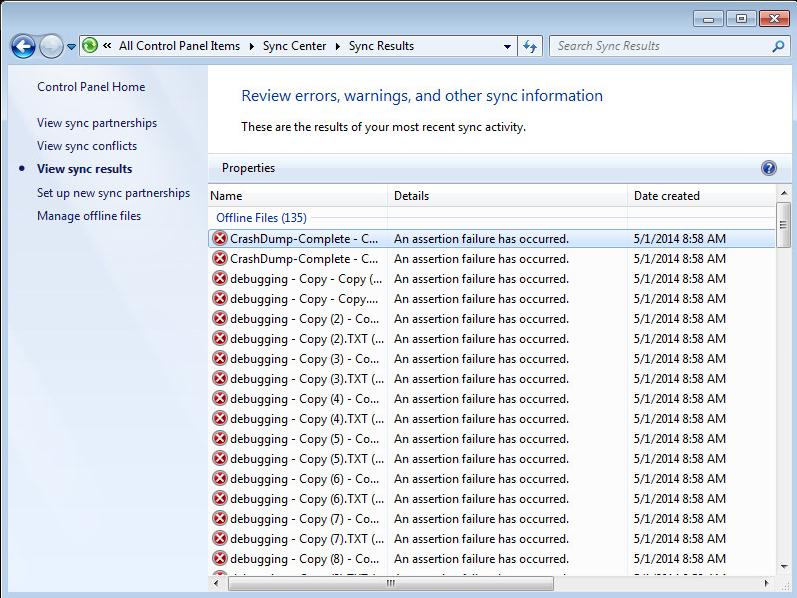
圖 1:(僅限英文)Windows Sync Center 傳回的錯誤訊息結果
若要解決此問題:
- 流覽至離線可用資料夾的網路位置。
- 以滑鼠右鍵按一下資料夾以顯示功能表,然後清除「永遠」離線。
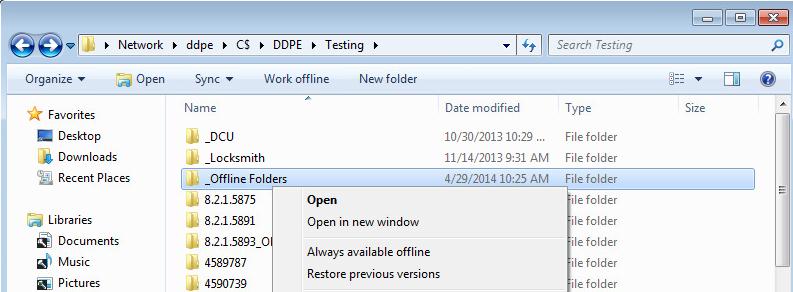
圖 2:(僅限英文)啟用離線同步的網路資料夾
- 「Always Available Offline」(一律可用) 離線對話方塊會顯示「變更檔案」,使其不一定會離線...

圖 3:(僅限英文)隨時提供離線對話方塊
- 程式完成後,按一下 [Close] (關閉)。
- 再次以滑鼠右鍵按一下資料夾以顯示功能表,然後重新勾選 「Always available offline」( Always available offline)。
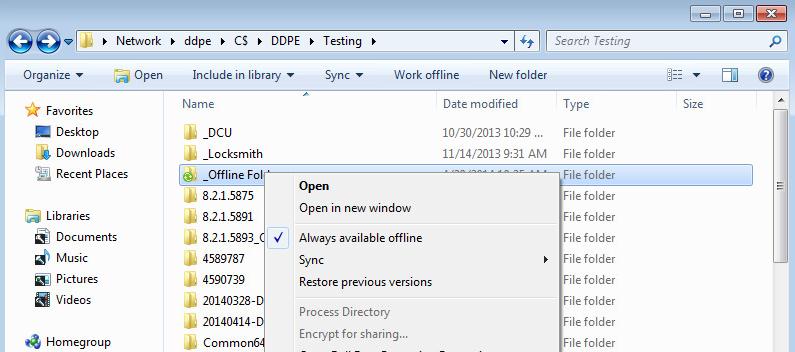
圖 4:(僅限英文)已停用離線同步的網路資料夾
- 同樣地,「永遠可用」離線對話方塊也會顯示,此時會顯示準備檔案,以便隨時離線使用...
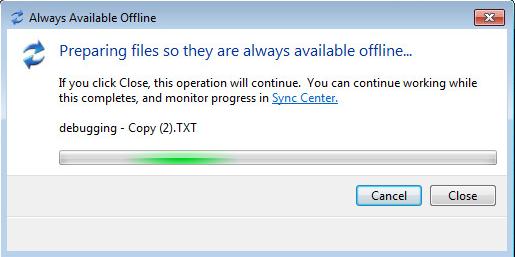
圖 5:(僅限英文)隨時提供離線對話方塊
- 當讓檔案離線可用的作業完成後,檔案便會開始正確同步。

圖 6:(僅限英文)離線資料夾成功同步中心結果
如要聯絡支援部門,請參閱 Dell Data Security 國際支援電話號碼。
請前往 TechDirect,以線上產生技術支援要求。
如需更多深入見解與資源,請加入 Dell 安全性社群論壇。
Affected Products
Dell EncryptionArticle Properties
Article Number: 000124974
Article Type: Solution
Last Modified: 03 Oct 2023
Version: 8
Find answers to your questions from other Dell users
Support Services
Check if your device is covered by Support Services.