Microsoft SQL Server: Installation and Activation without OEM media
Summary: This article shows how to reinstall OEM SQL Server if the installation media has been lost.
This article applies to
This article does not apply to
This article is not tied to any specific product.
Not all product versions are identified in this article.
Instructions
If Microsoft SQL Server is purchased with a Dell server and must be installed later, the original SQL Server media is not required. This is true whether or not SQL Server was factory-installed on the server originally. The SQL Server product key is required, however. This key is located on a Certificate of Authenticity (COA) sticker that shipped in the box with the server. The sticker resembles the image below.
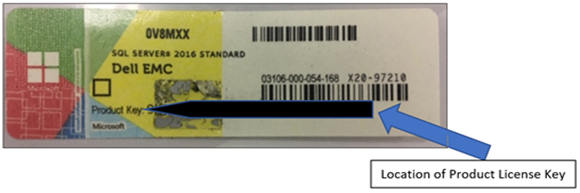
Figure 1: SQL Server COA sticker
To install or reinstall SQL Server without the OEM installation media, perform the following steps.
1. Download an evaluation copy of SQL Server identical to the version of OEM SQL Server purchased with the server. This can be downloaded from https://www.microsoft.com/en-us/evalcenter

2. The downloaded file is a small executable installer.
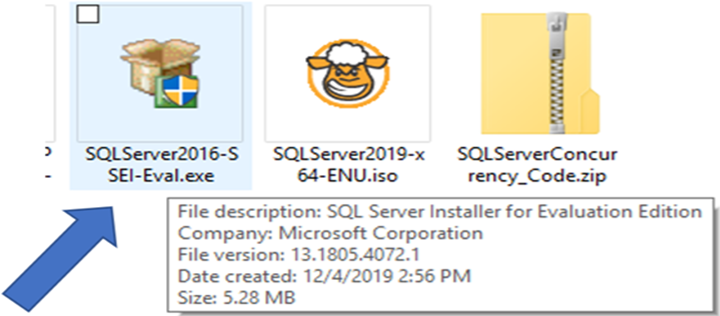
Figure 2: SQL Server executable installer
3. Running the installer presents three options:
- Basic: Install the SQL database engine with a default configuration.
- Custom: Perform a detailed installation of SQL Server, allowing various options to be configured.
- Download Media: Download the full SQL Server installation media in ISO or CAB format but do not begin the installation process.
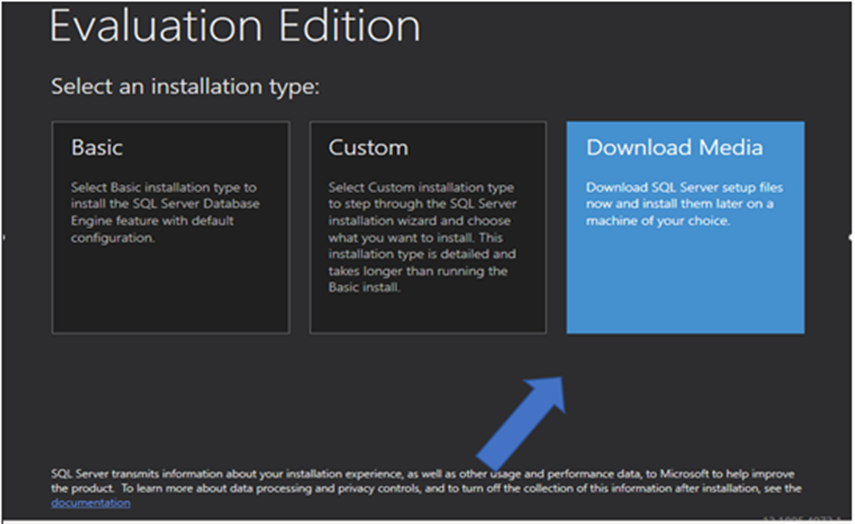
Figure 3: Options presented by the SQL Server installer
4. Following a successful SQL Server installation, the product key can be applied by running setup.exe from the SQL Server evaluation media.
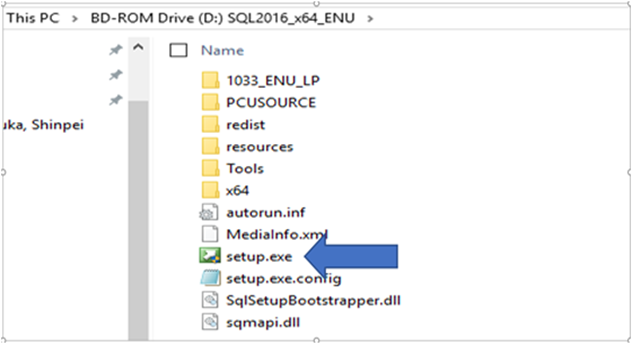
Figure 4: The setup.exe file within the SQL Server evaluation image
5. In the SQL Server Installation Center, select Maintenance on the left side, then select Edition Upgrade.
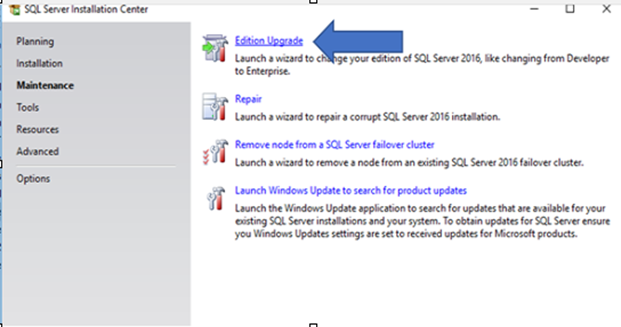
Figure 5: SQL Server Maintenance Center, with Maintenance selected on the left
6. Select Enter the product key and type the key from the COA sticker into the field.
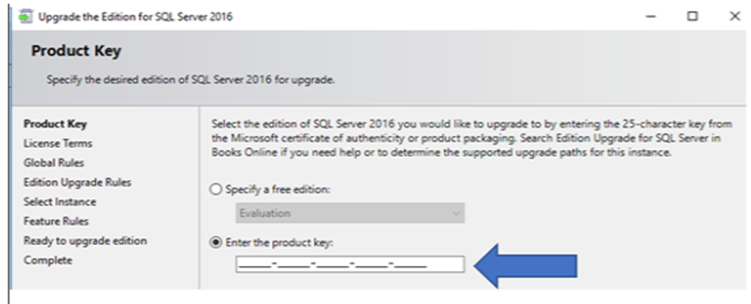
Figure 6: Type the product key in the field provided.
7. Click "Next" to start the upgrade\activation process. Continue through the process until complete.
Affected Products
Dell Quickstart Data Warehouse Appliance, Microsoft Windows Server 2016, Microsoft Windows Server 2019, Microsoft Windows Server 2022, Microsoft Windows Server 2025, Prosupport for Microsoft SoftwareProducts
PowerEdge FC640, PowerEdge M640, PowerEdge M640 (for PE VRTX), PowerEdge MX5016s, PowerEdge MX740C, PowerEdge MX750c, PowerEdge MX760c, PowerEdge MX840C, PowerEdge R240, PowerEdge R250, PowerEdge R260, PowerEdge R340, PowerEdge R350, PowerEdge R360
, PowerEdge R440, PowerEdge R450, PowerEdge R540, PowerEdge R550, PowerEdge R640, PowerEdge R6415, PowerEdge R650, PowerEdge R650xs, PowerEdge R6515, PowerEdge R6525, PowerEdge R660, PowerEdge R660xs, PowerEdge R6615, PowerEdge R6625, PowerEdge R740, PowerEdge R740XD, PowerEdge R740XD2, PowerEdge R7415, PowerEdge R7425, PowerEdge R750, PowerEdge R750XA, PowerEdge R750xs, PowerEdge R7515, PowerEdge R7525, PowerEdge R760, PowerEdge R760XA, PowerEdge R760xd2, PowerEdge R760xs, PowerEdge R7615, PowerEdge R7625, PowerEdge R840, PowerEdge R860, PowerEdge R940, PowerEdge R940xa, PowerEdge R960, PowerEdge T140, PowerEdge T150, PowerEdge T160, PowerEdge T340, PowerEdge T350, PowerEdge T360, PowerEdge T440, PowerEdge T550, PowerEdge T560, PowerEdge T640
...
Article Properties
Article Number: 000133149
Article Type: How To
Last Modified: 19 Apr 2026
Version: 6
Find answers to your questions from other Dell users
Support Services
Check if your device is covered by Support Services.