SC: How to prepare to update a Dell Compellent Storage Center Operating System
Summary: This tutorial explains how to prepare to update a Dell Compellent storage system or SCOS. The steps below to be followed to ensure that the update process runs smoothly.
This article applies to
This article does not apply to
This article is not tied to any specific product.
Not all product versions are identified in this article.
Symptoms
NOTE: As a first step, always contact the Dell Storage Technical Support teams to assist with the updates. Open a request online or call in to do this.
This tutorial explains how to prepare for updating a Dell Compellent Storage Center Operating System (or S.C.O.S.). These steps can be followed to ensure that the update process runs smoothly.
Steps to follow to prepare for a SCOS update:
- Review the Best Practices for your storage
- Perform a Fail Over Test
- Install Enterprise Manager DSM
- Update the Firewall Rules
- Environment Information checklist
Step 1: Review Best practices documentation
Important: Best practice documentation is available at SC Series Technical White Papers and Videos. It is recommended to review this article and the links within, to ensure that the configuration is optimal before doing updates. This article includes a collection of all the technical documentation available for the SC series, including Dell Compellent storage. For Operating System specific information, select from the following operating systems: ESXi 6.X, IBM AIX, Linux/UNIX, Windows
While preparing, pay attention to the Boot on SAN, Live volume, and Replication settings as explained in the best practice documentation above.
While preparing, pay attention to the Boot on SAN, Live volume, and Replication settings as explained in the best practice documentation above.
However, the most important things to check are (depending on the operating system):
VMware - Dell Compellent Best Practices with VMware vSphere.
Document (in English only): https://dl.dell.com/content/manual37896642-dell-sc-series-best-practices-with-vmware-vsphere.pdf
Recommended Multipathing: Round Robin
Login Time-Out/Login Retry Count: Set to 5
LUN Queue Depth: 255
Jumbo Frames: 9000
Windows - Windows Server Best Practices/Microsoft Multipath I/O (MPIO) Best Practices.
Document (in English only): https://downloads.dell.com/manuals/common/680-042-007-sc-series-windows-server-best-practices-wp_en-us.pdf
Document (in English only): https://downloads.dell.com/manuals/common/cml1004-sc-series-multipath-io-best-practices-wp_en-us.pdf
- Recommended Multipathing: Round Robin
- Ensure that the Time-out Value is set to 60 in the following Registry Editor location:
H_Key_Local_Machine\System\CurrentControlSet\Services\Disk
- Microsoft MPIO Recommended Settings in Registry Editor location:
H_Key_Local_Machine/System/CurrentControlSet/Services/mpio/Parameters
Recommended Multipathing: Round Robin
Login Time-Out/Login Retry Count: Set to 5
LUN Queue Depth: 255
Jumbo Frames: 9000
Recommended iSCSI Initiator Settings
Configure the settings below in this Registry Editor location:
H_Key_Local_Machine\SYSTEM\CurrentControlSet\Control\Class\{4D36E97B-E325-11CEBFC1-08002BE10318}\\Parameters
SCSI Initiator Settings Field Settings:
MaxRequestHoldTime 90
LinkDownTime 45
Jumbo Frames: 9000
Back to top
Step 2: Fail Over Test
Why is it important to do a failover test before a SCOS update?
A failover test validates the Best Practice configuration for the hosts is correct so that during the update, the hosts remain connected to their Storage. If your configuration is not correct, the impact of a failover test is shorter than the impact would be during the upgrade.
How to perform a failover test?
- Ensure to complete this during a planned maintenance window if a failover test has not been completed previously.
- Put the system in maintenance mode (This avoids generating unnecessary Support incidents when the controllers reboot).
- In the management interface, right click the system to be put in maintenance mode.
- Click the following options Edit Settings > General > Operation Mode > Maintenance (Figure 1 below (in English only))
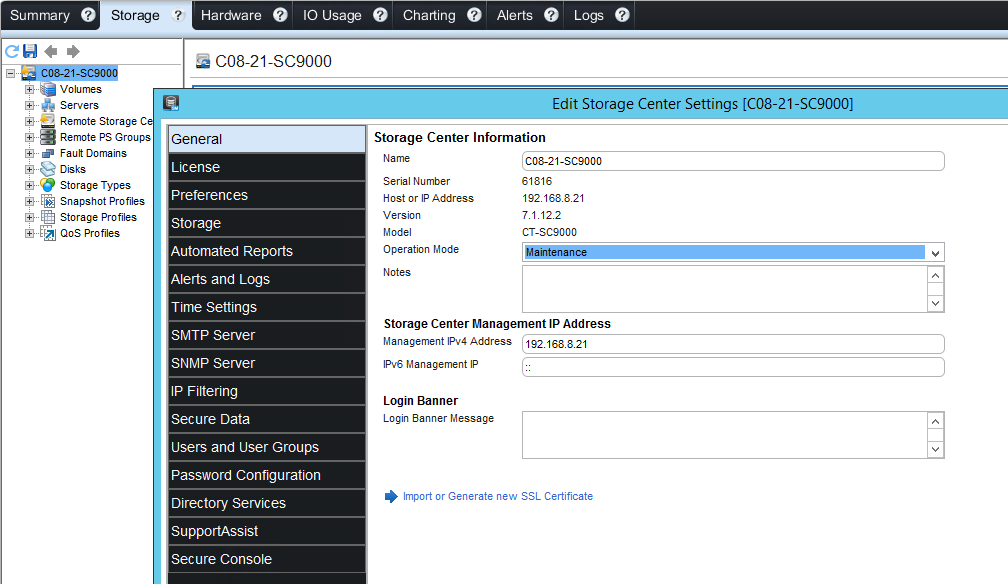
Figure 1: Change Operation Mode to maintenance mode.
- Perform a sequential reboot of the controllers (one after the other)
- In the management interface, right click the system to perform the failover test on
- Click the following options Action > System > Shutdown/Restart
- In the new menu window, choose Restart and Restart in Sequence (for the Restart Options). (Figure 2 below (in English only))
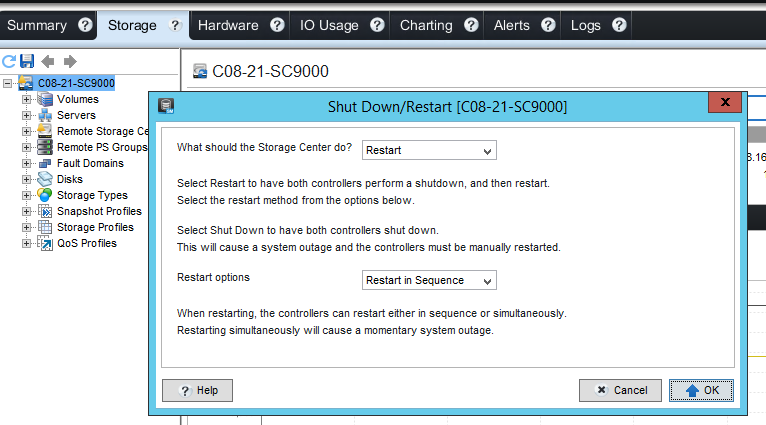
Figure 2: Restart options to restart in sequence.
- During the Failover test, monitor the hosts and ensure they have access to the volumes
- Connect to the host and check that the volumes stay online and that the data is accessible
- In DSM, the connectivity status should be partial. If the connectivity status is down, then the best practice configuration must be reviewed. (Figure 3 below (in English only))
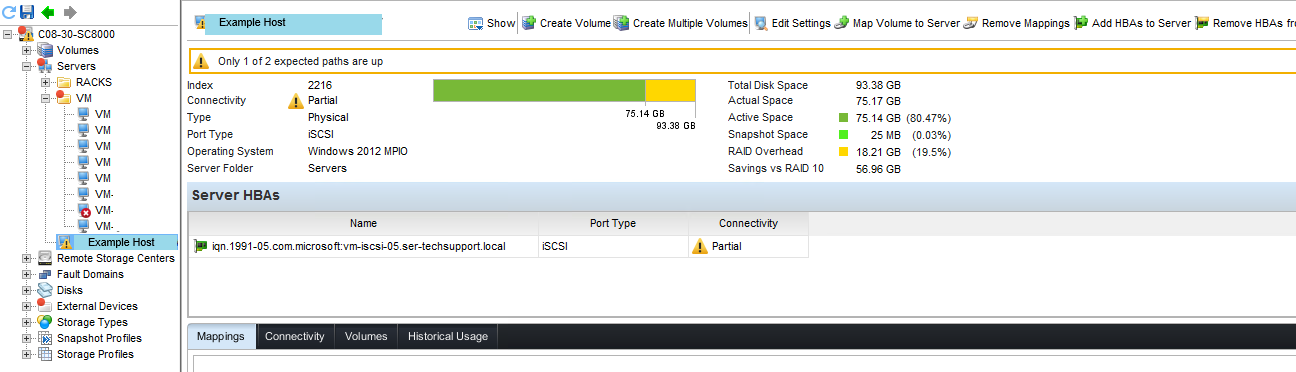
Figure 3: Connectivity status on the Host
- Once the test is complete, be sure to put the system back into production mode
- In the management interface, right click the system to put into production mode
- Click the following options Edit Settings > General > Operation Mode > Production (Figure 1 above (in English only))
- Rebalance the ports following the controllers completing the reboots

If issues are encountered during the test, note the symptoms or error messages and contact Technical support.
Back to top
Step 3: Enterprise Manager/Dell Storage Manager (DSM) Installation
If an external database being used, it is recommended to backup the SQL database or take a snapshot of the Virtual Machine before upgrading DSM. If the internal database within the data collector is used, there is no backup needed.
How to backup the SQL Database:
- Go to SQL Server and open SQL Server Management Studio
- Click New Query and run the command
Backup Database YourDatabaseName TO Disk='D:\yourbackupfilename.bak'
(Figure 4 below, in English only)

Figure 4: SQL Database back-up command and result
How to install DSM:
Important: Do not uninstall a previous version of Enterprise Manager (the installation of DSM upgrades the Enterprise Manager)
Download the latest version of Dell Storage Manager (DSM) on the Dell support site under the category Drivers & Downloads.
All the documentation related to DSM is also available in the Documentation section.
First launch the data collector wizard. The wizard installs visual C++ and reboot.
- Once the system reboots, relaunch the data collector if it did not do so automatically
- The restart may take up to 10 minutes
- Once it has reached the login screen, the installation is completed
- Close data collector
Then install the DSM Client.
- Launch the setup of DSM CLIENT
- Visual c++ is also installed and the system completes a reboot
- After Visual++ completes installation, it will continue to the DSM install
- The install could last for 20 minutes before it reaches the login screen
- Once the login screen appears, it means that the installation has been completed
The settings are automatically injected into the new DSM.
Back to top
Step 4: Firewall Rules updates
The most current set of firewall requirements can be found by referencing article# 000130450 - Dell Compellent: Network requirements to enable Dell SupportAssist Enterprise and Secure Console with Storage Center.
Step 5: Environment Information checklist
The support team may ask the following questions regarding your environment:
- Are the following applications in use?
- CompCU (used to setup SNMP traps for Nagios monitoring for example)
- Bridgehead backup appliance
- Replay Manager or Application Protection Manager
- Dell Storage API PowerShell SDK
- RestAPI
- SRA (VMware)
- Dell Storage vSphere Web Client Plugin
- Dell Storage Integration Tools for VMware (DSITV)
- License FC FLUID Cache (To use SSD as cache)
- Is there a NAS FluidFS connected to your Dell Compellent?
- Do your hosts meet the minimum driver and firmware requirements?
Cause
Not Applicable
Resolution
Not Applicable
Affected Products
Entry Level & Midrange, Compellent (SC, SCv & FS Series)Article Properties
Article Number: 000134713
Article Type: Solution
Last Modified: 03 Sep 2025
Version: 9
Find answers to your questions from other Dell users
Support Services
Check if your device is covered by Support Services.