PS Series: Launching PS Series Group Manager application without Java plug-in support
Summary: Launching Group Manager in a browser defaults to 'Launch in browser window' using the Java plug-in and not 'Launch as an application' using Java Web Start. The option to Launch as an application is presented only during some error conditions. ...
This article applies to
This article does not apply to
This article is not tied to any specific product.
Not all product versions are identified in this article.
Symptoms
Launching Group Manager in a browser defaults to Launch in browser window using the Java plug-in and not Launch as an application using Java Web Start.
The option to Launch as an application is presented only during some error conditions. One example being the required Java Runtime Environment (JRE) is not installed. Also, upon logout from the current UI session within the browser
-
Using a browser which does not support the Java plug-in results in the Group Manager UI prompting to install/update their Java version (Figure 1 [English-only]).
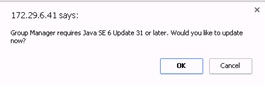
Figure 1: Install or Update Java Version Message -
Click Cancel to open a page that provides the option to Launch as an application. This launches Group Manager as an application using the Java Web Start technology (Figure 2 [English-only]).
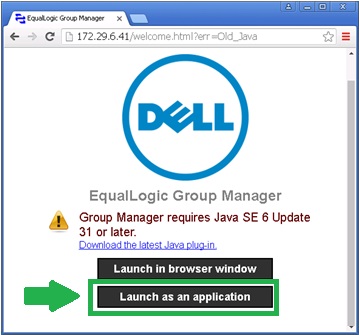
Figure 2: Clicking Launch as an applicationNote: Clicking OK brings us to the Java download page.
The Group Manager UI in this scenario does not provide clear instructions on how to launch the application until arriving at this page.
Cause
Oracle announces the deprecation of the Java browser plug-in, and many browser vendors have discontinued supporting standards-based plug-ins.
Resolution
When the browser does not support the Java plug-in, the Group Manager UI can be started by using any of the following methods:
- Launch the Group Manager UI as a standalone application using Java Web Start.
- To launch the Group Manager UI as a standalone application using Java Web Start, open a command prompt and enter the following command (instead of the usual URL)
javaws http://<appliance-ip>/groupmgr.jnlpNote: The system must have installed Java Runtime Environment (JRE) 1.6.0_31 or later, and the PATH environment variable must be updated to include the Java bin directory.
- To launch the Group Manager UI as a standalone application using Java Web Start, open a command prompt and enter the following command (instead of the usual URL)
- Go to the options page directly and then select Launch as an application.
- To access the Options page, enter the following URL (instead of the usual URL):
Note: Some browsers download the file groupmgr.jnlp by clicking the Launch as an application instead of launching the application. In such cases, double-click the downloaded file to launch the application.
For Mac OS/X 10
- Click Launch as an application. This downloads the groupmgr.jnlp file and adds it to your Downloads list (Figure 3 [English-only]).
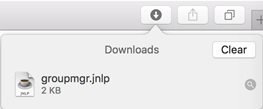
Figure 3: Download list
Note: Double-clicking on the file in the download list results in the Mac OS security message below (Figure 4 [English-only]).
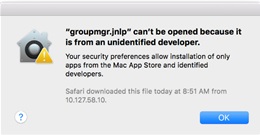
Figure 4: Mac OS security message - To launch the Group Manager, open the Security panel in the Preferences program, and click Click the lock to make changes.
- The Mac OS remembers the last blocked program and gives us the option of opening it anyway without having to edit any general settings.
- Click Open Anyway (Figure 5 [English-only]). This opens a security message (Figure 6 [English-only]):
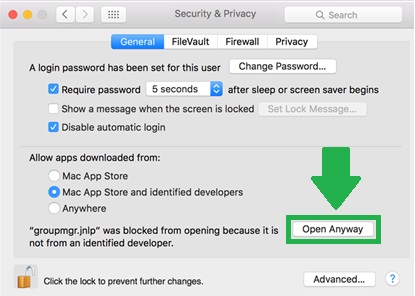
Figure 5: Opening the Security panel in the Preferences program and clicking Open Anyway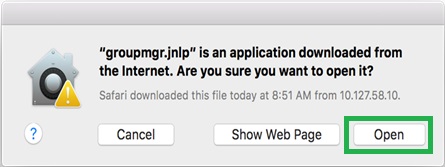
Figure 6: Opening the groupmgr.jnlp file
- Click Open to launch the Group Manager.
- Mac OS will save these security settings for the groupmgr.jnlp file, and will not prompt the user to go through these security steps in the future.
Once complete, the above options will create a desktop shortcut and Start menu item to launch the Dell PS Series Group Manager in the future.
Affected Products
EqualLogic (PS Series)Article Properties
Article Number: 000139153
Article Type: Solution
Last Modified: 26 Jun 2025
Version: 3
Find answers to your questions from other Dell users
Support Services
Check if your device is covered by Support Services.