Learn How to Back Up and Restore Files in Windows 10
Summary: Learn how to back up and restore in Windows 10 with File History.
This article applies to
This article does not apply to
This article is not tied to any specific product.
Not all product versions are identified in this article.
Instructions
How to Back up Files on Windows 10 Dell (Official Dell Tech Support)
Duration: 2:42
Closed captions: English Only
Backup Your Computer with File History
You can use the File History feature in Windows 10 to back up to an external drive or network location. Select Start > Settings > Update & Security > Backup > Add a Drive, and then choose an external drive or network location for your backups.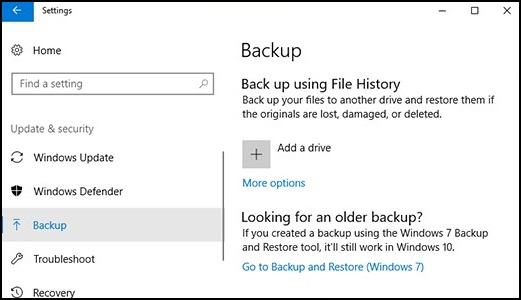
Restore your files with File History.
If you are missing an important file or folder that you have backed up, here is how to get it back:
- In the search box on the taskbar, type: Restore Files
Then select Restore your files with File History. - Look for the file that you need, then use the arrows to see all its versions.
- When you find the version that you want, select Restore to save it in its original location. To save it in a different place, right-click Restore, select Restore to, and then choose a new location.
Find your backups created on previous versions of Windows.
If you used Backup and Restore to back up files or create a computer image backup in previous versions of Windows, your old backup is still available in Windows 10. In the search box on the taskbar, type: Control Panel
Then select Control Panel > System and Security > Backup and Restore (Windows 7).
More Information:
Affected Products
Alienware, Dell All-in-One, Dell Pro All-in-One, Dell Pro Max Micro, Dell Pro Max Slim, Dell Pro Max Tower, Dell Pro Micro, Dell Pro Slim, Dell Pro Tower, Dell Slim, Dell Tower, Inspiron, OptiPlex, Vostro, XPS, G Series, G Series, Alienware
, Dell Plus, Dell Pro, Dell Pro Max, Dell Pro Plus, Dell Pro Premium, Inspiron, Latitude, Dell Pro Rugged, Vostro, XPS, Fixed Workstations, Mobile Workstations, Dell Pro Max Micro XE FCM2250, Dell Pro Max Slim XE FCS1250, Dell Pro Max Tower T2 XE FCT2250, Dell Pro Max 16 XE MC16250, Dell Pro Micro Plus XE QBM1250, Dell Pro Slim Plus XE5 QBS1250, Dell Pro Tower Plus XE5 QBT1250
...
Article Properties
Article Number: 000193501
Article Type: How To
Last Modified: 22 Jul 2025
Version: 8
Find answers to your questions from other Dell users
Support Services
Check if your device is covered by Support Services.