PowerEdge: Trusted Platform Module Support for Windows Server 2022 Operating System
Summary: This document highlights key changes in TPM support for Windows Server 2022 on Dell Servers to enable critical features and meet Microsoft's prerequisites.
This article applies to
This article does not apply to
This article is not tied to any specific product.
Not all product versions are identified in this article.
Instructions
TPM Support Stance:
TPM 2.0 is mandatory (should be installed and configured) for the following PowerEdge Servers shipping with Windows Server 2022 Operating System.
For the list of Dell PowerEdge Servers supporting Windows Server 2022 Operating System, see DellEMC's OS support guide .
Note:
- For Dell PowerEdge Servers shipped prior to January 01, 2021 or Servers shipped with different OS/No OS (with TPM 1.2 or no TPM) can still run Windows Server 2022 Operating System with limited support.
- Minimum supported TPM 2.0 firmware versions are NPCT 650 (1.3.2.8) and NPCT 750 (7.2.2.0)
- Dell EMC PowerEdge Server with Windows Server can be shipped to China with CTPM (China Trusted Platform Module)2.0.
- Minimum supported TPM firmware versions for CTPM are 7.51.x.x
- Microsoft has provided a waiver for China to ship Windows Server 2022 Operating System without TPM 2.0.
TPM Configuration:
- For Dell EMC PowerEdge Servers in order to turn on TPM in BIOS settings:
System Bios > System Security> TPM Security> On
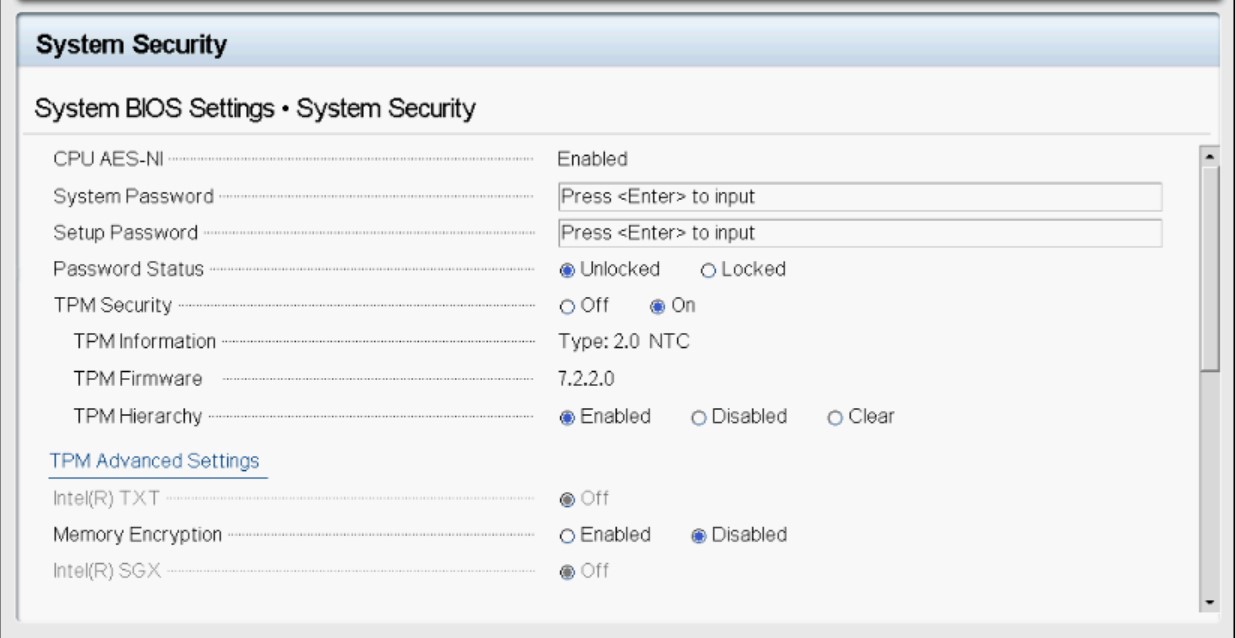
• In the TPM Advanced Settings, the below settings are the default.
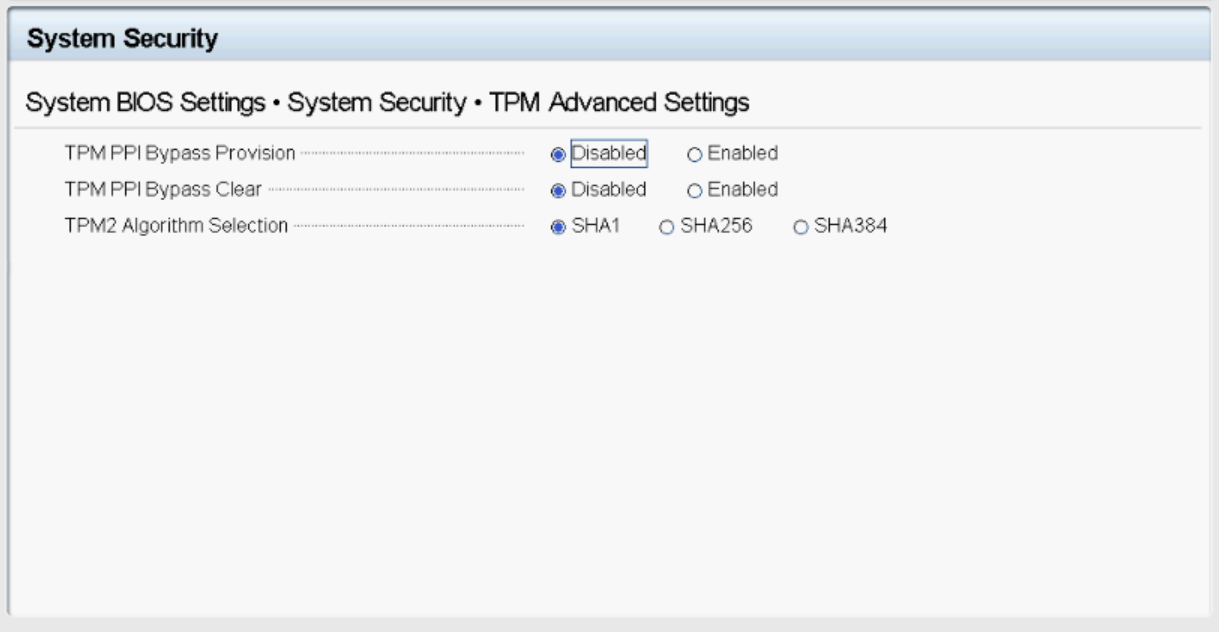
Note: SHA384 should not be used with Windows Server 2022 Operating system.
Checking TPM status and basic provisioning in the Windows Server 2022 Operating System
Following methods can be used to check the TPM status:-
- On server core and Desktop Experience of Windows Server 2022 Operating System, TPM status can be obtained using
Get-TPMCommand in PowerShell.
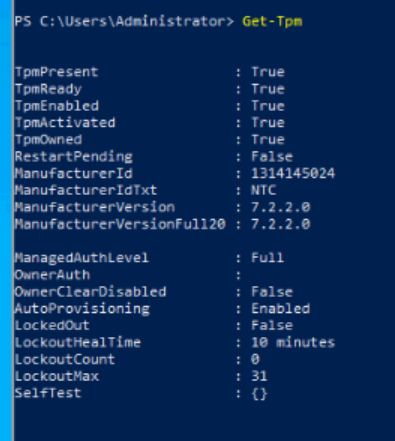
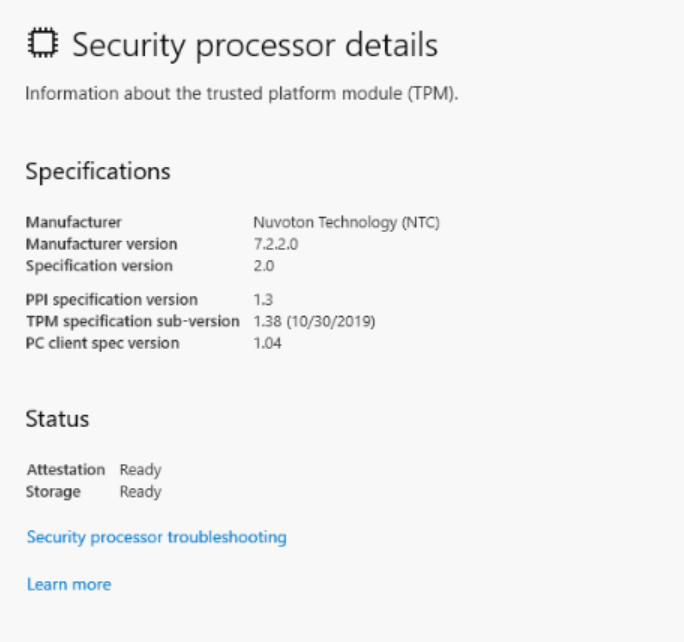
2. TPM processor details can also be checked from the Device Security > Security Processor in Windows Server 2022 Desktop Experience Operating System.
3. The TPM Management console also provides the TPM details in Windows Server 2022 Desktop Experience Operating System. To open the TPM management console, Go to Run and type tpm.msc.
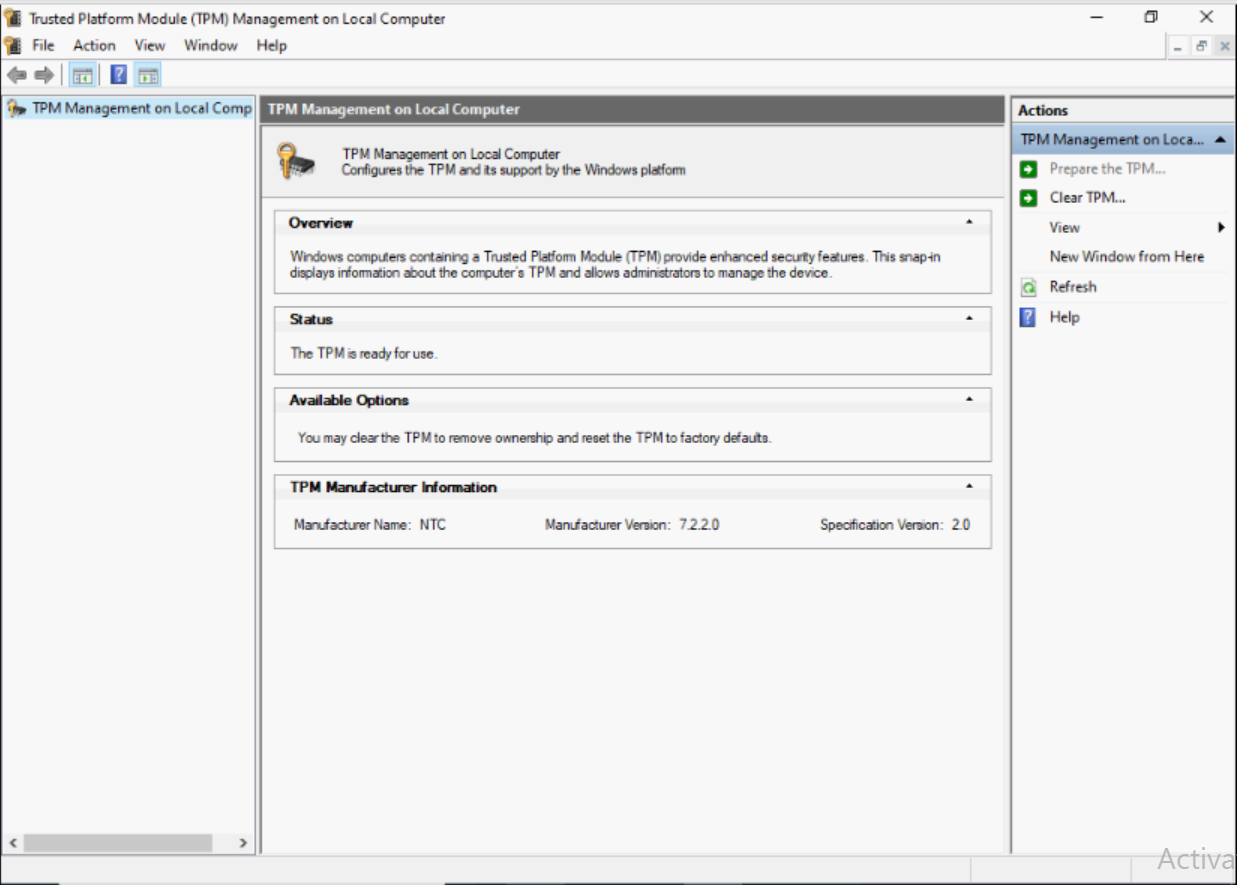
4. Trusted Platform Module can also be found under security devices of the Device Manager.
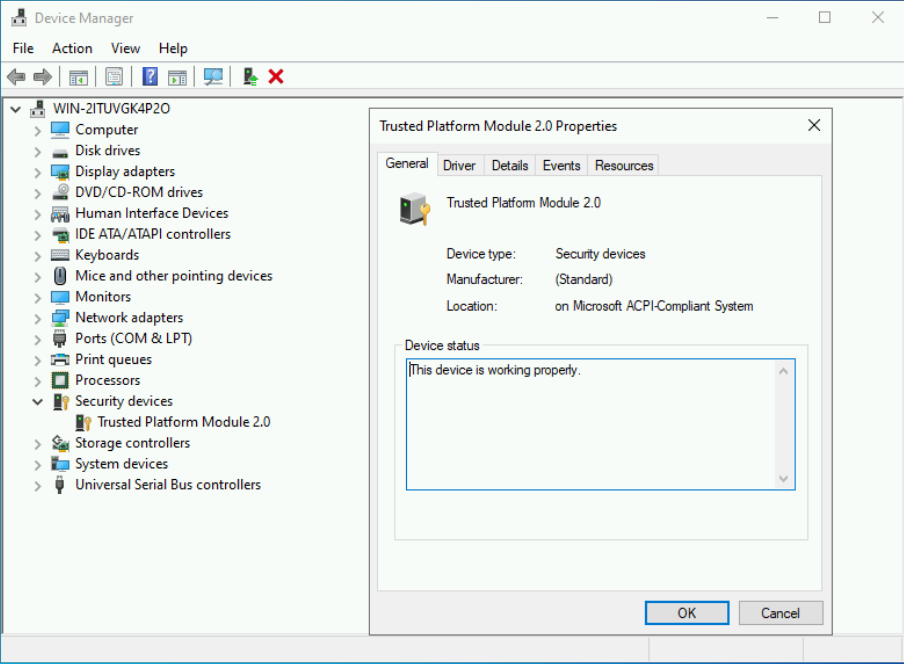
Troubleshooting issues with TPM:
- If the TPM is not detected inside the OS, Clear the TPM Hierarchy in the BIOS Security Settings.
- While running the PowerShell command
Get-TPMin the OS, if the TPM present option is off, Check if the TPM is on in the BIOS Security Settings. - If the TPM is not visible in Device Manager or if the TPM status is not ready in the TPM management console, Check if the TPM is "ON" in the BIOS Security Settings.
- If the TPM is showing "ON" in the BIOS Security Settings but is not visible in Device manager and/or the TPM status is not ready in the TPM management console in Windows Server 2022 Desktop Experience OS, follow the below steps:
- First Disable TPM Auto-Provisioning
- Open Windows Powershell
- Type the Powershell Command
Disable-TPMAutoProvisioning - Check if the Auto-Provisioning shows Disabled
- Clear TPM
- Open the TPM Management Console (
tpm.msc) - In the Actions Pane, click Clear TPM
- Restart the Server.
- Open the TPM Management Console (
- First Disable TPM Auto-Provisioning
- If you are receiving the following message: "The TPM is ON, and ownership has not been taken" in
tpm.msc- Enable TPM Auto-Provisioning
- Open Windows PowerShell
- Type the PowerShell Command
Enable-TPMAutoProvisioning - Check if the Auto-Provisioning shows Enabled.
- Enable TPM Auto-Provisioning
Affected Products
Microsoft Windows Server 2022Products
PowerEdge XR2, Poweredge C4140, PowerEdge C6400, PowerEdge C6420, PowerEdge C6520, PowerEdge C6525, PowerEdge FC640, PowerEdge M640, PowerEdge M640 (for PE VRTX), PowerEdge MX5016s, PowerEdge MX740C, PowerEdge MX840C, PowerEdge R240, PowerEdge R250
, PowerEdge R340, PowerEdge R350, PowerEdge R440, PowerEdge R450, PowerEdge R540, PowerEdge R550, PowerEdge R640, PowerEdge R6415, PowerEdge R650, PowerEdge R650xs, PowerEdge R6515, PowerEdge R6525, PowerEdge R740, PowerEdge R740XD, PowerEdge R740XD2, PowerEdge R7415, PowerEdge R7425, PowerEdge R750, PowerEdge R750XA, PowerEdge R750xs, PowerEdge R7515, PowerEdge R7525, PowerEdge R840, PowerEdge R940, PowerEdge R940xa, PowerEdge T140, PowerEdge T340, PowerEdge T40, PowerEdge T440, PowerEdge T640, PowerEdge XE2420, PowerEdge XE7100, PowerEdge XE7420, PowerEdge XE7440, PowerEdge XE8545, PowerEdge XR11, PowerEdge XR12, PowerEdge XR4000r, PowerEdge XR4000w, PowerEdge XR4000z, PowerEdge XR4510c, PowerEdge XR4520c
...
Article Properties
Article Number: 000195562
Article Type: How To
Last Modified: 07 May 2026
Version: 4
Find answers to your questions from other Dell users
Support Services
Check if your device is covered by Support Services.