Alienware Wired Gaming Headset AW520H Usage and Troubleshooting Guide
Summary: The following article provides information about the Alienware Wired Gaming Headset - AW520H. You can reference each section to learn more about the features of the Alienware Wired Gaming Headset - AW520H and how to use it. ...
This article applies to
This article does not apply to
This article is not tied to any specific product.
Not all product versions are identified in this article.
Instructions
Table of Contents:
- What is in the Alienware Wired Gaming Headset - AW520H box?
- Wired Gaming Headset Features
- Setting up your Wired Gaming Headset
- Troubleshooting
- Additional Information
Experience immersive sound with High-Resolution certified drivers and Dolby Atmos spatial audio support. All in a comfortable and easy-to-adjust design.

(Figure.1 Shipping in either "Dark Side of the Moon" or "Lunar Light")
What is in the Alienware Wired Gaming Headset - AW520H box?
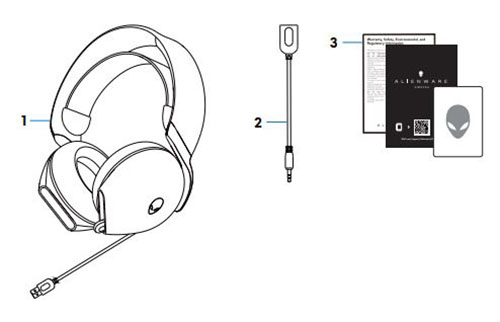
(Figure.2 Alienware Wired Gaming Headset - AW520H Box Contents)
| 1 | Alienware Wired Gaming Headset - AW520H | 2 | 3.5 mm Audio Adapter |
| 3 | Documents |
Wired Gaming Headset Features
Front View
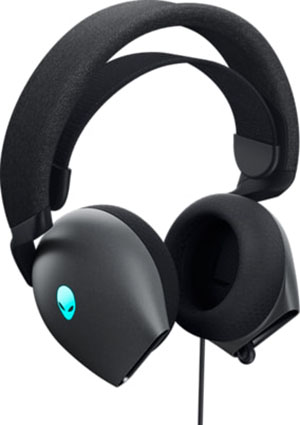
(Figure.3 Alienware Wired Gaming Headset - AW520H Front View)
Left View

(Figure.4 Alienware Wired Gaming Headset - AW520H Left View)
Product Features

(Figure.5 Alienware Wired Gaming Headset - AW520H Product Features Rear View)
| 1 | LED Indicator | 2 | Microphone Mute Button |
| 3 | Volume Control | 4 | Retractable Microphone and Microphone Mute Indicator |
| 5 | USB Type-A Wired Headset Cable |
Setting up your Wired Gaming Headset
Compatibility
System Requirements:
- PlayStation, Xbox, Switch, or other mobile devices with 3.5 mm audio port
- Windows 11 or Windows 10 (64-bit) computer device with USB Type-A port
Connecting the Wired Gaming Headset
The Alienware Wired Gaming Headset - AW520H uses either USB Type-A connector or an adapter (3.5 mm audio jack) to connect to the computer or audio device.
Connecting the Wired Gaming Headset using USB

(Figure.6 USB Type-A Connector)
Connect the USB Type-A connector from your headset cable to the Type-A port on your computer.
Connecting the Wired Gaming Headset using the 3.5 mm Audio Jack adapter
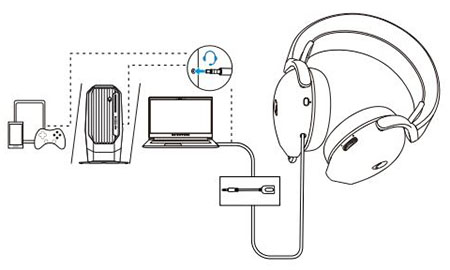
(Figure.7 3.5 mm Audio Jack Adapter Connector)
Connect the USB Type-A connector from your headset cable to the Type-A port on your adapter cable (3.5 mm audio jack).
Plug the 3.5 mm audio jack to the audio jack on the computer or audio device.
Note: The headset LED indicator does not work when you are using the 3.5 mm audio jack.
Troubleshooting
| Problems | Possible solutions |
|---|---|
| There is no sound from the Headset. |
|
| The person I am talking to cannot hear me. |
|
| An abnormal sound is coming out of the headset. |
|
| The headset LEDs do not light up |
|
| The microphone picks up too much background noise. |
|
| The microphones mute does not work when the 3.5 mm audio adapter is connected. |
|
| Alienware command center does not recognize the headset. |
|
Additional Information
Additional Information
Alienware Wired Gaming Stereo Headset AW520H troubleshooting knowledge base for audio devices
Learn how to use and troubleshoot problems with the Headset that you use with your computer. You can find information about Troubleshooting steps, How-To guides, and relevant Support Videos for assistance.
For the Alienware Wired Gaming Headset - AW520H User Guide, browse to the Alienware Wired Gaming Headset - AW520H Online Manual Page. You can touch or click the View PDF to the right of the Pro Stereo Headset User Guide. It is located in the Manuals and Documents section.
Affected Products
Alienware Wired Gaming Headset AW520HArticle Properties
Article Number: 000212692
Article Type: How To
Last Modified: 24 Apr 2023
Version: 1
Find answers to your questions from other Dell users
Support Services
Check if your device is covered by Support Services.