PowerProtect Data Manager: How to manually mount a File System Agent backup
Summary: This article explains how to manually mount a PowerProtect Data Manager file system agent backup using ddfsrc command.
This article applies to
This article does not apply to
This article is not tied to any specific product.
Not all product versions are identified in this article.
Instructions
During troubleshooting of a restore of PowerProtect Data Manager FileSystem agent backup, in cases where have been unable to perform an FLR restore from PowerProtect Data Manager UI either because it fails or stops responding, users can manually attempt the mount of a backup using commands and performing the following steps:
Commands to run on the source client from where the data must be restored:
Local backup query:
Commands to run on the source client from where the data must be restored:
- Connect to the source server FROM WHERE you want to restore your data.
- Use the following command to query either locally or remotely stored backup related information:
ddfsadmin
TIP: It is suggested to redirect the output of each command to a .txt file so requested data can be gathered from the new files generated. These files should also be attached to the SR as part of the troubleshooting steps performed.
Query lockbox information:
Run following command to identify existing Data Domain IPs or Names, Storage Unit used for the backups, and DDBoost user:
Run following command to identify existing Data Domain IPs or Names, Storage Unit used for the backups, and DDBoost user:
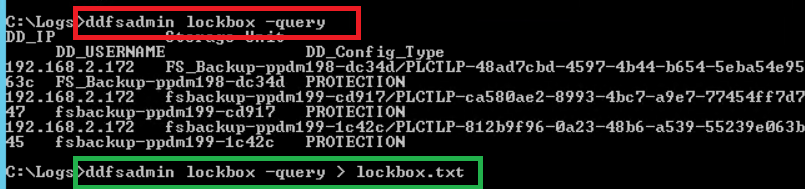
ddfsadmin lockbox -query
Figure 1: Screenshot of results for command ddfsadmin lockbox -query
Command options:
ddfsadmin

usage: ddfsadmin backup [options]
   query -help: to print the help.
   query -local [-v=<volume name>] [-t=<time value>[h = hour,d = days,w = weeks,m = months]: query the local record file for listing backups.
   query -remote -d=<PowerProtect DD system> -s=<storage_unit> -u=<username> [-p=<dd password>] [-c=<hostname>] [-v=<volume name>] [-t=<time value>[h = hour,d = days,w = weeks,m = months]: query the record file on PowerProtect DD System for listing backups.

Example: ddfsadmin backup query -local -v="C:\\" -t=5d
Local backup query:
Run following command to get a list of existing backups for this client STORED on LOCAL DBs:
These backups are the ones reported locally, and it may be a different from the ones reported by the Data Domain itself. See the next command as some of the existing backups may have correctly been expired and removed from the Data Domain side, but the local database has not yet been updated.

Command to run on the host where the restore is performed:
The following command must be run on the host where the restore was performed:
Use ddfsrc to manually mount selected backup:
The following command is used to manually mount the backup on the host where the command is run which makes the backup available and browsable over the mount point, which by default is located under the folder:

These backups are the ones reported locally, and it may be a different from the ones reported by the Data Domain itself. See the next command as some of the existing backups may have correctly been expired and removed from the Data Domain side, but the local database has not yet been updated.
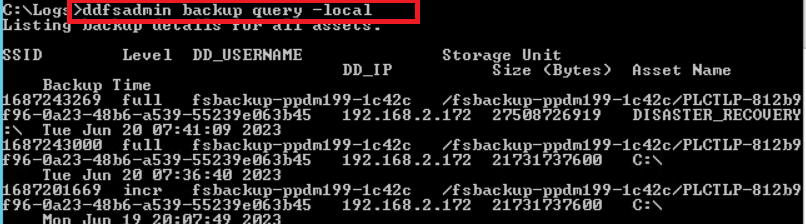
ddfsadmin backup query -local
Figure 2: Screenshot of results for command ddfsadmin backup query -local
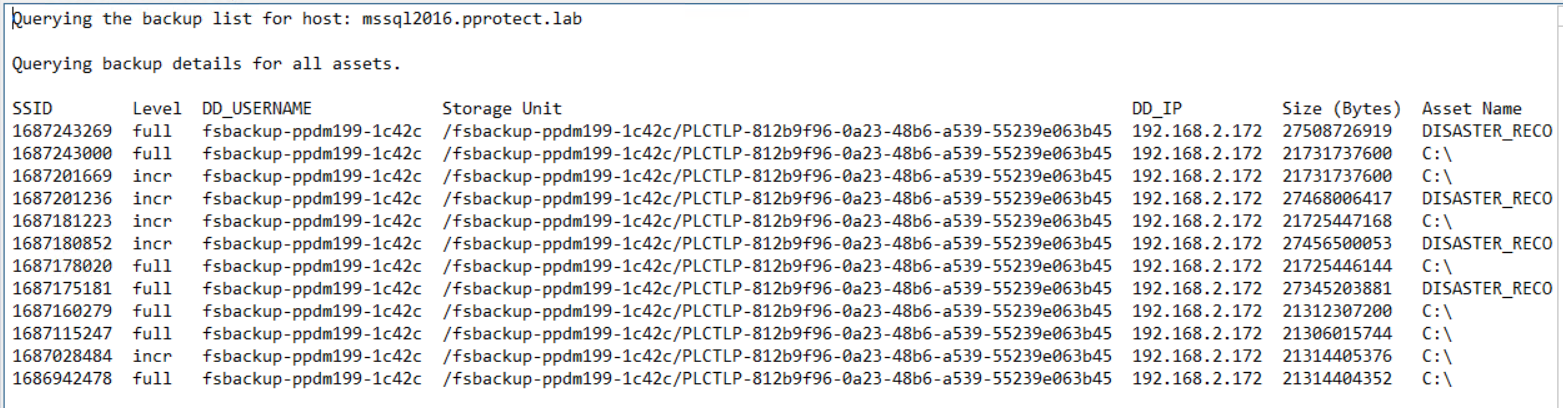
The file is localbck.txt (This is a file that can be generated by redirecting the output of the previous command:
ddfsadmin backup query -local > localbck.txt.
Figure 3: Screenshot of backup details for all assets
Remote backup query:
Run following command to get the list of existing backups for this client stored on the Data Domain under the specified Storage Unit:
Run following command to get the list of existing backups for this client stored on the Data Domain under the specified Storage Unit:
ddfsadmin backup query -remote -d=DD_name_IP -s=SU_name -u=DDBoost_user
Example
Using the output of lockbox.txt command previously gathered:
ddfsadmin backup query -remote -d=192.168.2.172 -s=/fsbackup-ppdm199-1c42c/PLCTLP-812b9f96-0a23-48b6-a539-55239e063b45 -u=fsbackup-ppdm199-1c42c
Figure 4: Screenshot of results for command ddfsadmin backup query -remote
Command to run on the host where the restore is performed:
The following command must be run on the host where the restore was performed:
- To recover client A on client A, run the command on client A.
- To recover client A on client B, run the command on client B, and ensure ddfsrc -c clientA is defined.
Use ddfsrc to manually mount selected backup:
The following command is used to manually mount the backup on the host where the command is run which makes the backup available and browsable over the mount point, which by default is located under the folder:
DPSAPPS_install_dir/fsagent/tmp/BBB
ddfsrc command options
   Usage: ddfsrc [OPTION]... STRING
      STRING can be a file path string, key=value string, or a flag string.

   -c  <client>
      Specifies the client index name, such as a hostname or clustername.

   -d  <destination>
      Specifies the destination directory into which files are recovered. Combined with -I, specifies the file level recovery.

   -h  [<key>=<value>]
      DFA_SI_DD_HOST=hostname         Data target hostname is mandatory.
      DFA_SI_DD_USER=username         Data target username is mandatory.
      DFA_SI_DEVICE_PATH=device_path         A device path is mandatory.
      DFA_SI_DD_LOCKBOX_PATH=lockbox_path     If credentials were not added in the default lockbox path, a lockbox path is mandatory. Default lockbox path is C:\Program Files\DPSAPPS\fsagent\lockbox.
      DDBOOST_COMPRESSED_RESTORE=TRUE|FALSE     Specifies whether to compress the data transfer. The TRUE setting specifies the compressed data transfer. The default value is FALSE.

   -i  [nNoOrRyY]
      N or n                     Specifies to discard (do not overwrite) identical files during recovery.
      O or o                     Specifies to overwrite, but if the file is locked, not overwrite at reboot.
      R or r                     Specifies to rename if the recovered file is identical.
      Y or y                     Specifies to overwrite and replace at reboot if file is locked.

   -I  <filename>
      Specifies the file from which to extract the restored file names. Combined with -d, specifies the file level recovery.
   -r  <target>
      Specifies the target directory into which files are recovered, such as local disk C:\ or D:\, directory E:\restore_directory on Windows, or directory /restore_directory on Linux.

   -S  <backup>
      Specifies the backup ID that will be used to perform recovery.

   -g
      Specifies to discard upward folder hierarchy during file level recovery.
ddfsrc mount/unmount command syntax

ddfsrc -c source_client_from_which_backup_will_be_restored -S backup_id/SSID -h DFA_SI_DD_HOST=DD_name/IP -h DFA_SI_DD_USER=DDBoostUser DFA_SI_DEVICE_PATH=Storage_Unit -k mount/unmount
Example
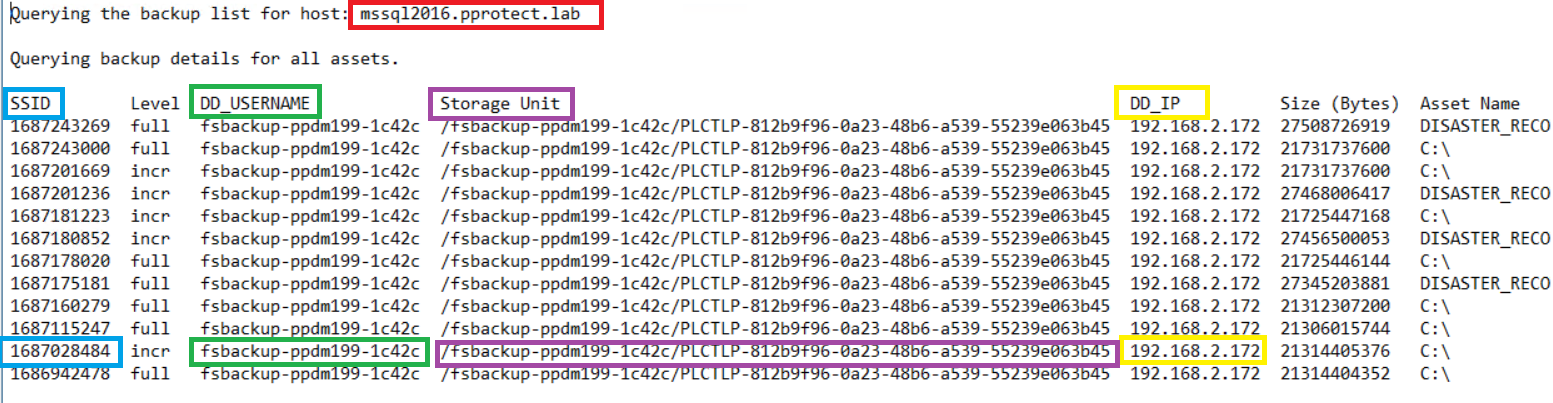
Using the information previously collected with ddfsadmin command queries:
Figure 5: Screenshot of details for ddfsadmin command queries
ddfsrc -c MSSQL2016.pprotect.lab -S 1687028484 -h DFA_SI_DD_HOST=192.168.2.172 -h DFA_SI_DD_USER=fsbackup-ppdm199-1c42c -h DFA_SI_DEVICE_PATH=/fsbackup-ppdm199-1c42c/PLCTLP-812b9f96-0a23-48b6-a539-55239e063b45 -k mount
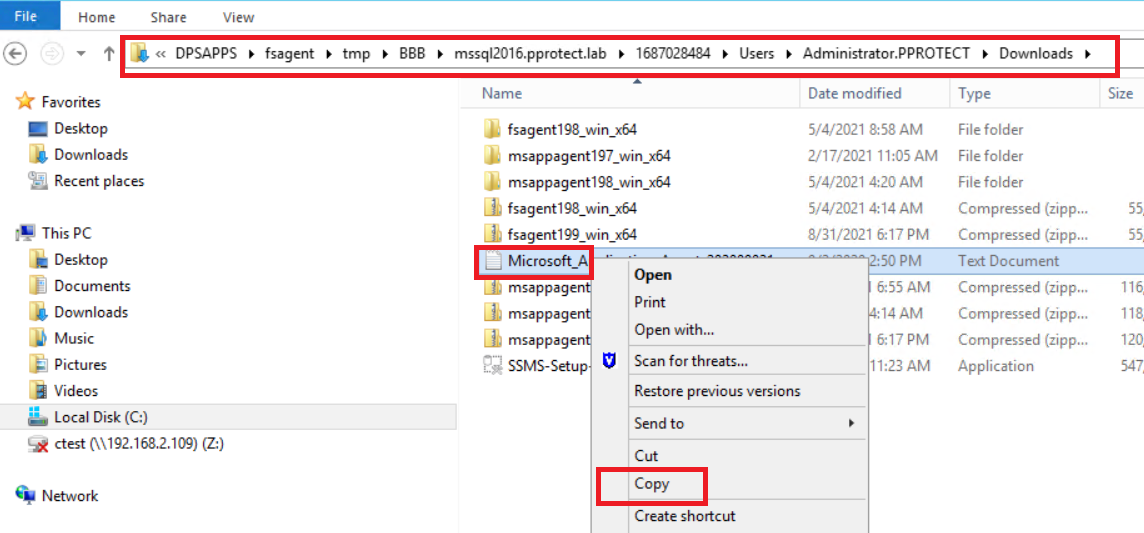
The above command mounts incremental backups selected under default mount path folder, which can then be accessed using a normal file explorer:
Figure 6: File address
Figure 7: Screenshot File address location
Files or folders can be manually copied from the mounted backup to any restore path selected.
TIP: The above command can also be used for debugging file system backup mount issues by adding -D [0-9] flag to the command ddfsrc -D9.
Once operations are completed, remember to unmount the backup by running the same command with -k unmount:
ddfsrc -c MSSQL2016.pprotect.lab -S 1687028484 -h DFA_SI_DD_HOST=192.168.2.172 -h DFA_SI_DD_USER=fsbackup-ppdm199-1c42c -h DFA_SI_DEVICE_PATH=/fsbackup-ppdm199-1c42c/PLCTLP-812b9f96-0a23-48b6-a539-55239e063b45 -k unmount
Affected Products
PowerProtect SoftwareArticle Properties
Article Number: 000215181
Article Type: How To
Last Modified: 27 May 2026
Version: 3
Find answers to your questions from other Dell users
Support Services
Check if your device is covered by Support Services.