在部署 Windows S 模式和教育用 SE 期間,稽核模式會出現錯誤訊息
Summary: 本文提供在部署 Windows 10 S 模式、Windows 11 S 模式和 Windows 11 SE 教育版期間,稽核模式中出現的錯誤訊息相關資訊。
This article applies to
This article does not apply to
This article is not tied to any specific product.
Not all product versions are identified in this article.
Symptoms
受影響的平台:
- Latitude 3120
- Latitude 3140
- Latitude 3190
- Inspiron 3880
- Inspiron 3891
- Inspiron 3910
- Inspiron 5301
- Inspiron 5402/5409
- Inspiron 5405
- Inspiron 5502/5509
- Inspiron 5505
- Inspiron 13 5310
- Inspiron 13 5320
- Inspiron 14 5410/5418
- Inspiron 14 5415
- Inspiron 14 5420
- Inspiron 14 5425
- Inspiron 14 5406 二合一
- Inspiron 14 5410 二合一
- Inspiron 14 7415 二合一
- Inspiron 14 7420 二合一
- Inspiron 14 7425 二合一
- Inspiron 15 3501
- Inspiron 15 3502
- Inspiron 15 3505
- Inspiron 15 3510
- Inspiron 15 3511
- Inspiron 15 3515
- Inspiron 15 3520
- Inspiron 15 3521
- Inspiron 15 3525
- Inspiron 15 5510/5518
- Inspiron 15 5515
- Inspiron 16 5620
- Inspiron 16 5625
- Inspiron 16 7610
- Inspiron 16 7620 二合一
- Vostro 5301
受影響的作業系統:
- Windows 10 S 模式
- Windows 11 S 模式
- 教育用 Windows 11 SE
如果裝置已安裝 Windows 10 S 模式、Windows 11 S 模式或 Windows 11 SE,然後嘗試重新安裝相同的作業系統,則會失敗並顯示下列錯誤:
Windows 無法剖析或處理自動安裝回應檔案 [C:\Windows\Panther\Unattend.xml]
Cause
依預設,S 模式和 SE 不允許執行任何命令,這是作業系統層級的限制。由於此限制,執行 unattend.xml 調用的批次指令檔會導致此錯誤訊息。
Resolution
在 BIOS 中停用安全開機來安裝 S 模式或 SE,可讓安裝成功。Dell Technologies 建議您停用安全開機。在啟用安全開機的情況下,再次重複相同的步驟。
請按照以下逐步程序,在啟用安全開機的情況下還原裝置:
- 連接上有 S 模式或 SE 的 USB 隨身碟 。
- 開啟 裝置電源。
- 按下 F2 鍵數次以開機至 UEFI 韌體設定 (當畫面上出現 Dell 標誌時,請按下 F2 鍵)。
- 在 UEFI 固件設定>中,開機組態>安全開機>關閉。
- 按一下 套用 並 結束 UEFI 韌體設定 (此程序會將裝置重新開機)。
- Dell 標誌出現時,按下 F12 鍵,以顯示 開機裝置選取畫面。
- 選取 USB 金鑰 並按下 Enter 鍵 (這會從 USB 金鑰啟動)。
- 按照畫面上的指示開始部署。
- 裝置進入立即可用體驗 (OOB) 後,請按下電源按鈕五秒鐘,將裝置關機。
- 開啟 裝置電源。
- 按下 F2 鍵數次以開機至 UEFI 韌體設定 (當畫面上出現 Dell 標誌時,請按下 F2 鍵)。
- 在 UEFI 固件設定>中,開機組態>安全開機>轉向 ON。
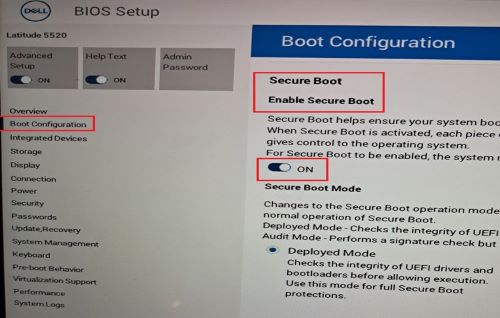
- 按一下 套用 並 結束 UEFI 韌體設定 (此程序會將裝置重新開機)。
- 在 Dell 標誌出現時按下 F12 鍵,以進入 開機裝置選擇選單。
- 選取 USB 金鑰 並按下 Enter 鍵 (這會從 USB 金鑰啟動開機)。
- 按照畫面上的指示開始作業系統部署。
- 裝置進入 OOB 後,請按照畫面中的指示操作,然後登入桌上型電腦。
- 開啟 系統內容 ,並確認作業系統為 S 模式或 SE。
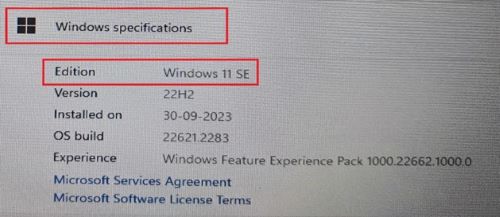
- 以滑鼠右鍵按一下開始功能表中>的 Windows 圖示 按一下系統>按一下關於
- 在 Windows 規格下,版本應顯示為:
- Windows 10 S 模式
- Windows 11 S 模式
- Windows 11 SE
Affected Products
Inspiron 5301, Inspiron 13 5310, Inspiron 13 5320, Inspiron 5402/5409, Inspiron 5405, Inspiron 5406 2-in-1, Inspiron 14 5410 2-in-1, Inspiron 14 5410/5418, Inspiron 5415, Inspiron 14 5420, Inspiron 14 5425, Inspiron 7415 2-in-1
, Inspiron 14 7420 2-in-1, Inspiron 14 7425 2-in-1, Inspiron 3501, Inspiron 3502, Inspiron 3505, Inspiron 15 3510, Inspiron 15 3511, Inspiron 15 3515, Inspiron 15 3520, Inspiron 15 3521, Inspiron 15 3525, Inspiron 5502/5509, Inspiron 5505, Inspiron 15 5510/5518, Inspiron 5515, Inspiron 16 5620, Inspiron 16 5625, Inspiron 16 7610, Inspiron 16 7620 2-in-1, Inspiron 3880, Inspiron 3891, Inspiron 3910, Latitude 3120, Latitude 3140, Latitude 3190, Vostro 5301
...
Article Properties
Article Number: 000223620
Article Type: Solution
Last Modified: 15 Apr 2025
Version: 5
Find answers to your questions from other Dell users
Support Services
Check if your device is covered by Support Services.