在部署 Windows S 模式和 SE 教育版期间,审核模式下显示错误消息
Summary: 本文提供有关在部署 Windows 10 S 模式、Windows 11 S 模式和 Windows 11 SE 教育版期间在审核模式下显示的错误消息的信息。
This article applies to
This article does not apply to
This article is not tied to any specific product.
Not all product versions are identified in this article.
Symptoms
受影响的平台:
- Latitude 3120
- Latitude 3140
- Latitude 3190
- Inspiron 灵越 3880
- Inspiron 灵越 3891
- Inspiron 灵越 3910
- Inspiron 灵越 5301
- Inspiron 灵越 5402/5409
- Inspiron 灵越 5405
- Inspiron 灵越 5502/5509
- Inspiron 灵越 5505
- Inspiron 灵越 13 5310
- Inspiron 灵越 13 5320
- Inspiron 灵越 14 5410/5418
- Inspiron 灵越 14 5415
- Inspiron 灵越 14 5420
- Inspiron 灵越 14 5425
- Inspiron 灵越 14 5406 二合一电脑
- Inspiron 灵越 14 5410 二合一电脑
- Inspiron 灵越 14 7415 二合一电脑
- Inspiron 灵越 14 7420 二合一电脑
- Inspiron 灵越 14 7425 二合一电脑
- Inspiron 灵越 15 3501
- Inspiron 灵越 15 3502
- Inspiron 灵越 15 3505
- Inspiron 灵越 15 3510
- Inspiron 灵越 15 3511
- Inspiron 灵越 15 3515
- Inspiron 灵越 15 3520
- Inspiron 灵越 15 3521
- Inspiron 灵越 15 3525
- Inspiron 灵越 15 5510/5518
- Inspiron 灵越 15 5515
- Inspiron 灵越 16 5620
- Inspiron 灵越 16 5625
- Inspiron 16 7610
- Inspiron 灵越 16 7620 二合一电脑
- Vostro 成就 5301
受影响的操作系统:
- Windows 10 S 模式
- Windows 11 S 模式
- Windows 11 SE 教育版
如果设备安装了 Windows 10 S 模式、Windows 11 S 模式或 Windows 11 SE,然后尝试重新安装相同的作系统,则会失败并显示以下错误:
Windows 无法解析或处理无人参与应答文件 [C:\Windows\Panther\Unattend.xml]
Cause
默认情况下,S 模式和 SE 不允许运行任何命令,这是作系统级别的限制。由于此限制,执行 unattend.xml 调用的批处理脚本会导致此错误消息。
Resolution
通过在 BIOS 中禁用“Secure Boot”来安装 S 模式或 SE,使安装成功。Dell Technologies 不建议禁用安全启动。在启用安全启动的情况下再次重复相同的步骤。
按照以下分步过程在启用安全启动的情况下恢复设备:
- 连接带有 S 模式或 SE 的 USB 闪存盘 。
- 打开 设备。
- 按 F2 键几次(屏幕上出现戴尔标识时按 F2 键)引导至 UEFI 固件设置。
- 在 UEFI 固件设置>中,引导配置>安全引导>关闭。
- 单击 应用 并 退出 UEFI 固件设置(此过程将重新启动设备)。
- 出现 Dell 徽标时按 F12 键以显示 Boot device selection menu。
- 选择 USB Key ,然后按 Enter 键(这将启动从 USBkey 启动)。
- 按照屏幕上的说明开始部署。
- 设备进入开箱即用体验 (OOB) 模式后,按住电源按钮五秒钟以关闭设备。
- 打开 设备。
- 按 F2 键几次(屏幕上出现戴尔标识时按 F2 键)引导至 UEFI 固件设置。
- 在 UEFI 固件设置>中,引导配置>安全引导打开>ON中。
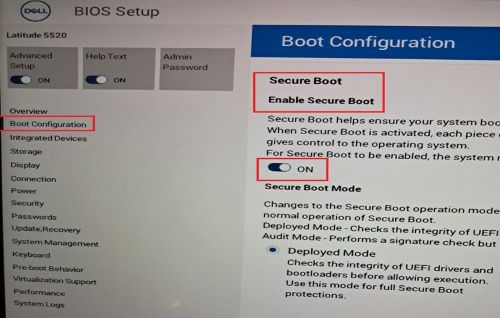
- 单击 应用 并 退出 UEFI 固件设置(此过程将重新启动设备)。
- 出现戴尔徽标时按 F12 键,以进入 引导设备选择菜单。
- 选择 USB Key ,然后按 Enter 键(这将启动从 USB 闪存盘启动)。
- 根据屏幕上的说明开始作系统部署。
- 设备进入 OOB 状态后,按照屏幕上的说明作,然后登录到桌面。
- 打开 系统属性 并确认作系统是否为 S 模式或 SE。
- 右键单击“开始”菜单中>的 Windows 图标,单击“系统>”,然后单击“关于”
- 在 “Windows 规范”下,“版本”应显示为:
- Windows 10 S 模式
- Windows 11 S 模式
- Windows 11 SE

Affected Products
Inspiron 5301, Inspiron 13 5310, Inspiron 13 5320, Inspiron 5402/5409, Inspiron 5405, Inspiron 5406 2-in-1, Inspiron 14 5410 2-in-1, Inspiron 14 5410/5418, Inspiron 5415, Inspiron 14 5420, Inspiron 14 5425, Inspiron 7415 2-in-1
, Inspiron 14 7420 2-in-1, Inspiron 14 7425 2-in-1, Inspiron 3501, Inspiron 3502, Inspiron 3505, Inspiron 15 3510, Inspiron 15 3511, Inspiron 15 3515, Inspiron 15 3520, Inspiron 15 3521, Inspiron 15 3525, Inspiron 5502/5509, Inspiron 5505, Inspiron 15 5510/5518, Inspiron 5515, Inspiron 16 5620, Inspiron 16 5625, Inspiron 16 7610, Inspiron 16 7620 2-in-1, Inspiron 3880, Inspiron 3891, Inspiron 3910, Latitude 3120, Latitude 3140, Latitude 3190, Vostro 5301
...
Article Properties
Article Number: 000223620
Article Type: Solution
Last Modified: 15 Apr 2025
Version: 5
Find answers to your questions from other Dell users
Support Services
Check if your device is covered by Support Services.