Connectrix SANnav: "Switch is not managed" on SANnav Dashboard.
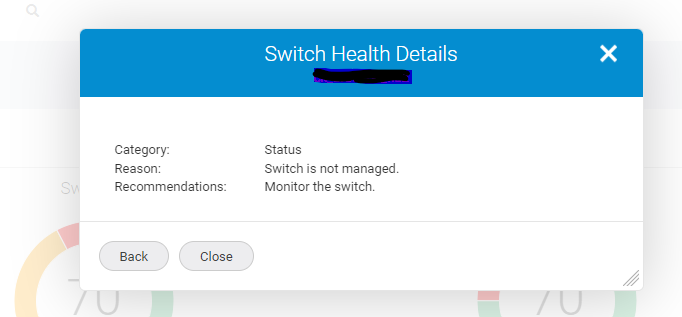
Summary: Switch status shows as "Poor", reason "Switch is not managed" on SANnav Dashboard.
This article applies to
This article does not apply to
This article is not tied to any specific product.
Not all product versions are identified in this article.
Symptoms
Click the switch whose status shows as "Poor" on the SANnav Dashboard.
Then click the respective switch and it opens a status window.
Click "Show details" and could view the below alert:
Cause
The cause of the issue could be due to below reasons:
1) If there are conflicts on SSH ports usage.
2) If the switch credentials were changed and not updated for the switch on SANnav.
1) If there are conflicts on SSH ports usage.
2) If the switch credentials were changed and not updated for the switch on SANnav.
Resolution
Resolution Steps:
Step 1:
Logged-in to the SANnav server CLI and check the Internal SSH port under:
#<install_home>/conf - entry 'dcm.ssh.server.port'
bin]# ./show-sannav-configurations.sh
In case the SSH port #22 is held by the SANnav Server, then change the SSH for the SANnav application from port #22 to #6022 under:
#/etc/ssh/sshd_config
Change the ssh port to 6022 by uncommenting it:
Port 6022
#AddressFamily any
#ListenAddress 0.0.0.0
#ListenAddress ::
Add the port #6022 to the firewalld:
#firewall-cmd --permanent --add-port=6022/tcp
Restart the firewalld:
#systemctl restart firewalld
#<install_home>/conf - entry 'dcm.ssh.server.port'
bin]# ./show-sannav-configurations.sh
In case the SSH port #22 is held by the SANnav Server, then change the SSH for the SANnav application from port #22 to #6022 under:
#/etc/ssh/sshd_config
Change the ssh port to 6022 by uncommenting it:
Port 6022
#AddressFamily any
#ListenAddress 0.0.0.0
#ListenAddress ::
Add the port #6022 to the firewalld:
#firewall-cmd --permanent --add-port=6022/tcp
Restart the firewalld:
#systemctl restart firewalld
Step 2:
If the issue still persists, then go ahead and perform a "hareboot/hafailover" on the switch.
Step 3:
The switch on SANnav Dashboard shows "Poor"
Update the Switch credentials for the respective switch on "Fabric Discovery" tab.
Click SANnav in the navigation bar, and then select SAN Monitoring > Fabric Discovery.
The Discovered Fabrics page displays all fabrics that have been discovered. If a fabric contains switches that have incorrect credentials, SANnav displays "Authentication failed" in the Status column.
Click the fabric name to open the fabric detail page, which displays the list of switches in the fabric.
For switches with incorrect credentials, the Discovery Status column indicates "Discovered. Authentication failed. Not registered for SNMP traps."
Select the switches with incorrect credentials, and click Configure.
If user select one switch, the Configure dialog is populated with the current values for that switch.
If user select multiple switches, the Configure dialog is empty, and any values you enter apply to all selected switches.
Update the Switch credentials for the respective switch on "Fabric Discovery" tab.
Click SANnav in the navigation bar, and then select SAN Monitoring > Fabric Discovery.
The Discovered Fabrics page displays all fabrics that have been discovered. If a fabric contains switches that have incorrect credentials, SANnav displays "Authentication failed" in the Status column.
Click the fabric name to open the fabric detail page, which displays the list of switches in the fabric.
For switches with incorrect credentials, the Discovery Status column indicates "Discovered. Authentication failed. Not registered for SNMP traps."
Select the switches with incorrect credentials, and click Configure.
If user select one switch, the Configure dialog is populated with the current values for that switch.
If user select multiple switches, the Configure dialog is empty, and any values you enter apply to all selected switches.
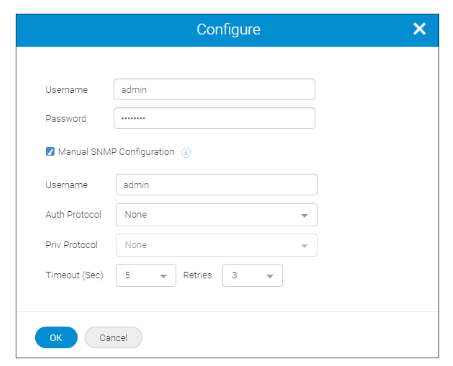
If the login credentials have changed, enter the new login credentials for the switch.
If the SNMP configuration has changed, select Manual SNMP Configuration and enter the updated information in the
Dialog.
Click OK.
The credentials that SANnav uses to discover the switch or for SNMP configuration are changed.
Next, user must unmonitor and then monitor the switch for the change to be effective.
If the SNMP configuration has changed, select Manual SNMP Configuration and enter the updated information in the
Dialog.
Click OK.
The credentials that SANnav uses to discover the switch or for SNMP configuration are changed.
Next, user must unmonitor and then monitor the switch for the change to be effective.
Post performing above steps, refresh, and check the "SANnav Dashboard", the switch status is displayed as "Healthy"
Affected Products
Connectrix SANnavArticle Properties
Article Number: 000224735
Article Type: Solution
Last Modified: 03 May 2024
Version: 1
Find answers to your questions from other Dell users
Support Services
Check if your device is covered by Support Services.