Dell Laptop Camera Not Working in Teams, Zoom, and Windows Camera Application
Summary: This article provides information about missing or incorrect drivers. They cause the laptop webcam to stop working on Dell laptops that use a Mobile Industry Processor Interface (MIPI) camera. ...
This article applies to
This article does not apply to
This article is not tied to any specific product.
Not all product versions are identified in this article.
Symptoms
The laptops listed in Table 1 below may be configured with a high-performance MIPI camera. These laptops require a different set of drivers than laptops with conventional webcams. Missing or incorrect drivers can cause camera issues, where the integrated camera or webcam stops working in Teams, Zoom, Discord, and other applications.
Other symptoms may include:
- An error in the Windows Camera app: (See the first picture)
We cannot find your camera
- A Yellow bang on the Intel AVStream Camera, or Camera sensor, or Intel Control logic in Device Manager
- Sometimes, no errors are seen in Device Manager
- Camera not detected under Bluetooth and Device → Cameras (See the second picture)
- Webcam is not working in Teams, Zoom, Discord, or other applications
Note: MIPI cameras are not supported in preboot diagnostics. There are no camera functional tests, and no hardware ID is listed. This does not indicate a hardware failure.

Sometimes there is no abnormal device in the Device Manager, but your camera may not be detected under Bluetooth and Device → Cameras.

| Dell Laptops | Dell Pro Laptops | Dell Pro Max Laptops |
|---|---|---|
| Dell 14 Premium DA14250 | Dell Pro 14 Premium PA14250 | Dell Pro Max 14 MC14250 |
| Dell 16 Premium DA16250 | Dell Pro 13 Premium PA13250 | Dell Pro Max 14 Premium MA14250 |
| Dell Pro 16 Plus PB16250 | Dell Pro Max 16 MC16250 | |
| Dell Pro 14 Plus PB14250 | Dell Pro Max 16 Premium MA16250 | |
| Dell Pro 13 Plus PB13250 |
| Latitude Laptops | Precision Mobile Workstation | XPS Laptops |
|---|---|---|
| Latitude 9450 2-in-1 | Precision 5690 | XPS 16 9640 |
| Latitude 9440 2-in-1 | Precision 5680 | XPS 13 9350 |
| Latitude 9430 | Precision 5490 | XPS 14 9440 |
| Latitude 9330 | Precision 5480 | XPS 13 9340 |
| Latitude 9420 | Precision 5470 | XPS 13 Plus 9320 |
| Latitude 7650 | XPS 13 9315 | |
| Latitude 7450 | XPS 13 9315 2-in-1 | |
| Latitude 7350 Detachable | ||
| Latitude 7350 | ||
| Latitude 7640 | ||
| Latitude 7440 | ||
| Latitude 7340 | ||
| Latitude 7030 Rugged Extreme | ||
| Latitude 7230 Rugged Extreme | ||
| Latitude 7320 Detachable | ||
| Latitude 9450 2-in-1 |
Cause
Windows Update, Norton Updater, and other utilities can push incorrect or incomplete drivers. This can also happen when reinstalling the OS, deploying a corporate OS image, or manually installing drivers. There are dependencies on other Intel drivers that must be installed in a specific order.
Resolution
Note: Administrator rights on your laptop are required to install any drivers and applications or configure your operating system.
- Dell Knowledge Base Article: How to Download and Install Dell Drivers
-
Ensure that the checkbox next to Enable Camera in the BIOS is filled.

-
Install the latest
Intel 2D Imaging, MCU, Visual Sensing Controller Driver for Camerafrom the Dell Website by running the executable file.Note: The driver package on the Dell download site includes a utility that removes old driver files. The entire process may take one to two minutes with no progress bar displayed. Wait for the new window to open that confirms the driver is successfully installed. The removal utility is not included with automatic updates done by Windows Update.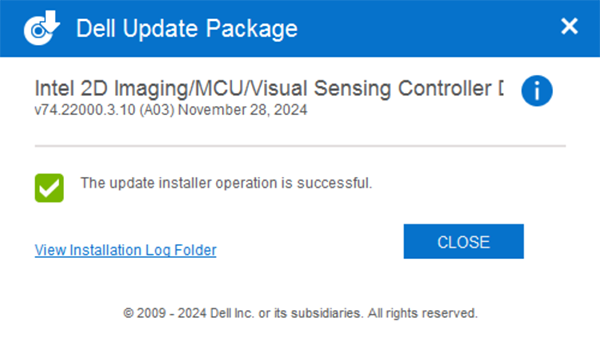
-
Reboot and confirm that the camera is working using the Windows Camera app.
-
If the camera is still not working, then update all the related drivers and BIOS. There are two options:
- (Highly Recommended) Run Windows Update, Dell Command Update (commercial platforms), Dell Update (consumer platforms), or SupportAssist (all platforms) to update all drivers to the latest version: How to Update Drivers on My Dell Computer.
- Manually download and install the latest versions of these drivers from the Dell website. All these drivers are required for the camera to work correctly.
- Intel Chipset Device Software
- Intel Graphics or Arc Graphics Driver
- Intel Integrated Sensor Solution Driver (Related to the Intel Visual Sensing Controller (Intel Clover Falls (CVF)) or User Presence Detection (UPD).)
- Intel Serial I/O Driver
- Intel Management Engine Components Installer
- 5Update to the latest version of the BIOS that is available
- Reboot your laptop after installing all the drivers to confirm the problem is resolved.
- Yes, the problem is resolved. No further action is needed.
- No, the problem is not resolved. Contact Dell Technical Support for additional assistance.
Affected Products
Dell 14 Premium DA14250, Dell 16 Premium DA16250, Dell Pro Max 14 Premium MA14250, Dell Pro Max 14 MC14250, Dell Pro Max 16 MC16250, Dell Pro 13 Premium PA13250, Dell Pro 14 Premium PA14250, Dell Pro 13 Plus PB13250, Dell Pro 14 Plus PB14250
, Dell Pro 16 Plus PB16250, Latitude 7030 Rugged Extreme Tablet, Latitude 7230 Rugged Extreme Tablet, Latitude 7320 Detachable, Latitude 7340, Latitude 7350, Latitude 7350 Detachable, Latitude 9330, Latitude 5455, Latitude 7440, Latitude 7450, Latitude 9420, Latitude 9430, Latitude 9440 2-in-1, Latitude 9450 2-in-1, Latitude 7640, Latitude 7650, Precision 5470, Precision 5480, Precision 5490, Precision 5680, Mobile Precision 5690, XPS 13 9315 2-in-1, XPS 13 9315, XPS 13 Plus 9320, XPS 13 9340, XPS 13 9350, XPS 14 9440, XPS 16 9640
...
Products
Dell Pro Max 16 Premium MA16250Article Properties
Article Number: 000248760
Article Type: Solution
Last Modified: 27 Nov 2025
Version: 22
Find answers to your questions from other Dell users
Support Services
Check if your device is covered by Support Services.