Windows Server: Troubleshooting Licensing and Activation Issues with the Slmgr Command
Summary: This article shows how the Slmgr.vbs command can be used to diagnose and resolve issues related to Windows licensing and activation.
This article applies to
This article does not apply to
This article is not tied to any specific product.
Not all product versions are identified in this article.
Instructions
When troubleshooting Windows licensing and activation issues, the slmgr.vbs command is often helpful. This command has many switches, and this article discusses several of the most common.
Note: Although
slmgr.vbs is a Visual Basic script, the .vbs extension is not needed. The extension is omitted for the remainder of this article.
The slmgr /dlv command
Running slmgr /dlv opens a window containing a lot of information about the activation status of the running operating system (OS). The output looks similar to this:
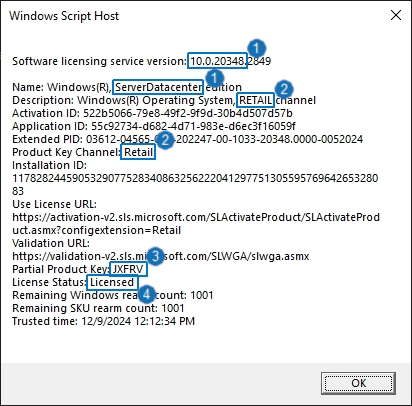
Figure 1: Annotated output of the slmgr /dlv command
The numbered boxes indicate the following:
- OS build number: The build number includes a value that identifies the OS version.
26100: Windows Server 2025
20348: Windows Server 2022
17763: Windows Server 2019
14393: Windows Server 2016
OS edition: This indicates whether the OS is the Datacenter, Standard, or Essentials edition. It also indicates whether an evaluation edition is in use. An evaluation edition must be converted to the non-evaluation edition before it can be activated. Instructions for converting the evaluation edition can be found in Windows Server: How to Convert an Evaluation Edition to a Non-Evaluation Edition. - Licensing channel: This indicates the type of product key that is in use. The most common values are
OEM SLP, OEM non-SLP, Retail, GVLK/KMS, MAK, and VT:IA/VIRTUAL_MACHINE_ACTIVATION.- OEM SLP: A system-locked preinstallation (SLP) key can only be used to activate a physical Dell server. This type of key is used if the OS is factory-installed or installed from official Dell media. An SLP key relies on certain data within a server's BIOS for activation, which takes place without user action. This data is only present on a physical server, so an SLP key cannot be used to activate a virtual machine (VM). More information about this can be found in Windows Server: Virtual Machine Fails to Activate Using SLP Product Key.
- OEM non-SLP: The product key shown on the Certificate of Authenticity (COA) sticker attached to a Dell server is an OEM non-SLP key. On a Dell server, an OEM non-SLP key can be used to activate the physical server and VMs hosted on it. The VMs must be running the same version and edition of Windows Server as the host.
- Retail: This product key represents an OS license purchased through a retail (non-OEM) channel.
- GVLK/KMS: This is a generic volume license key (GLVK), also known as a Key Management Services (KMS) client key. GVLK/KMS client keys are published by Microsoft
. They can only activate an OS successfully if a KMS server is present in the environment.
- MAK: This is a Multiple Activation Key (MAK), a type of volume license key that does not require a KMS server. MAKs can be used to activate multiple instances of an OS, up to a set limit. A Windows Server OS purchased from Dell through the Cloud Solution Provider (CSP) program uses a MAK.
VT:IA/VIRTUAL_MACHINE_ACTIVATION: This indicates that an Automatic Virtual Machine Activation (AVMA) client key is in use. For information about AVMA, see PowerEdge: How to Activate Virtual Machines Using Automatic Virtual Machine Activation.
- Partial Product Key: This value displays the last five characters of the product key that is in use. This is useful in determining whether the installed product key matches the key on the COA sticker.
- License Status: A status of "Licensed" means that the OS has been activated. If the status is "Notification," activation has failed. When this occurs, a Notification Reason is shown beneath the license status. The notification reason is a hexadecimal code that may give information about the activation failure. Run
slui 0x2a <code>to attempt to translate this code to a more understandable error message. Translation does not always succeed.
The slmgr /upk command
Running slmgr /upk removes the product key from the running OS. The OS is no longer activated until a new key is installed.
The slmgr /ipk command
Running slmgr /ipk <key> installs a product key in the running OS. Basic validation is performed on the supplied key, but the key can be accepted and still fail to activate the OS.
The slmgr /ato command
Running slmgr /ato forces the running OS to attempt activation. This is not often necessary, as activation should occur automatically after the product key is entered.
The slmgr /rearm command
Running slmgr /rearm on an evaluation edition of Windows resets its activation timer to 180 days. This is not a substitute for properly licensing the OS, as it can only be done a few times before the activation timer permanently expires. The number of resets remaining is shown in the output of the slmgr /dlv command.
Affected Products
Microsoft Windows Server 2016, Microsoft Windows Server 2019, Microsoft Windows Server 2022, Microsoft Windows Server 2025Article Properties
Article Number: 000257429
Article Type: How To
Last Modified: 18 Sep 2026
Version: 6
Find answers to your questions from other Dell users
Support Services
Check if your device is covered by Support Services.