Unable to Launch Published Desktop after Updating ThinOS and Azure Virtual Desktop Client
Summary: This article provides information about being unable to launch a published desktop on Azure Virtual Desktop (AVD) after updating ThinOS to 2502 with AVD 3.1 v3.1.3044.
This article applies to
This article does not apply to
This article is not tied to any specific product.
Not all product versions are identified in this article.
Symptoms
Affected Platforms:
- Wyse 5070
- Wyse 5470
- OptiPlex 3000 Thin Client
Affected Operating Systems:
- Dell ThinOS 9 2502 or later
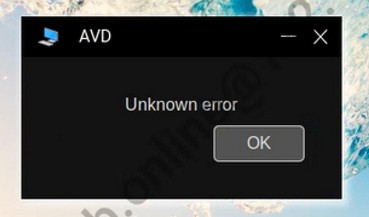
An Unknown Error message is displayed on the Dell ThinOS computer when launching a published desktop from ThinOS on an AVD host pool.
- Windows computers connecting to the same AVD Host Pool works correctly.
- The single-sign-on is not enabled on the AVD environment.
- Manually entering credentials after deleting them from the Host Pool causes the computer to prompt for credentials again and allows the connection
- Checking the ThinOS computer logs at the time of the error, it is possible to see (where Session Desktop is the display name of the Host Pool on AVD).
compat\linux\var\log\wlogd\wlogd.log
[TIMESTAMP] N/WebUIProc/WebUIModule (0/0) [RDP] connecting to "Session Desktop"
[TIMESTAMP] D/avd            /AVD             (12414/35331) OnCredentialAuthChallenge SessionHost reason: FreshCredentialsRequiredByServer
[TIMESTAMP] D/avd            /AVD             (12414/35331) OnDisconnected code:44 msg:Unknown error
[TIMESTAMP] N/avd            /AVD             (12414/35331) Session Desktop Unknown error
- Checking the Host Pool Affected logs is possible to see the error below at the time of the issue:

Cause
The presence of the GPO setting Always prompt for password upon connection on the Azure Session Hosts is the cause of this issue:
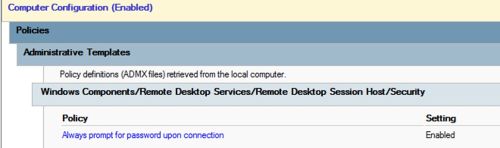
When this policy is set to Enabled, the Session Host declines the credentials passed by the Connection Broker and asks for fresh credentials.
While on a Windows computer this prompts for the login screen to show again, on ThinOS it causes the client to fail with Unknown Error.
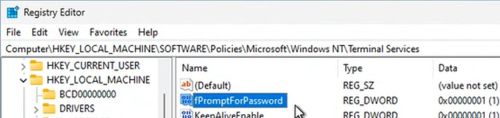
To confirm if the policy is enabled, it is possible to check the registry key below on the Session Host:
HKLM\SOFTWARE\\Policies\\Microsoft\\Windows NT\\Terminal Services
Value Name: fPromptForPassword
Value Type: REG_DWORD
Value: 1
Resolution
Dell Technologies is aware of the issue and is working on a solution.
Workaround:
Doing one of the options below should provide a workaround until a solution can be made available.
- Disable the GPO setting Always prompt for password upon connection
- Downgrade the AVD package to Microsoft_AVD_3.0.2442.pkg-V3.0.2442
- Remove the saved credentials from the host pool on the thin client
Disable GPO setting Always prompt for password upon connection
Warning: Before changing security setting in your domain, you should always discuss this with your Security team.
- Open the Group Policy Management on a domain controller or a computer with the necessary administrative tools installed.
- Go to the relevant Group Policy Object (GPO) that you want to modify within the domain. Right-click it and select Edit….
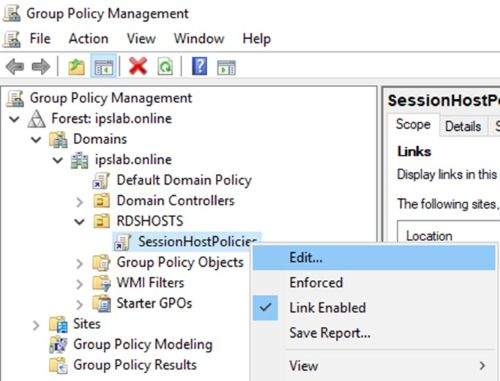
- The group Policy Management Editor opens. Go to Computer Configuration > Administrative Templates > Windows Components > Remote Desktop Services > Remote Desktop Session Host > Security.
- Locate the policy named Always prompt for password upon connection.
- Right-click the policy and select Edit.
- In the policy settings window, set the radio button to Disabled.
- Click Apply and then OK to save the changes.
- Close the Group Policy Management Editor.
- To apply the settings on the Host Pool, you can restart the Session Host servers or run the below command locally on each of the servers:
gpupdate /force
Downgrade the AVD package to Microsoft_AVD_3.0.2442.pkg-V3.0.2442
Downgrading the AVD package to Microsoft_AVD_3.0.2442.pkg-V3.0.2442 allows the users to connect successfully to the Session Host.
To downgrade the package, follow the steps below:
- Download the package from ThinOS 2411 (9.5.4070) Microsoft AVD package v3.0.2442
- Follow the steps in the Dell ThinOS 9.x 2502 Administrator’s Guide to upload the package to the Wyse Management Suite (WMS) console and to assign it to the affected devices using Policy.
Remove the saved credentials from the Host Pool on the Thin Client
Removing the saved credential from the Host Pool causes the device to prompt for Login Username and Password again allowing the connection to the AVD session to be established successfully.
To delete them, follow the below steps:
- On the Thin Client, perform the first login to the AVD Connection Broker
- Pool the toolbar on the side and click VDI Menu
- From the Host Pool list, click the setting icons next to the Host Pool display name and then click Properties
- The Session Properties are displayed, click Logon, and delete the content of the fields Login Username and Password.
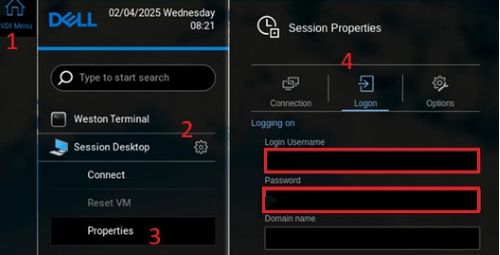
- Once completed click Save
- Click Connect to launch the session. You are prompted again for the credentials to access the Session Host.
Additional Information
Consult the Dell ThinOS 9.x 2502 Administrator’s Guide to find out more about:
- How to capture ThinOS logs using Wyse Management Suite follow - section Troubleshooting your thin client > Request a log file using Wyse Management Suite
- How to push the AVD package on the affected devices - section Upgrading the ThinOS firmware > Download ThinOS firmware, BIOS, and application packages > Upload and push ThinOS 9.x application packages using Groups and Configs on Wyse Management Suite
- How to push the AVD package on the affected devices - section Upgrading the ThinOS firmware > Download ThinOS firmware, BIOS, and application packages > Upload and push ThinOS 9.x application packages using Groups and Configs on Wyse Management Suite
Affected Products
OptiPlex 3000 Thin Client, Wyse 5070 Thin Client, Wyse 5470, Dell ThinOSArticle Properties
Article Number: 000303827
Article Type: Solution
Last Modified: 13 May 2025
Version: 3
Find answers to your questions from other Dell users
Support Services
Check if your device is covered by Support Services.