How to Identify the CrowdStrike Falcon Sensor Version
Sommaire: Learn to identify the CrowdStrike Falcon Sensor version for issues, process changes, or system requirements. Follow the steps for Windows, Mac, or Linux.
Cet article s’applique à
Cet article ne s’applique pas à
Cet article n’est lié à aucun produit spécifique.
Toutes les versions de produits ne sont pas identifiées dans cet article.
Instructions
Knowing the CrowdStrike Falcon Sensor version allows you to:
- Identify known issues
- Understand process changes
- Understand system requirements
Affected Products:
- CrowdStrike Falcon Sensor
Affected Operating Systems:
- Windows
- Mac
- Linux
For instructions about how to identify the CrowdStrike Falcon Sensor version, click on Windows, Mac, or Linux.
Note:
- The CrowdStrike Falcon Sensor must be installed before identifying the version. For information about the installation process, reference How to Install CrowdStrike Falcon Sensor.
- For more information about checking the CrowdStrike Falcon Sensor, reference https://supportportal.crowdstrike.com/s/article/Checking-Falcon-Sensor-Version-Locally
.
Windows
- Right-click the Windows start menu, and then click Run.

- In the Run UI, type the following command and then press OK.
cmd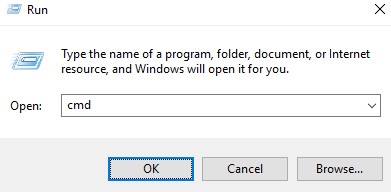
- In Command Prompt, type the following command and then press Enter.
"C:\Program Files\CrowdStrike\CSSensorSettings.exe" –version
- Record the version. In the example, 7.04.17605.0 is the version.
 Note: The version of your sensor may differ from the above screenshot.
Mac
- Locate and then double-click Terminal.

- In Terminal, type the following command and then press Enter.
sysctl cs.version
- Record the version. In the example, the version is 4.18.8013.0.
 Note: The version of your sensor may differ from the above screenshot.
Linux
- On the targeted endpoint, open Terminal.

- In Terminal, type the following command and then press Enter.
sudo /opt/CrowdStrike/falconctl -g --version
- Populate the sudo account password and then press Enter.
- Record the version. In the example, 4.20.6602.0 is the version.
 Note: The version of your sensor may differ from the above screenshot.
Produits touchés
CrowdStrikePropriétés de l’article
Numéro d’article: 000126120
Type d’article: How To
Dernière modification: 27 juill. 2026
Version: 23
Obtenez des réponses à vos questions auprès d’autre utilisateurs de Dell
Services de soutien
Vérifiez si votre appareil est couvert par les services de soutien.