How to Enable the Amazon Appstore Preview on Windows 11
Sommaire: This article describes how to enable the Amazon Appstore Preview on Windows 11.
Cet article s’applique à
Cet article ne s’applique pas à
Cet article n’est lié à aucun produit spécifique.
Toutes les versions de produits ne sont pas identifiées dans cet article.
Instructions
Windows uses the Amazon Appstore Preview to facilitate access to select Android™ apps on Windows 11.
Windows 11 | Amazon Appstore Preview in The Microsoft Store
Duration: 00:21
Closed captions: English only or Available in multiple languages. Use the CC icon to change the closed caption language.
Follow these steps to install the Amazon Appstore Preview:
- Enable BIOS Virtualization. (automatically enabled on new Dell Computers)
- See How To Enable or Disable Hardware Virtualization on Dell Computers | Dell US for instructions on how to perform this step.
- Enable Windows Virtualization.
- See How To Enable or Disable Windows Virtualization on Dell Systems or instructions on how to perform this step.
- The computer reboots at this point.
- Log back into Windows.
- Click http://aka.ms/AmazonAppstore to install the Amazon Appstore Preview.
Note: It can take a few moments until the store populates the information.
- Click Install.
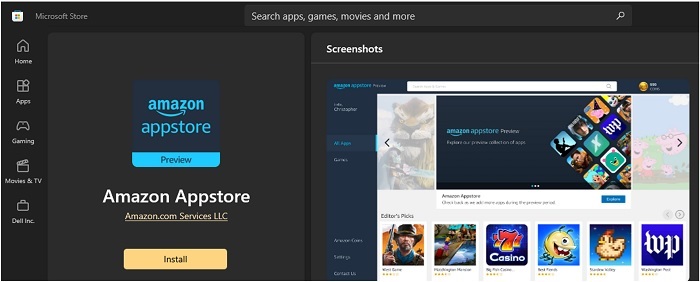
- The Amazon Appstore Preview will now be available under All Apps in the Windows 11 Start Menu.
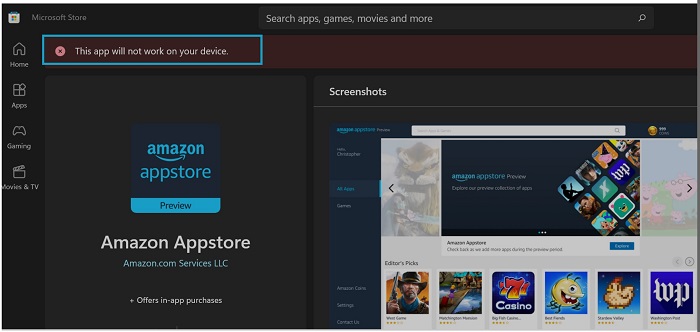
Note: The Amazon Appstore Preview is only available if the system meets the Microsoft requirements:
| RAM | 8 GB (minimum) |
| 16 GB (recommended) | |
| Storage type | Solid State Drive (SSD) as the boot drive |
| Processor | Intel Core i3 8th Gen (minimum) or above |
| AMD Ryzen 3000 (minimum) or above | |
| Qualcomm Snapdragon 8c (minimum) or above | |
| Processor architecture | x64 or ARM64 |
Renseignements supplémentaires
Microsoft resources:
Note: Android is a registered trademark of Google LLC.
Produits touchés
Operating SystemsPropriétés de l’article
Numéro d’article: 000196136
Type d’article: How To
Dernière modification: 13 mai 2026
Version: 9
Obtenez des réponses à vos questions auprès d’autre utilisateurs de Dell
Services de soutien
Vérifiez si votre appareil est couvert par les services de soutien.