How to Use Secured Component Verification (on Cloud)
Sommaire: Learn how to get and set up the Secured Component Verification (on Cloud) service (SCV). SCV verifies the integrity of components inside your Dell computer.
Cet article s’applique à
Cet article ne s’applique pas à
Cet article n’est lié à aucun produit spécifique.
Toutes les versions de produits ne sont pas identifiées dans cet article.
Instructions
Secured Component Verification (on Cloud) is a supply chain assurance offering that enables you to verify the integrity of the components inside your Dell computer. The Trusted Device agent compares component details on your computer against an off-host certificate containing the unique system component IDs generated and signed by Dell during the factory assembly process. This provides assurance that your computer was built and shipped as you ordered it, and that it was not tampered with along the way.
Note:
- The SCV service is good for 30 days from receipt, or until the hardware components or BIOS are changed (whichever comes first).
- If you are using a Value-Added Reseller (VAR) to take receipt and set up your devices, the 30-day timeframe applies to the VAR, and Dell Technologies is not responsible for component verification once it leaves the VAR on its way to the end user.
Affected Products:
- Secured Component Verification (on Cloud)
- Dell Trusted Device
- SupportAssist for Business PCs
Affected Platforms:
- Windows 11
- Windows 10
Affected Hardware:
- Latitude
- OptiPlex
- Precision
- XPS
The SCV (on Cloud) process for setting up and validating your computer components uses several tools:
- SupportAssist for Business PCs: Connectivity technology that provides telemetry-driven insights for your computer fleet.
- TechDirect: Your end-to-end life-cycle portal for your computers and data center from deployment to recycling.
- Trusted Device agent: This is used for the verification of components and BIOS security.
Note:
- These instructions require all steps contained in the Create the SupportAssist deployment package section of the SupportAssist for Business PCs Deployment Guide to be completed. Refer to the SupportAssist for Business PCs Deployment Guide at SupportAssist for Business PCs Manuals & Documents.
- The SCV data collected by the Dell Trusted Device agent may take up to fifteen minutes before all the data is correlated and available to see in TechDirect after deploying the deployment package to the endpoint.
- Go to the TechDirect console.
- After logging in, click Connect and manage.

- Click Manage PC fleet.

- Click the Manage button.

- Click the Manage option in the sidebar.

- Click Security.

- Click Component verification.

- The Component verification page displays the fleet in a table. Click the service tag of any endpoint to see a detailed view of the component verification.
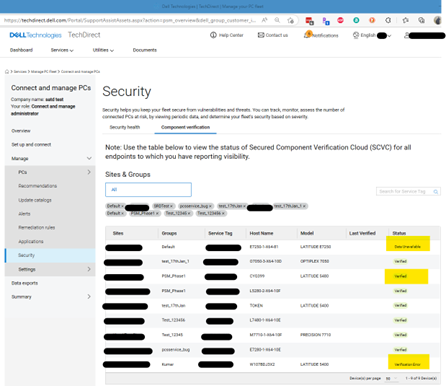 Note: The following Component Verification statuses are displayed in the table:
- Data Unavailable
- Verified
- Verification Error
To contact support, reference Dell Data Security International Support Phone Numbers.
Go to TechDirect to generate a technical support request online.
For additional insights and resources, join the Dell Security Community Forum.
Produits touchés
OptiPlex, XPS, Latitude, XPS, Fixed Workstations, Mobile Workstations, SupportAssist for Business PCs, Dell Trusted DevicePropriétés de l’article
Numéro d’article: 000223140
Type d’article: How To
Dernière modification: 26 août 2025
Version: 5
Obtenez des réponses à vos questions auprès d’autre utilisateurs de Dell
Services de soutien
Vérifiez si votre appareil est couvert par les services de soutien.