How to Obtain the MSI Installer for Dell Trusted Device
Sommaire: This article provides steps on retrieving the MSI installer from the Dell Trusted Device executable.
Cet article s’applique à
Cet article ne s’applique pas à
Cet article n’est lié à aucun produit spécifique.
Toutes les versions de produits ne sont pas identifiées dans cet article.
Instructions
MSI Installer
The following steps can be used to get the MSI installer:
- Go to the Dell Trusted Device Driver & Downloads page.
- Download the latest version that is available.

- Run the .exe file and go through the installation prompts.
- Proceed with the .NET installation.

- Leave the Dell Trusted Device installation window open.

- Open Windows Explorer and go to
%temp%.Note: Some versions the folder path may beC:\Users\User_Profile\AppData\Local\Downloadedinstallations.
- Browse to the {GUID} folder with the current date.
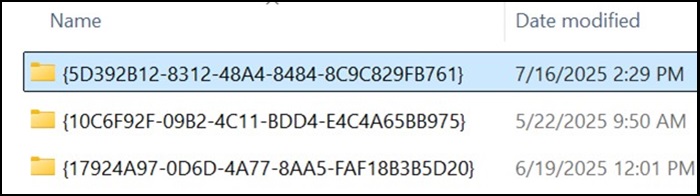
- Locate the TrustedDevice-64bit.msi file.

Produits touchés
OptiPlex, XPS, Latitude, XPS, Fixed Workstations, Mobile Workstations, Dell Trusted DevicePropriétés de l’article
Numéro d’article: 000348330
Type d’article: How To
Dernière modification: 23 juill. 2025
Version: 2
Obtenez des réponses à vos questions auprès d’autre utilisateurs de Dell
Services de soutien
Vérifiez si votre appareil est couvert par les services de soutien.