How to Check the Hardware Configuration of a Dell Computer
概要: This article provides information about how to check the hardware specifications of a Dell computer on the Dell.com/support website, in the BIOS, or using the DirectX diagnostic tool.
この記事は次に適用されます:
この記事は次には適用されません:
この記事は、特定の製品に関連付けられていません。
すべての製品パージョンがこの記事に記載されているわけではありません。
手順
The hardware configuration of a Dell computer can be checked using the Dell.com/support website, the BIOS or System Setup, or the DirectX diagnostic tool that is integrated into Windows.
Identifying the specifications of the hardware devices in your Dell computer helps you download correct drivers from the Dell.com/support website.
How to view the current configuration of a Dell computer on the Dell.com/support website.
The Dell.com/support website helps you view the original product specifications or system configuration. Identify your Dell computer using the Service Tag to see a detailed view of the original configuration your Dell computer was shipped with. You can also scan your computer to view the current configuration using SupportAssist.
NOTE: You must login using an account with administrator privileges to install SupportAssist.
- Browse to the Dell.com/support website.
- Identify your Dell computer.
- Click Download & Install SupportAssist to auto-detect your Dell computer. Follow the on-screen instructions to install Dell SupportAssist. For more information, see the Dell knowledge base article Dell SupportAssist (formerly Dell System Detect): Overview and Common Questions.
- Or, enter the Service Tag, Express Service Code, or the Serial number of the Dell product and click Search.
- On the right side, under Quick links, click View product specs.
- A new modal window appears.
- Original Configuration - This tab provides a detailed view of the original configuration and system specifications the Dell product was shipped with.
- Current Configuration - This tab displays the current configuration and system specification of the Dell computer. Using this option allows SupportAssist to scan the hardware devices in your computer.
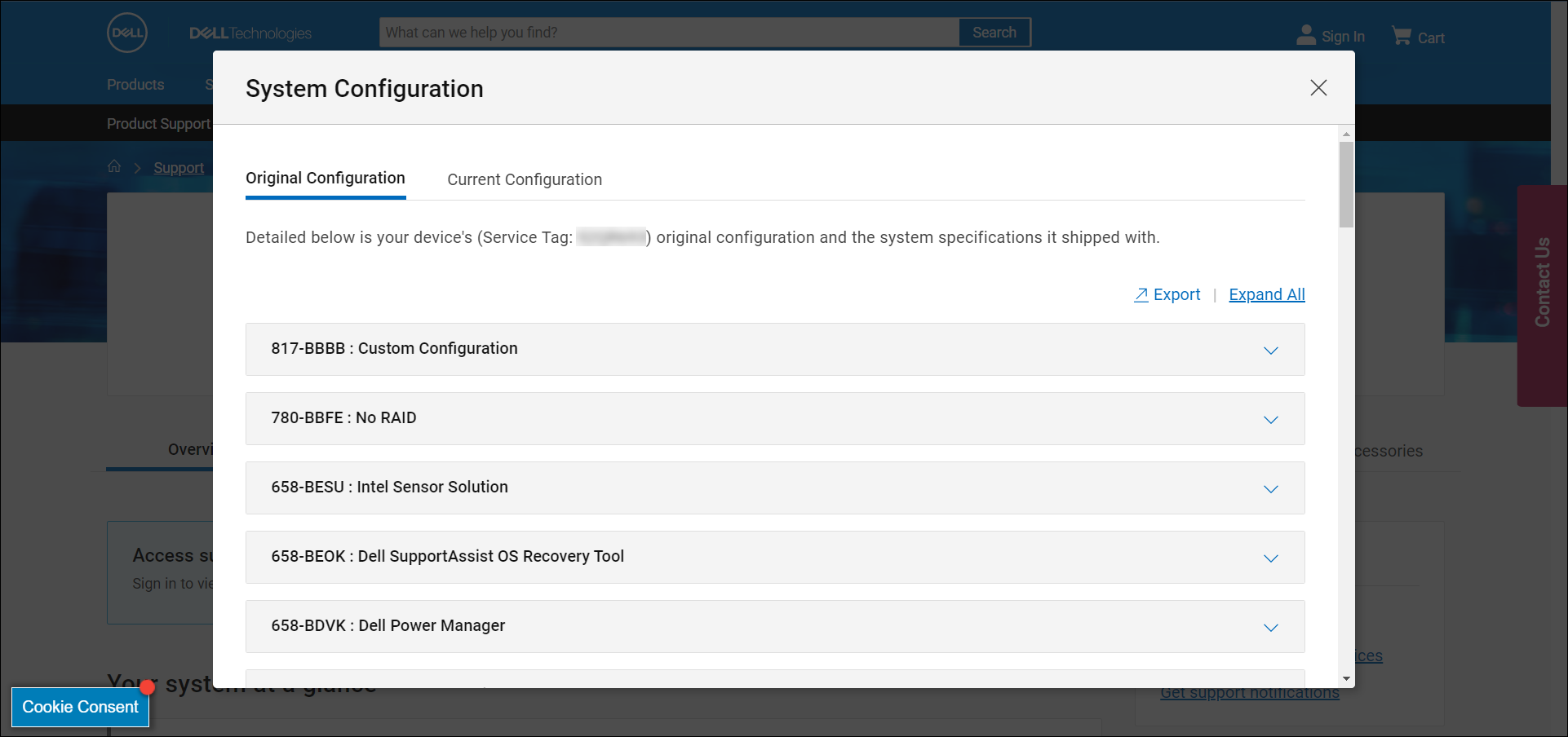
Figure 1: Example of the original system configuration details on Dell.com/support website. Text in the image is in English.
How to view the hardware configuration of a Dell computer in the BIOS or System Setup.
The BIOS or System Setup of a computer provides information about some key hardware devices such as:
- Processor (CPU)
- System memory (RAM)
- Hard drive (HDD)
- Video card (GPU) also called video controller and more.
- Turn on or restart the computer.
- At the Dell logo, tap F2 key several times, until Entering BIOS or System Setup appears.
- On the left side, expand General and then select System Information.
NOTE: The BIOS interface of your Dell computer may vary. See the User Manual of your Dell computer for model-specific information about navigation the BIOS.
- The hardware details such as processor (CPU), system memory (RAM), hard drive (HDD) and more are shown on the right side.
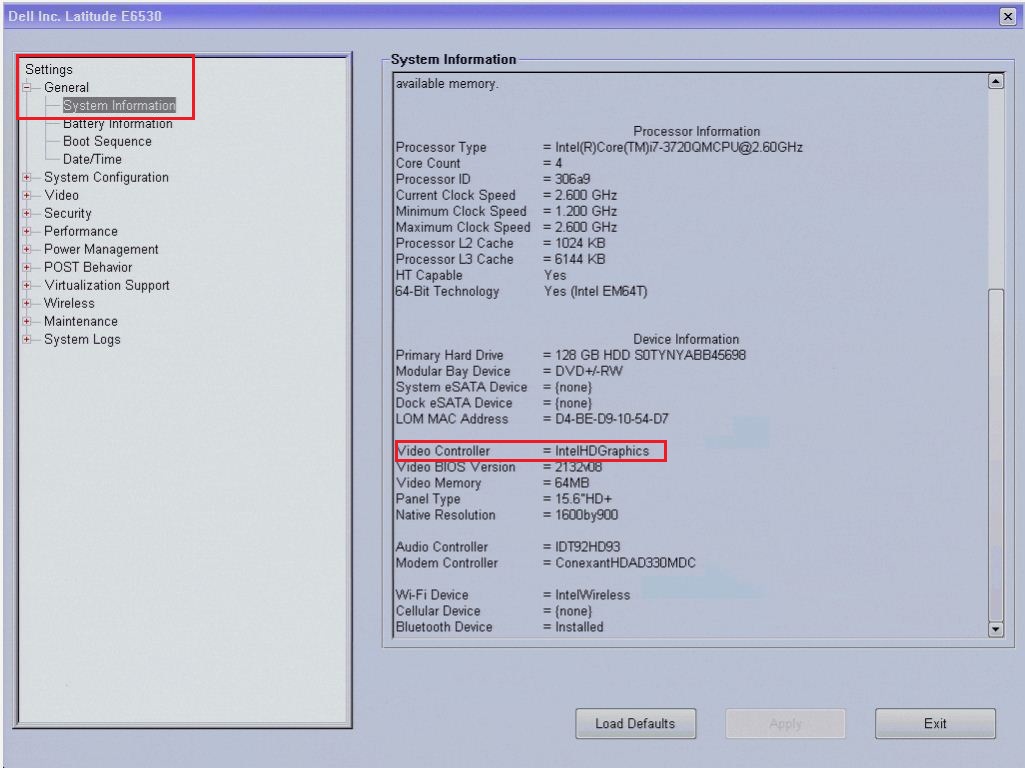
Figure 2: Example of hardware details in the BIOS of a Latitude E6530. Text in the image is in English.
How to view the hardware configuration using the DirectX diagnostic tool.
The DirectX diagnostic tool provides information about the hardware devices in your computer. This tool is also used to collect information about devices to help troubleshoot problems with DirectX sound and video.
- Turn on the computer and boot into Windows.
- Press Windows + R key on the keyboard.
- In the Run dialog box, type
dxdiagand press Enter. - In the DirectX Diagnostic Tool window, you can find information about devices under the System, Display, Sound, and Input tabs.
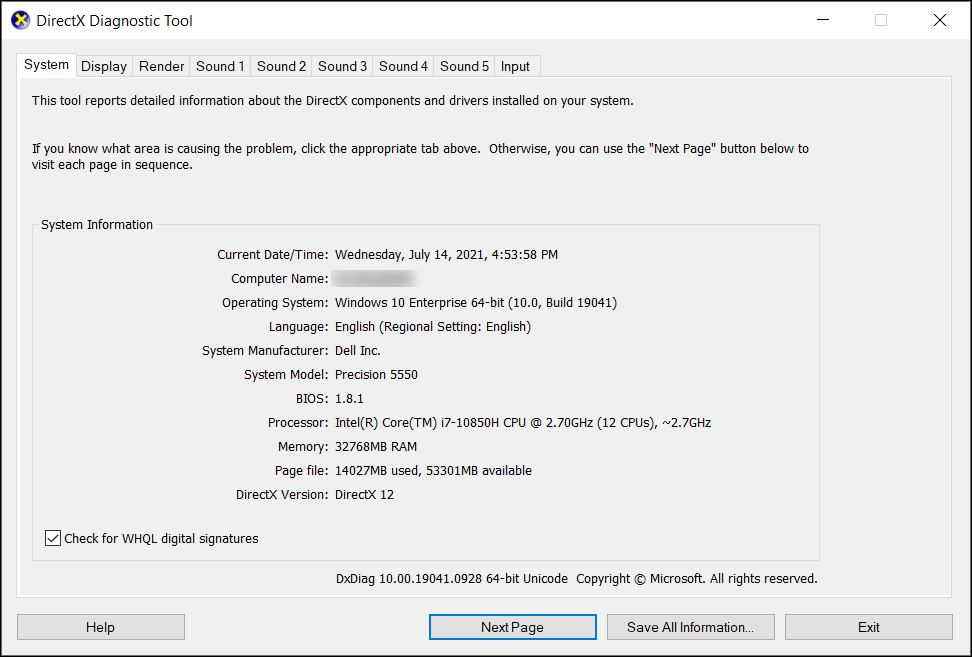
Figure 3: Example of the system information details in the DirectX diagnostic tool. Text in the image is in English.
See these Dell Knowledge Base articles for related information:
その他の情報
対象製品
Chromebox, Alienware, Dell All-in-One, Dell Pro All-in-One, Dell Pro Max Micro, Dell Pro Max Slim, Dell Pro Max Tower, Dell Pro Micro, Dell Pro Slim, Dell Pro Tower, Dell Slim, Dell Tower, Inspiron, Legacy Desktop Models, OptiPlex, Vostro, XPS
, G Series, Chromebook, G Series, Alienware, Dell Plus, Dell Pro, Dell Pro Max, Dell Pro Plus, Dell Pro Premium, Inspiron, Latitude, Dell Pro Rugged, Vostro, XPS, Legacy Laptop Models, Fixed Workstations, Mobile Workstations, Dell Pro Max Slim XE FCS1250, Dell Pro Max Tower T2 XE FCT2250, Dell Pro Max 16 XE MC16250, Dell Pro Micro Plus XE QBM1250, Dell Pro Slim Plus XE5 QBS1250, Dell Pro Tower Plus XE5 QBT1250
...
文書のプロパティ
文書番号: 000149095
文書の種類: How To
最終更新: 22 7月 2025
バージョン: 13
質問に対する他のDellユーザーからの回答を見つける
サポート サービス
お使いのデバイスがサポート サービスの対象かどうかを確認してください。