Resolving General Problems with the Kensington Port Replicator (Universal Dock)
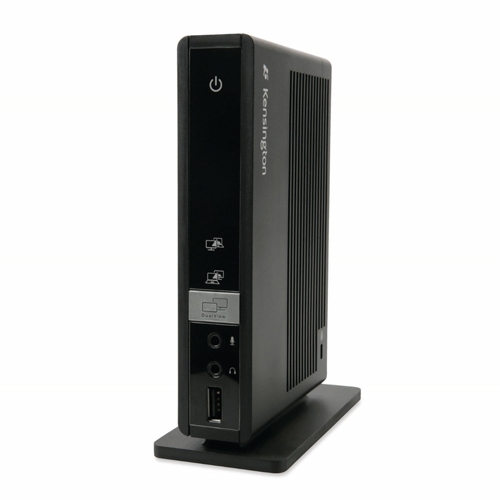
Summary: The following article provides information about possible solutions when connected devices are not functioning on the Kensington Port Replicator. (Universal Dock.)
This article applies to
This article does not apply to
This article is not tied to any specific product.
Not all product versions are identified in this article.
Symptoms
Any peripherals connected through the universal dock are not working correctly when external devices connect through a Kensington port replicator (Universal Dock) to the computer.
For example:
- The monitor signal is lost
- The monitor is not recognized
- The Internet connection does not work
- The USB ports do not work
Cause
This is a software error and often reinstalling the Kensington software helps.
Resolution
Reinstall the drivers:
Note: Administrator rights are required on the connected computer to make any operating system changes or update any software.
Follow these steps:
-
Uninstall all Kensington drivers that have been installed on the computer:
-
Disconnect the port replicator from the computer during this process.
-
Click Start.
-
Go to Programs.
-
Open the Control Panel.
-
Click Uninstall a program (or Programs and Features).
-
Select and Uninstall the Kensington drivers.
-
-
Close the process in Task Manager if there is an on-screen message that the application is running in the background:
-
Use the CTRL + ALT + DEL keyboard shortcut to open an on-screen menu.
-
Select Task Manager.
-
Select the Processes tab.
-
End the Kensington process.
-
-
Download and install the latest DisplayLink driver without the computer connected to the port replicator:
-
Connect the port replicator to the computer. (Without any of the external devices or Ethernet cable connected to the port replicator.)
-
The drivers of the port replicator should automatically detect the connected device and install itself. (Only use USB 2.0.)
-
Connect the external device and the Ethernet cable to the port replicator.
-
Test for normal operation.

Affected Products
D/Port Advanced Port ReplicatorArticle Properties
Article Number: 000179009
Article Type: Solution
Last Modified: 06 May 2026
Version: 8
Find answers to your questions from other Dell users
Support Services
Check if your device is covered by Support Services.