How to use TechDirect to upload files to Service Request
Shrnutí: This KB details the steps of uploading files to Service Request via TechDirect
Tento článek se vztahuje na
Tento článek se nevztahuje na
Tento článek není vázán na žádný konkrétní produkt.
V tomto článku nejsou uvedeny všechny verze produktu.
Pokyny
- Go to https://tdm.dell.com/file-upload/
- Under 'Device Verification', enter the valid Service Tag and click 'Verify'. If there is no Service Tag, please use 'dummy' instead. Serial Number is not applicable here.
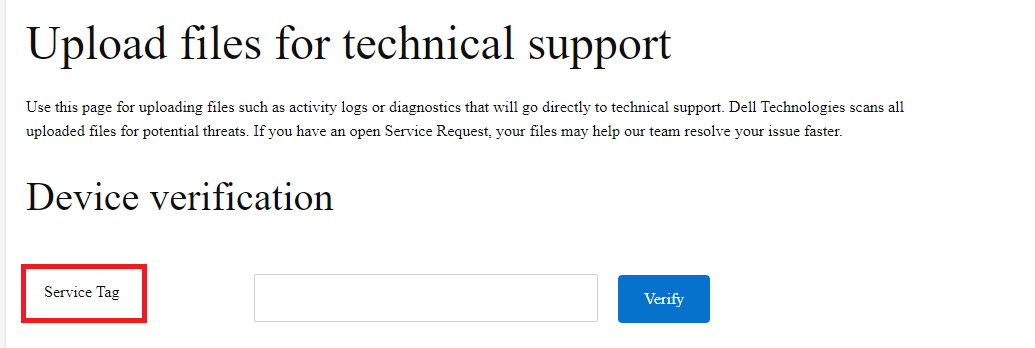
- Under 'Contact Preferences', please enter customer's company name (optional), the contact person's name, the Service Request number, the email address of the contact person, and Dell contact email (optional).

- Select the files to be uploaded in the Service Request. You can select maximum 5 files at once. Then click 'Upload now'.
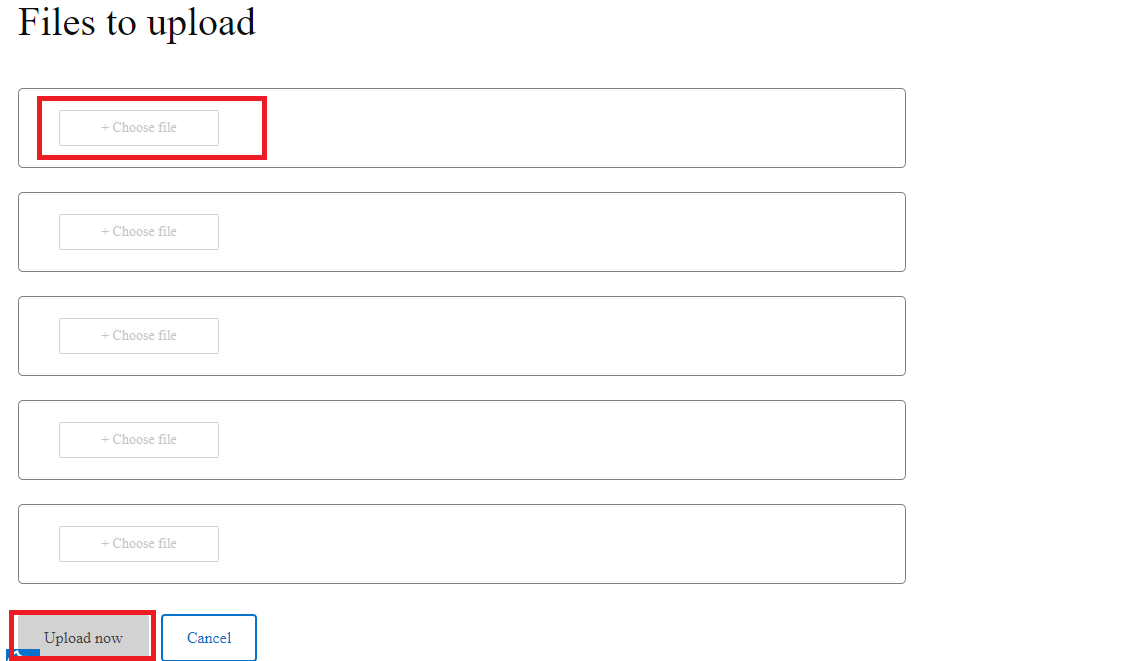
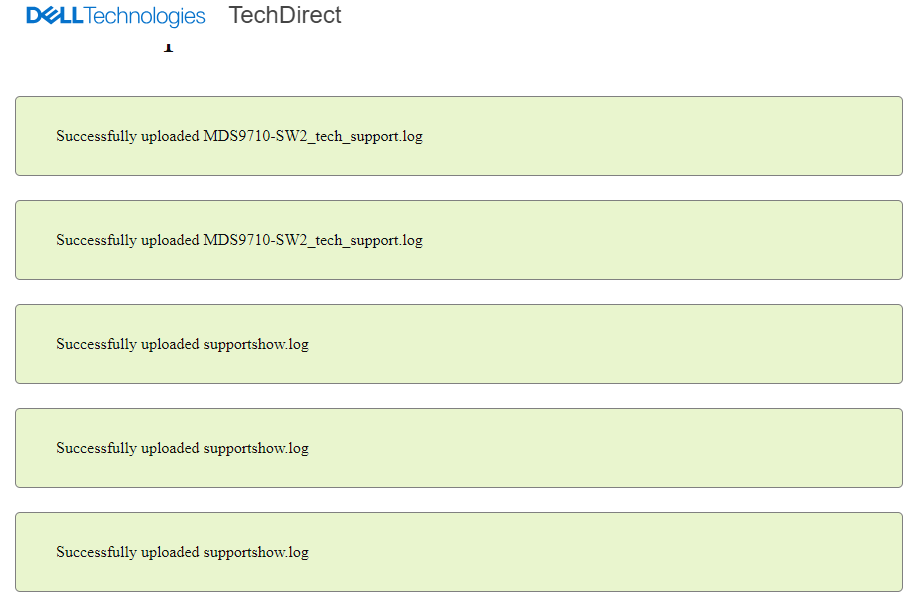
- Once the files are uploaded, the contact person will get an email notification to notify the upload success:

Dotčené produkty
Converged Infrastructure, StorageVlastnosti článku
Číslo článku: 000217933
Typ článku: How To
Poslední úprava: 23 říj 2024
Verze: 2
Najděte odpovědi na své otázky od ostatních uživatelů společnosti Dell
Služby podpory
Zkontrolujte, zda se na vaše zařízení vztahují služby podpory.