Latitude XX20 Computers Blue Screen During Imaging
Summary: An "Inaccessible Boot Device" blue screen error occurs when imaging a Latitude XX20 with System Center Configuration Manager or Microsoft Deployment Toolkit.
This article applies to
This article does not apply to
This article is not tied to any specific product.
Not all product versions are identified in this article.
Symptoms
A blue screen error of "Inaccessible Boot Device" is seen when imaging Tiger Lake computers using the Latitude XX20 CAB file IRST drivers with System Center Configuration Manager (SCCM) or Microsoft Deployment Toolkit (MDT). This issue occurs only when imaging computers that are in RAID On Mode and does not affect computers in AHCI Mode.
Affected Platforms:
- Latitude 3120
- Latitude 3320
- Latitude 3420
- Latitude 3520
- Latitude 5320
- Latitude 5420
- Latitude 5520
- Latitude 7320
- Latitude 7420
- Latitude 7520
- Latitude 9420
- Latitude 9520
Cause
The folder naming conventions cause an improper extraction of the correct drivers.
Resolution
There are two methods that resolve the Inaccessible Boot Device blue screen during imaging.
Method 1: Manual Driver CAB import
- Go to Dell Support and download the Windows 10 driver CAB for the affected Latitude platform.
- Extract the CAB file.
- Either delete the
7320-win10-A00-WP0RY\7320\win10\x64\storage\5KRPN_A00-00\F6\[2]NonVMDdirectory from the folder structure or delete the filesiaAHCIC.infandiaStorAC.inffrom that directory.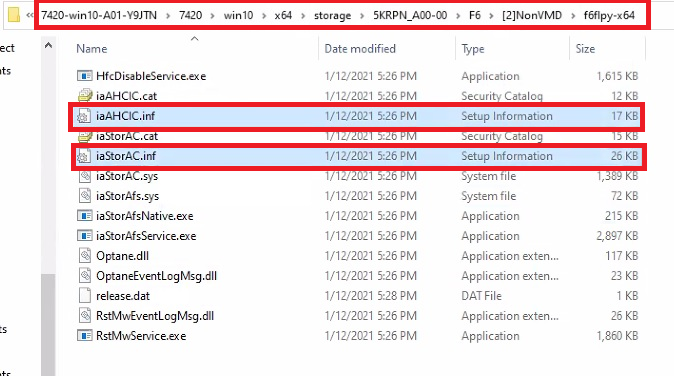
- Open the Microsoft Endpoint Configuration Manager console.
- Import the drivers from the extracted folders and create a driver package.
- Use the package in the Driver Injection task in the Task Sequence.
Method 2: Using the Dell Command System Driver Library Import Easy Button
- Open the Microsoft Endpoint Configuration Manager console.
- Go to Software Library, then to Driver Packages, and then click the Dell Command System Driver Library Import button on the button bar.
- Follow the wizard to choose and download the CAB file for the affected Latitude platform that you are working with. After the wizard completes, the driver package is created in the Dell System Cab Driver Packages folder. Click the model driver package that you downloaded to show the list of drivers in the package.
- Locate and delete the following two drivers. Disabling the driver does not work. You must delete the drivers.
iaAHCIC.infiaStorAC.inf
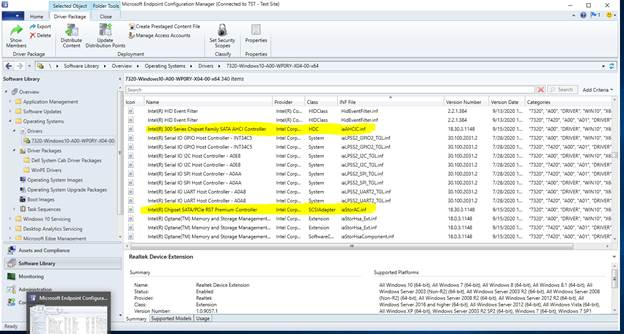
- Right-click the Driver Package that you removed the drivers from, click Update Distribution Points, and then click OK.
- Add the Apply Drivers task to your task sequence.
Affected Products
Latitude 3120, Latitude 3320, Latitude 5320, Latitude 7320, Latitude 3420, Latitude 7420, Latitude 9420, Latitude 3520, Latitude 5520, Latitude 7520, Latitude 9520, Latitude 5420Article Properties
Article Number: 000183787
Article Type: Solution
Last Modified: 19 Apr 2025
Version: 5
Find answers to your questions from other Dell users
Support Services
Check if your device is covered by Support Services.