How to Retrieve Devices into the Dell Device Management Console (DDMC)
Summary: The article details how to retrieve orders for Dell Devices into the Dell Device Management Console (DDMC).
This article applies to
This article does not apply to
This article is not tied to any specific product.
Not all product versions are identified in this article.
Instructions
Within the Dell Device Management Console, a customer can retrieve Smart Docks using Order Retrieval.
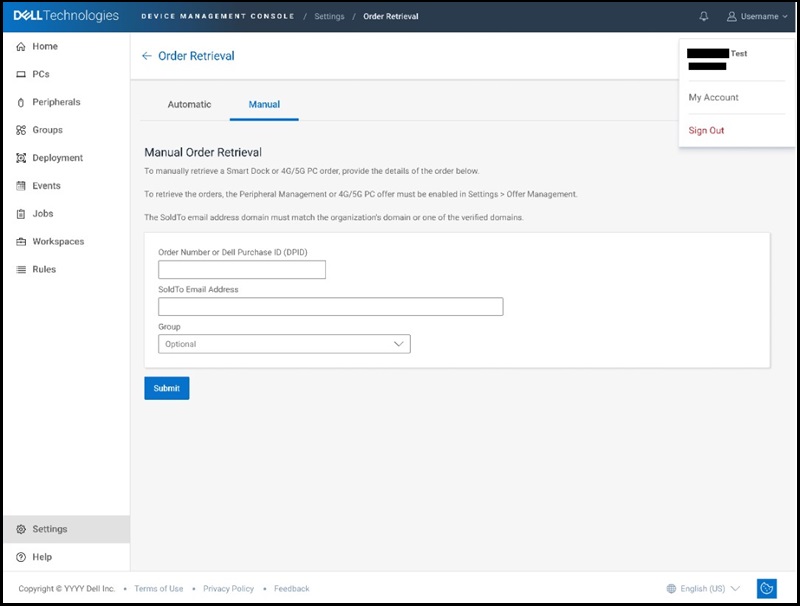
There are two ways to retrieve supported devices into the Dell Device Management Console, Manual, for retrieval of a recently shipped order and Automatic, for retrieval of a future order. To go to the Order Retrieval portion of the Dell Device Management Console, the Settings option must be selected.
- Manual Retrieval
- From the Settings page, select Manage Order Retrieval under the Order Retrieval tile.
- Select the Manual tab.
- Enter the Order Number or Dell Purchase ID, enter the SoldTo email address and click Submit.
- All devices ordered under that Order Number or Dell Purchase ID will appear.
- Automatic Retrieval
- From the Settings page, select Manage Order Retrieval under the Order Retrieval tile.
- Select the Automatic tab.
- When prompted, click the Add Email button and enter the email address to be used and click the Create Email button.
- An email is sent to the email address entered with a link to accept Automatic order retrievals.
Once a customer sets up Automatic Order Retrieval and the email recipient accepts it, any future orders shipped with the "SoldTo" email address provided will be added to the tenant.
If the customer has not configured Automatic Order Retrieval before the order shipment, the Manual Order Retrieval method must be used.
Note:
- The first time a customer purchases Smart Docks the customer will receive a Welcome Email after the order ships that includes the Order Number and/or Dell Purchase ID along with the SoldTo email address needed for Order Retrieval.
- The SoldTo email address domain must match the organization's domain or one of the verified domains. You can find the tenant's primary domain if the user selects their name on the top right-hand corner of the console.
- Only devices purchased directly through Dell can be retrieved using order retrieval. Device purchases made using a Dell Partner are not available for order retrieval in the Console. However, these devices can still be enrolled.
- Irrespective of order retrieval availability, customers can still enroll Dell Pro Smart Docks into the Dell Device Management Console through DHCP Auto Discovery or DNS SRV records. More information about Dell Pro Smart Dock enrollment.
- Dell Pro Smart Docks, Dell Displays, and other peripherals connected to a PC can be enrolled into the Dell Device Management Console if the PC is equipped with Dell Device Management Agent (DDMA) and Display and Dell Display and Peripheral Manager (DDPM). More information about peripheral enrollment.
For more information about the Dell Device Management Console, view the peripheral Management IT Admin guide.
Affected Products
Dell Pro Smart Dock SD25, Dell Pro Thunderbolt 4 Smart Dock SD25TB4, Dell Pro Thunderbolt 5 Smart Dock SD25TB5, Dell Device Management ConsoleArticle Properties
Article Number: 000343754
Article Type: How To
Last Modified: 18 Sept 2025
Version: 3
Find answers to your questions from other Dell users
Support Services
Check if your device is covered by Support Services.