PPDM: Virtual Machine Restore Is Not Using the PowerProtect DD IP Interface Expected
Summary: Virtual Machine (VM) Restore is using a different PowerProtect DD (DD) IP than expected for a VM restore. This can lead to failure due to VMware ESXI (ESXI) to DD communication or the restore writing data over an undesired DD IP interface. ...
This article applies to
This article does not apply to
This article is not tied to any specific product.
Not all product versions are identified in this article.
Symptoms
Possible Symptoms:
- VM restore is using a different DD IP than defined on the asset's Protection Policy and failing due to ESXI to DD communication
- VM restore is using a different and undesired DD IP than defined on the asset's Protection Policy. For example, it is observed using the DD management IP.
- VM restored is no longer part of a Policy on PowerProtect Data Manager
- VM for restore is deleted. Therefore it is no longer part of a policy.
- VM copy for restore has a different storage unit to the current VM Protection Policy.
- All types of VM restore can be affected
Restore as New or overwrite failure (TSDM restore):Error Code: ARV0019
Error Message:
Session '4725d49e-d60c-4fee-bf62-b6fbfd49c862' is unsuccessful: Unable to perform full-restore SDM operation. Unsuccessful after 1 attempts over 5m16.161350417s. The vCenter task for 'SDM Commit Restore' completed with state 'error'. TSDM Error Code: <TargetDataDomainUnreachable>, TSDM Error Message: <Unable to connect to target DataDomain host. Error message: Failed to connect to 'ddve01.amer.lan', conn_config_ver='6', err=illegal operation>.tsdm.log error message:
2025-04-08T08:55:26.750Z In(30) tsdm[2099458]: error TSDM[0x00000072859ba700] [sub=SdmDdLog]: ddBoostFacade.cpp:1338 CreateConnectStatus: {DdBoostFacade SdmOpId=[protectedEntity='503e90ed-2d88-daa3-b821-7b3f
9b21830b',cycleSession='1744102222690419',traceId='b59818b09eaf5cb1;9931b032724cb562']} Failed to connect to 'ddve01.amer.lan', conn_config_ver='6', err=illegal operation
2025-04-08T08:55:26.751Z In(30) tsdm[2099458]: warning TSDM[0x00000072859ba700] [sub=SdmStation]: handler.cpp:389 InternalError: {RestoreProgressHandler HandlerId=834466080995249793 SdmOpId=[protectedEntity=
'503e90ed-2d88-daa3-b821-7b3f9b21830b',cycleSession='1744102222690419',traceId='b59818b09eaf5cb1;9931b032724cb562'] lwdInstanceId='00000000-0000-0000-0000-000000000000'} Building error proto message. station
Type='RestoreProgressStation', error='DefaultPrinter::ErrorClass(0).ErrorCode(19)', errMessage='Failed to connect to 'ddve01.amer.lan', conn_config_ver='6', err=illegal operation'
File Level Restore or Instant Access:Error Code: ARV0007
Message:
Session '30542d3f-f0d5-4da7-93b0-2fa034d5e0ff' is unsuccessful: Unable to create datastore: Unable to create datastore 'DELL-vProxy-ppdm1918.amer.lan-1733328860' using 'ddve01:/data/col1/TSDM_1918-ppdm1918-b49de/PLCTLP-cb48844a-f5bc-4690-b443-8d0b19550a21/Restores/e5390e5f-912e-4818-ad6e-ea9b878ff57d/503e7161-2d9a-c703-1f1e-08709fa144d1/1734693979943774155/1733328855/DELL-vProxy-iar-ppdm1918-30542d3f-f0d5-4da7-93b0-2fa034d5e0ff': ServerFaultCode: An error occurred during host configuration: . Operation failed, diagnostics report: Mount failed: Unable to complete Sysinfo operation. Please see the VMkernel log file for more details.: Unable to connect to NFS server
vSphere task error can be observed as below:
Task Name
Create NAS datastore
Status
An error occurred during host configuration: .
Operation failed, diagnostics report: Mount failed: Unable to complete Sysinfo operation. Please see the VMkernel log file for more details.: Unable to connect to NFS server
ESXI vmkernel.log reports a failure to mount NFS using PowerProtect DD FQDN:
2025-04-08T08:49:41.099Z In(182) vmkernel: cpu5:2099792 opID=bf90e4ee)NFS: 3381: NFS mount failed for ddve01.amer.lan:/data/col1/TSDM_Linux-ppdm1919-c3dfd/PLCTLP-9f7e4c70-03ee-4df4-8b96-27ef8961a23b/Restores/e5390e5f-912e-4818-ad6e-ea9b878ff57d/503e178f-6982-0b07-36b2-c4$
Cause
When restoring a VM, PowerProtect Data Manager uses the DD Network Interface defined on the VM's current Protection Policy for the restore. But if any of the below apply, the DD Network Interface used can be unexpected, for example (below is not exhaustive):
- VM restored is no longer part of a Protection Policy on PowerProtect Data Manager
- VM for restore is deleted. Therefore it is no longer part of a Protection Policy.
- VM backup copy for restore has a different storage unit to the current Policy storage unit.
- VM File Level Restore is carried out to an alternative VM, which is assigned to a different Protection Policy with a different storage unit.
How the DD Network Interface is defined on a restore job:
- When a VM is selected for restore it uses its current Protection Policy ID (even when the backup was taken on an old Protection Policy)
- The Storage Unit ID is taken from the backup copy chosen. The Storage unit on the new Protection Policy is not used.
- A filter is used to get the DD Network Interface, and the criteria are Protection Policy ID (from 1 above) and the Storage Unit ID (from 2 above).
- If the filter returns no match, the 'Address' on the DD in PowerProtect Data Manager, seen below, is used instead. As seen below from PowerProtect Data Manager UI->Infrastructure->Storage-> Click DD name under 'Managed By' column
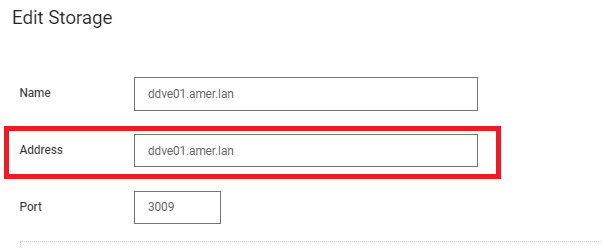
Use Cases Examples (below is not exhaustive):
- VM restored is no longer part of a Protection Policy: As there is no Protection Policy, the DD 'Address' as per above is used.
- VM for restore is deleted in vCener: Deleted VMs are removed from a Protection Policy automatically and the DD 'Address' as per above is used.
- VM copy for restore has a different storage unit to the current VM's Protection Policy: As the filter criteria of the current Protection Policy and the copies' Storage Unit do not match the current Protection Policy and Storage unit, the result is null. Therefore the DD 'Address' as per PowerProtect Data Manager, noted above is used.
- Restore types of File Level Restore (FLR) or Instant Access may fail as they use a DD NFS mounted on the destination ESXI. Communication between ESXI and DD is needed in these restore types, though is not required for backups as these are carried out over a VM Direct Engine (VMDE or vProxy).
The DD 'Address' as per PowerProtect Data Manager can be the FQDN or management IP of the DD. If FQDN is used, the ESXI or external VM Protection Engine used for the restore may not be able to resolve this to the correct Data IP but the Management IP instead.
See PowerProtect Security Guide for Port requirements: PowerProtect Data Manager: Info Hub Product Documents and Information
Resolution
PowerProtect Data Manager Engineering is investigating an option to allow the DD Network Interface to be chosen during restore to avoid such networking issues in a future release.
Available workarounds:
Option 1: Add a hosts entry on the ESXI to force DD FQDN to resolve to the required DD Data IP.
- Connect to ESXI over SSH
- Confirm the current IP address returning for DD_FQDN
In the example below, the ESXI resolves ddve01 to 192.168.9.106 but 192.168.7.106 is the Data IP required.

- Confirm that the ESXI can reach the required DD Data IP interface
Example confirming ESXI can reach 192.168.7.106.

Example confirming ESXI can reach 192.168.7.106 on port 2049. If this does not succeed, confirm port 2049 is open on any firewall between ESXI and DD.

- Add hosts entry for DD_FQDN and DD Data IP
# esxcli network ip hosts add -H <DD_FQDN> -I <DD_DataIP>.- Confirm that setting has applied.
# esxcli network ip host listThis command confirms the entry has been added to the host list.
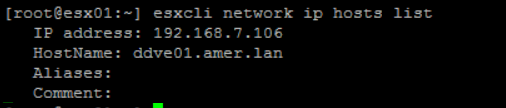
Example, now ddve01.amer.lan resolves to 192.168.7.106

6. Attempt VM restore again.
Option 2: Assign a Network at the Asset level. Note: this workaround cannot be used for VM with a 'Deleted' status.
A network assigned at the Asset Level takes priority over that set on the Protection Policy. To avail of this ‘Assign network’ option, below is a basic setup to facilitate the restore on the DD network interface. It can be removed after the restore is complete.
First set a network name on the DD network interfaces in PowerProtect Data Manager. In this example, we have three DD interfaces FQDN, 192.168.9.106 (management) and 192.168.7.106 (Data)
Define the Network label and set on Asset:
- To set a label, go to Infrastructure->Storage->Select the DD->More Actions->Change Network Settings
- Set the Network Name to this "Default Network" for DD interface for 192.168.7.106. This is the default network automatically defined on the deployment of PowerProtect Data Manager.
- This DD interface appears for selection on Infrastructure->Asset->Assign Network.

For the permanent configuration of PowerProtect Data Manager vlans there are requirements and recommendations as per the PowerProtect Data Manager Administration Guide - PowerProtect Data Manager: Info Hub Product Documents and Information
Affected Products
PowerProtect Data Manager Appliance, PowerProtect Data Manager, PowerProtect Data Manager SoftwareProducts
PowerProtect Data Manager EssentialsArticle Properties
Article Number: 000226640
Article Type: Solution
Last Modified: 10 Apr 2025
Version: 1
Find answers to your questions from other Dell users
Support Services
Check if your device is covered by Support Services.