Embedded Unisphere for PowerMax: The files that may be gathered from the vApp Manager
Summary: The files that may be gathered from the vApp Manager for Embedded Unisphere for PowerMax.
This article applies to
This article does not apply to
This article is not tied to any specific product.
Not all product versions are identified in this article.
Instructions
You can collect the below categories logs from the Download tab:

- Exporting log and datafiles
Steps
- Select Download
- Click Export log and datafile
- Select one of the following products:
- vApp Manager
- SymAPI Bin
- System
- Solutions Enabler
- CTD
- Concierge
- HA
- SymmTRx
- Unisphere for VMAX
- System database
- Performance data
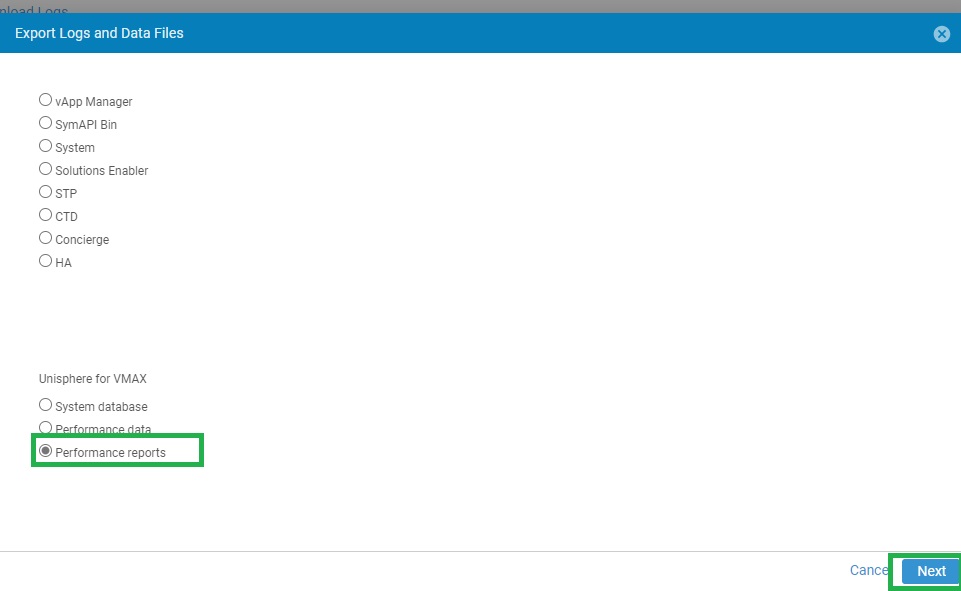
- Performance reports
- Click Next to export the logfiles for the selected products. A list of files available for download is displayed.
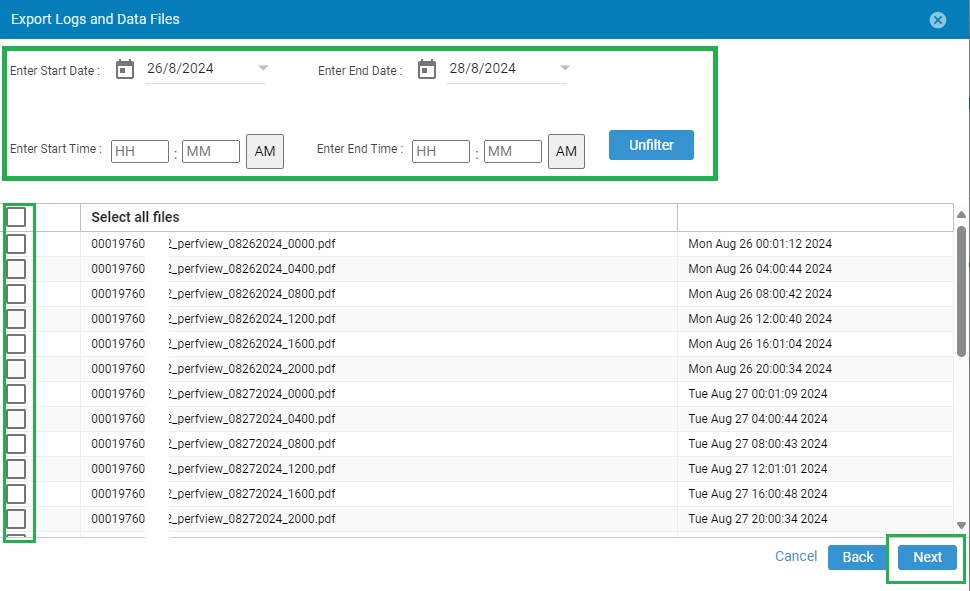
- Optional: Filter the list of available logfiles by the start or end time and date.
- Select individual files for download or click Select all files.
- Click Next.
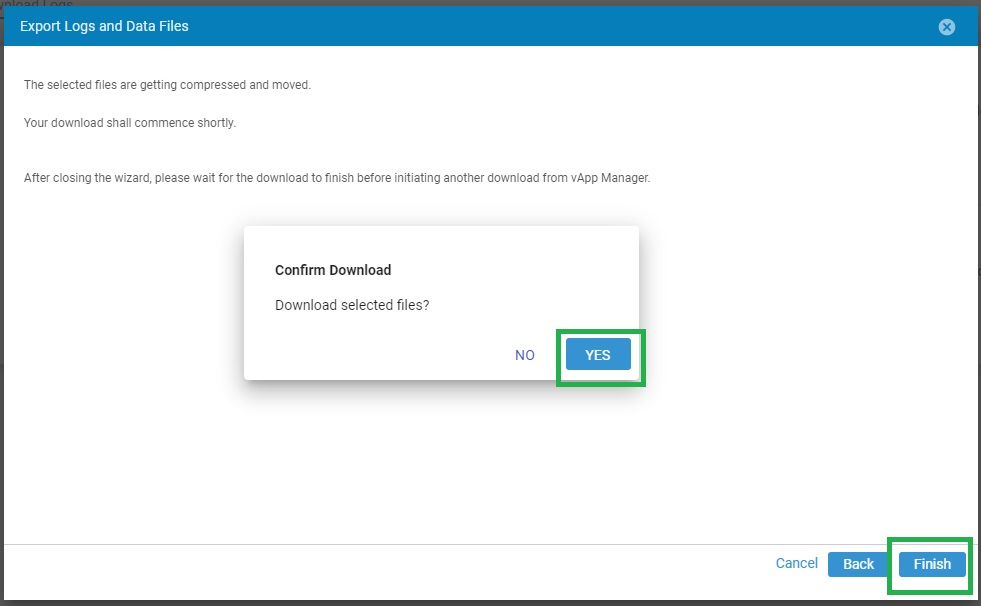
The Download Logs confirmation dialog box is displayed. - Click Yes to confirm that the logs are downloaded.
- Select the download location and click Save to begin the download.
The Download has been completed! confirmation dialog box is displayed. Click OK. - Click Finish to close the Export Log and datafile wizard.
- Click the downloaded .zip file to see the list of compressed product logfiles.
The names of the downloaded compressed files include the selected product name and the date that the files were requested.
For example:
The below steps can be followed to collect the performance data:
Note: The scheduled reports are saved under the
/shared/opt/emc/SMAS/report/SPA/Querydata
The reports can be downloaded from vApp Manager of the Active container.
Steps:
- Log in to vApp Manager
- Click Download and select Export Log and Data Files
- Click Next

- Select the Performance Report and click Next
- Select the Date and Files to be downloaded and click Next
- Save the File
- Click Finish
- Persistent datafiles
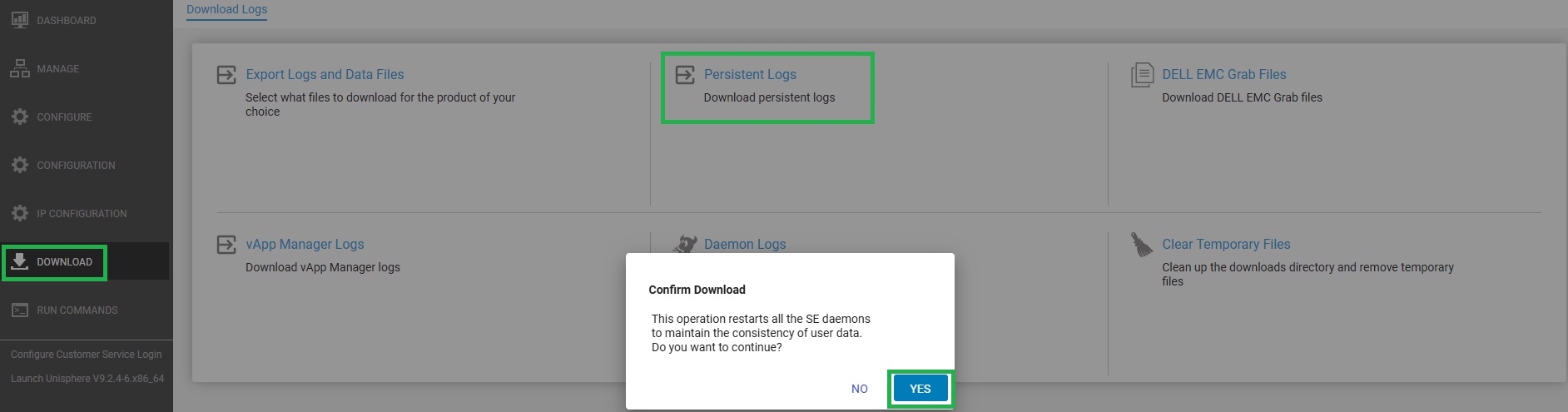
Persistent datafiles contain appliance configuration files, such as the Daemon Option file, Option file, network configuration file, symapi.db file, and some daemon-specific files. Downloaded datafiles are saved to a .zip file, which contains a .gpd file. During the download process, Solutions Enabler daemons are restarted in the background.
Downloading persistent datafiles
Steps
- Select Download > Persistent Logs.
- If there is insufficient space, a dialog box is displayed informing you that there is insufficient space to compress persistent data. The dialog box also includes details on the amount of space that is required and the amount of space that is free. Clean up the temporary files (see Clearing temporary files). Click Yes.
- If there is sufficient space to compress persistent data, the Confirmed Daemon Restart confirmation dialog box is displayed. Click Yes.
Results
The datafile downloads in the browser.
The datafile downloads in the browser.
- Grabs files
Dell Grab is a utility that runs locally on each host and which is used to collect storage-specific host-configuration data. The Dell Grab report creates a .zip file that used by Dell Support.
Downloading Dell Grab files.
Steps
Downloading Dell Grab files.
Steps
- Select Download.
- Click Dell Grab Files.
- A dialog box is displayed stating that this operation takes more than 10 minutes to complete.
- Click Yes to confirm.
- A .zip file containing the logs is downloaded in the browser.

- vApp log files
Steps
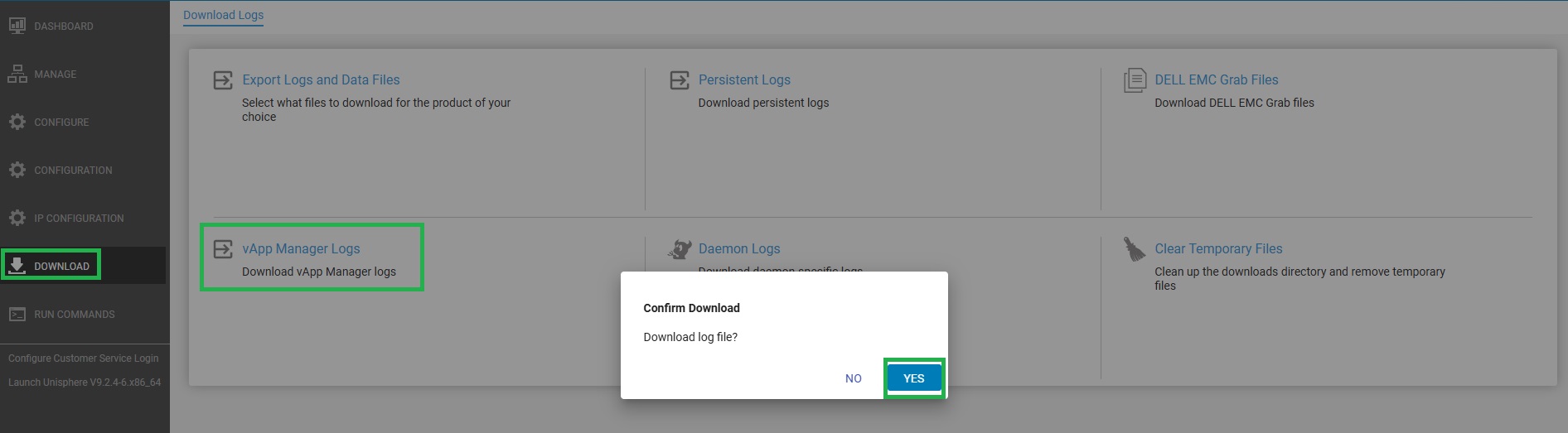
- Select Download.
- Click vApp Manager Logs.
- Click Yes on the Confirm Download dialog box.
- A .zip file containing the logs is downloaded in the browser.
- Daemon log files
Steps
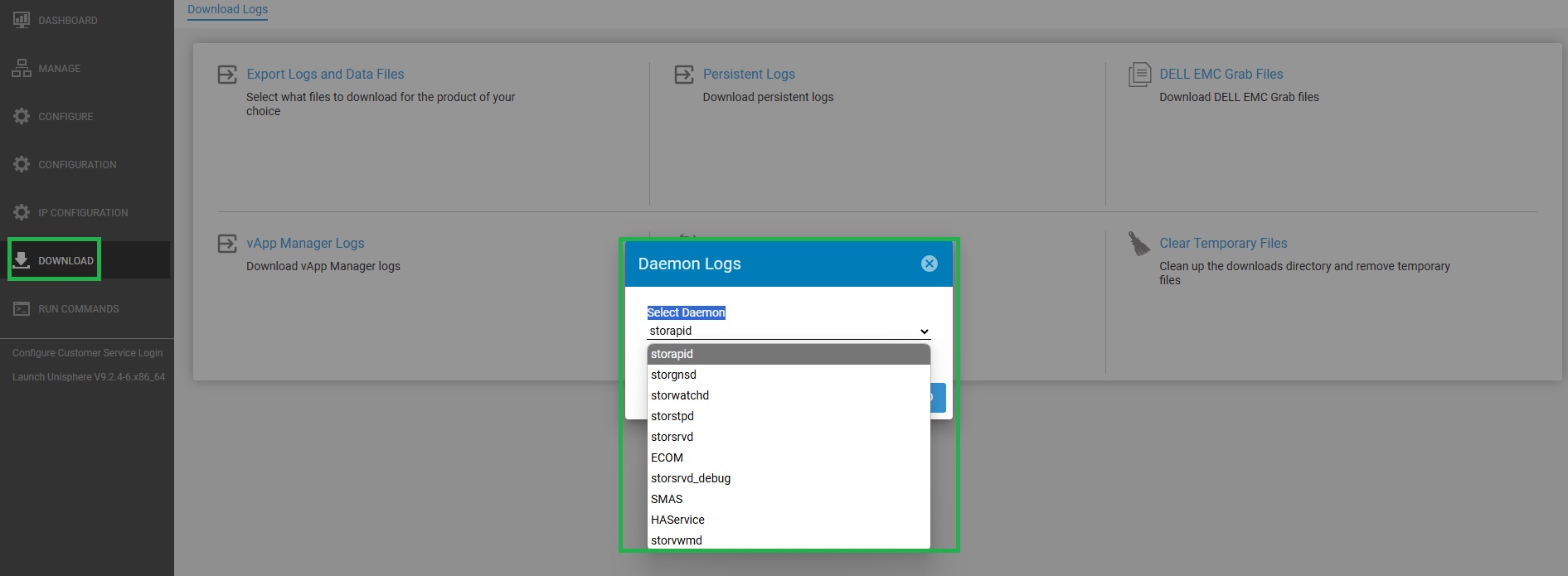
- Select Download.
- Click Daemon Logs.
- Select a daemon and click Download.
- A .zip file containing the logs is downloaded in the browser.
Steps
- Select Download.
- Click Clear Temporary Files.
- Click Yes on the Confirm Clear Temporary Files dialog box.

Affected Products
Unisphere for PowerMaxArticle Properties
Article Number: 000228122
Article Type: How To
Last Modified: 30 May 2025
Version: 1
Find answers to your questions from other Dell users
Support Services
Check if your device is covered by Support Services.