Avamar: Cluster configuration error SQL AG, Exchange DAG, or Hyper-V
Summary: This article provides steps for manually removing Avamar cluster services from the Windows operating system (OS).
Symptoms
Avamar Cluster Configuration Wizard fails to install and uninstall Exchange DAG or Hyper-V cluster configuration.
av_cluster_config_wizard WARN<0000>:  Unable to retrieve any cluster group agent information for the plug-in associated with pin file: 'windows.pin'.
av_cluster_config_wizard WARN<0000>:  The cluster agent resource does not exist. This is expected if the cluster has not yet been configured.
av_cluster_config_wizard WARN<0000>:  Unable to get Avamar server settings because no Cluster Group Agents were detected. This is expected if the cluster has not yet been configured.
av_cluster_config_wizard WARN<0000>:  The cluster agent resource does not exist. This is expected if the cluster has not yet been configured.
The cluster configuration wizard fails to install and uninstall SQL AG, Exchange DAG, or Hyper-V clusters.
Cause
Avagent cluster role was manually deleted for SQL AG, Exchange DAG, or Hyper-V cluster in the Failover Cluster Manager tool:
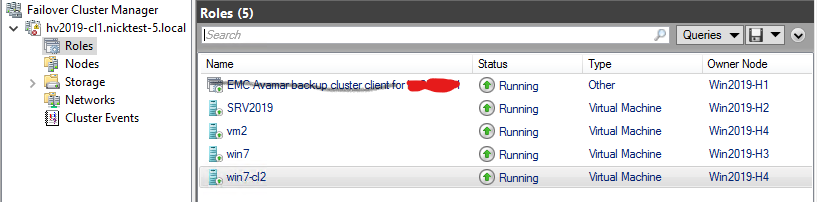
However, the Avagent cluster service remains in the services.msc console:

Resolution
- Verify SQL AG, Exchange DAG, or Hyper-V
Avagentcluster service is still installed, open theservices.mscconsole in Microsoft Windows. Copy the value from the Service name field and then close theservices.mscconsole (*IMPORTANT! See below). - Open the Windows command prompt as administrator on the client machine or server.
- Get the service configuration information using the following command:
sc [<ServerName>] qc [<ServiceDisplayName>]- To get the statistics for
Avagentcluster service on the local computer:
sc qc "Avamar Backup Agent for hv2019"- Use the "
sc delete" command to remove service:sc [<ServerName>] delete [<ServiceName>]
sc delete "Avamar Backup Agent for hv2019".Repeat the procedure on the cluster nodes with the same issue.
*IMPORTANT! Closing out the services.msc console increases the success rate for manual removal of the Avagent cluster services using Windows command prompt from the services.msc console. Otherwise, schedule downtime to reboot the cluster nodes if the service deletion commands are successful but the Avagent cluster service still exists in the services.msc console.