How to Collect Netskope Logs
Summary: Learn step-by-step instructions for how to collect logs for Netskope on Windows, Mac, or Android.
This article applies to
This article does not apply to
This article is not tied to any specific product.
Not all product versions are identified in this article.
Instructions
The following article provides details on how to collect logs from Netskope clients.
Affected Products:
- Netskope
Affected Operating Systems:
- Windows
- Mac
- Android
Click Windows, Mac, or Android for more information.
Windows
Logs may be collected through the product's:
Click on the appropriate method for more information.
UI
- Log in to the affected endpoint.
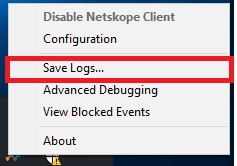
- Right-click the Netskope icon in the System Tray and then click Save Logs.
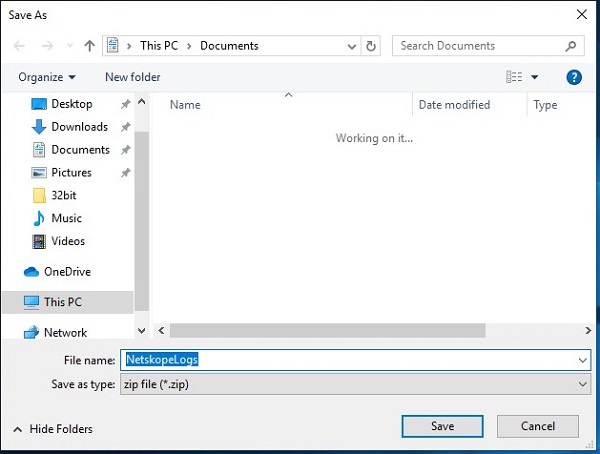
- Choose where to save the log bundle and then click Save.
CLI
- Log in to the affected endpoint.
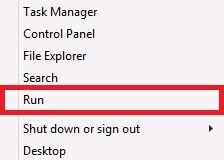
- Right-click the Windows start menu and then select Run.
- In the Run UI, type
cmdand then press CTRL+SHIFT+ENTER. This runs Command Prompt as an administrator.
- In Command Prompt, type
"%ProgramFiles(x86)%\Netskope\STAgent\nsdiag.exe" -o "%USERPROFILE%\Desktop\Netskope.zip"and then press Enter.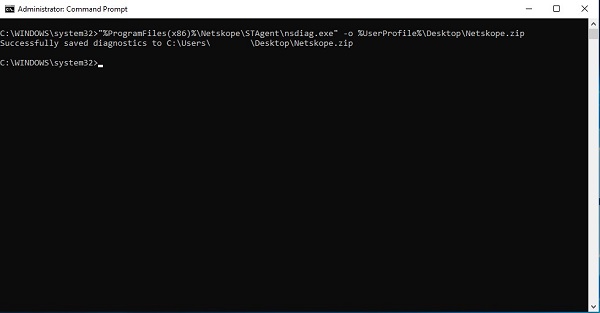
Tenant UI
To successfully collect logs from the tenant UI, the logs require:
- The affected endpoint to be powered on with a valid user logged in.
- The hostname to be provided to Dell Data Security ProSupport.
- The user email to be provided to Dell Data Security ProSupport.
Warning:
- In a web browser, go to the Netskope web console:
- United States data center: https://[TENANT].goskope.com/
- European Union data center: https://[TENANT].eu.goskope.com/
- Frankfurt data center: https://[TENANT].de.goskope.com/
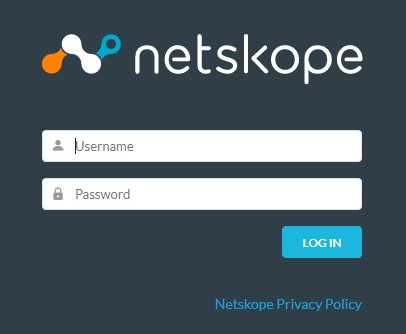
Note: [TENANT] = The tenant name in your environment - Log in to the Netskope web console.
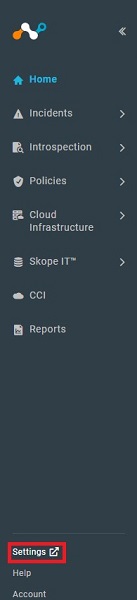
- Click Settings.
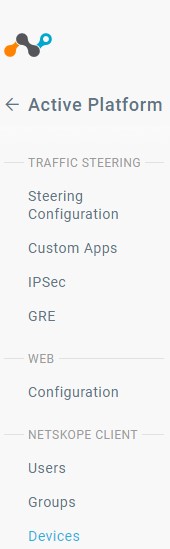
- Click Active Platform.

- Click Devices.
- Locate the affected endpoint, select the
...icon to the right, and then click Collect Log.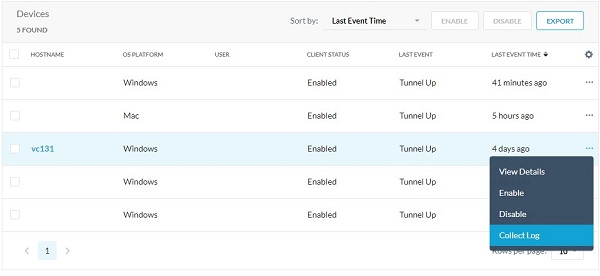 Note: The device logs are pulled and posted to the Netskope backend within an hour. Only Dell Data Security ProSupport has access to these logs.
Mac
Logs may be collected through the product's:
Click the appropriate method for more information.
UI
- Log in to the affected endpoint.
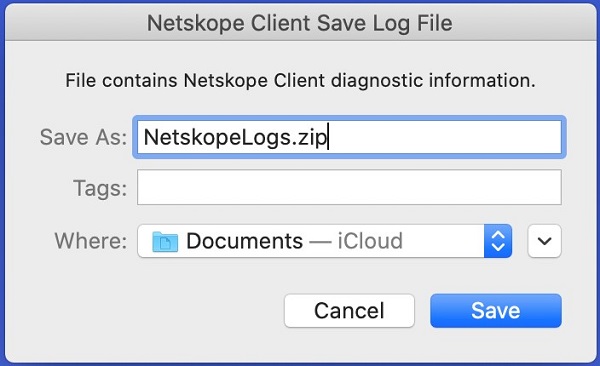
- Click the Netskope icon in the Menu Bar and then click Save Logs.

- Choose where to save the log bundle to and then click Save.
Terminal
- Log in to the affected endpoint.
- In the Apple menu, click Go and then select Utilities.

- Double-click Terminal.

- In Terminal, type
/Library/Application\ Support/Netskope/STAgent/nsdiag -o ~/Desktop/Netskope.zipand then press Enter.
Tenant UI
To successfully collect logs from the tenant UI, the logs require:
- The affected endpoint to be powered on with a valid user logged in.
- The hostname to be provided to Dell Data Security ProSupport.
- The user email to be provided to Dell Data Security ProSupport.
Warning:
- In a web browser, go to the Netskope web console:
- United States data center: https://[TENANT].goskope.com/
- European Union data center: https://[TENANT].eu.goskope.com/
- Frankfurt data center: https://[TENANT].de.goskope.com/
Note: [TENANT] = The tenant name in your environment - Log in to the Netskope web console.

- Click Settings.
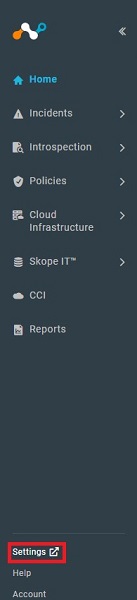
- Click Active Platform.
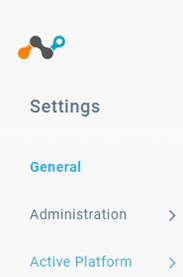
- Click Devices.
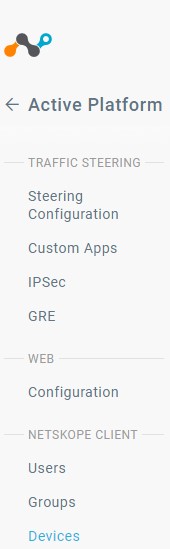
- Locate the affected endpoint, select the
...icon to the right, and then click Collect Log.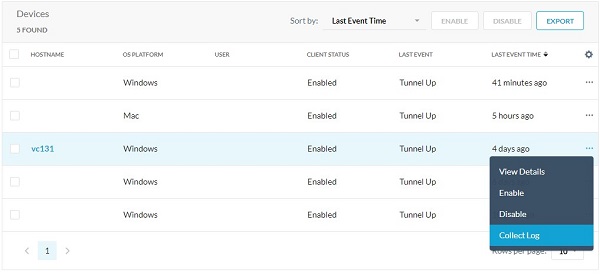 Note: The device logs are pulled and posted to the Netskope backend within an hour. Only Dell Data Security ProSupport has access to these logs.
Android
Logs can be gathered from the app on Android.
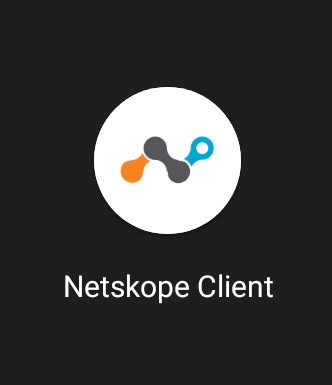
- Open your Netskope Client app from your device’s app launcher.
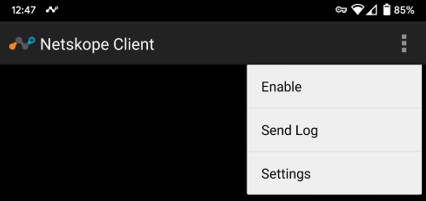
- In the upper right corner, tap the Menu button and then tap Send Log.
- Your device’s Share Menu displays. Select the way that you would like to send the
NetskopeLogs.zipfile.
To contact support, reference Dell Data Security International Support Phone Numbers.
Go to TechDirect to generate a technical support request online.
For additional insights and resources, join the Dell Security Community Forum.
Affected Products
NetskopeArticle Properties
Article Number: 000126727
Article Type: How To
Last Modified: 01 Jul 2025
Version: 9
Find answers to your questions from other Dell users
Support Services
Check if your device is covered by Support Services.