How to generate alerts of Data Mover memory usage and CPU usage in Unisphere
Summary: Step-by-step process for setting to generate alerts of Data Mover memory usage and CPU usage in Unisphere
This article applies to
This article does not apply to
This article is not tied to any specific product.
Not all product versions are identified in this article.
Instructions
Here are the steps for setting to generate alerts with Data Mover CPU Usage and Memory Usage in Unisphere.
Steps to set alerts with Data Mover CPU Usage and Memory Usage in Unisphere.
1. Open Unisphere by using Contorol Station IP and login.
2. Then, select the system (in the System drop down menu in the upper left).
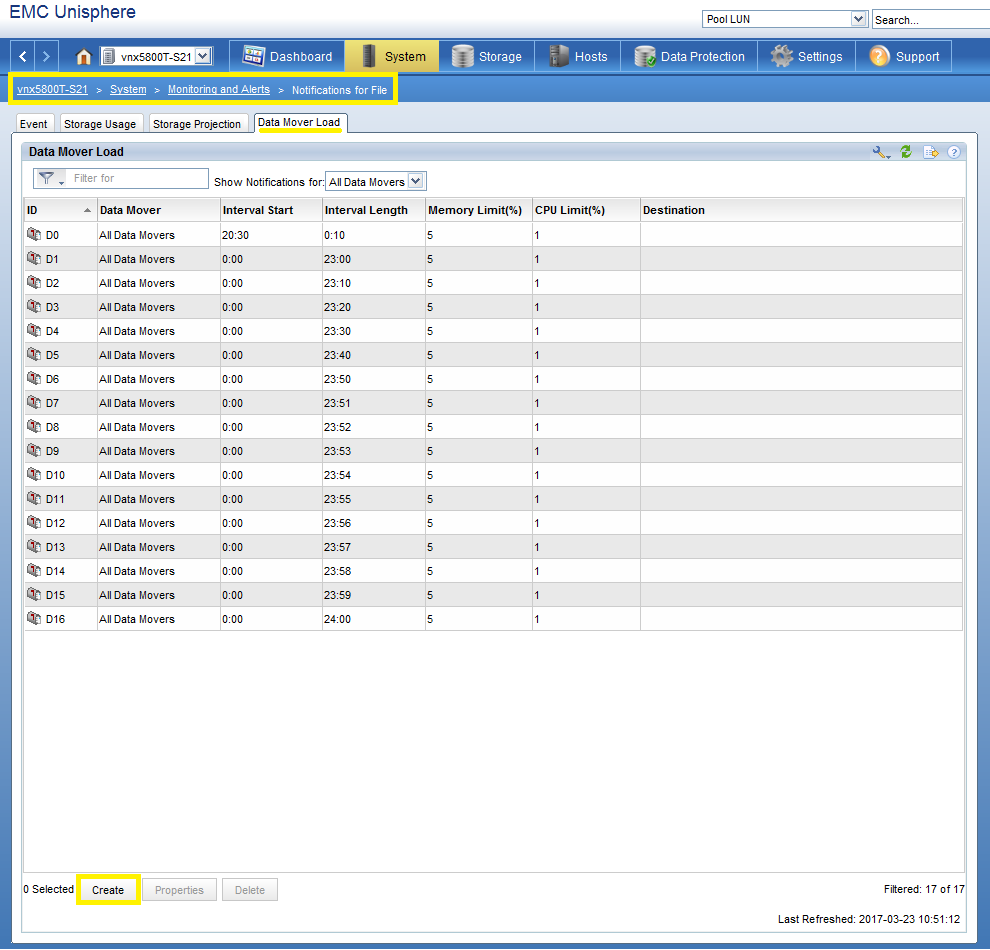
3. Go to System -> Monitoring and Alerts and select Notifications for File.
4. Select Data Mover Load tab.
5. Select Create button.
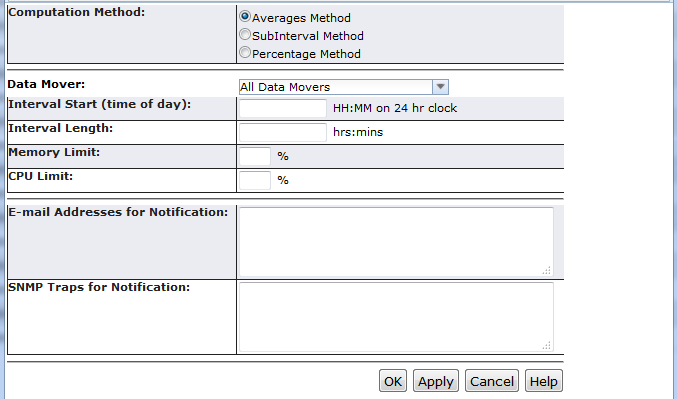
6. Enter the value and select apply.
Steps to set alerts with Data Mover CPU Usage and Memory Usage in Unisphere.
1. Open Unisphere by using Contorol Station IP and login.
2. Then, select the system (in the System drop down menu in the upper left).
3. Go to System -> Monitoring and Alerts and select Notifications for File.
4. Select Data Mover Load tab.
5. Select Create button.
6. Enter the value and select apply.
Additional Information
Using interval method for DM load alert, any intervals close to midnight such as 23:50 or 23:55 do not trigger.
User should set "interval start time 00:05 or later" and "interval end time 23:40 before" to get alerts.
* User can't monitor Data Mover memory usage and CPU usage the whole day using this function.
** interval end time = interval start time + interval length.
User should set "interval start time 00:05 or later" and "interval end time 23:40 before" to get alerts.
* User can't monitor Data Mover memory usage and CPU usage the whole day using this function.
** interval end time = interval start time + interval length.
Affected Products
VNX1 SeriesProducts
VNX1 Series, VNX2 SeriesArticle Properties
Article Number: 000019359
Article Type: How To
Last Modified: 06 Nov 2025
Version: 3
Find answers to your questions from other Dell users
Support Services
Check if your device is covered by Support Services.