Unable to Start Security Server After Updating the Database Password in Dell Security Management Server Virtual
Summary: This article describes what to do if you are unable to start the Security Server in Dell Security Management Server Virtual (formerly Dell Data Protection | Virtual Edition) after updating the database password. ...
This article applies to
This article does not apply to
This article is not tied to any specific product.
Not all product versions are identified in this article.
Symptoms
Affected Products:
- Dell Security Management Server Virtual
- Dell Data Protection | Virtual Edition
Affected Operating Systems:
- Linux
Cause
Not Applicable
Resolution
Stopping and restarting services does not correct the problem. A reboot of the virtual machine must be completed to get the Security Server to show as Running.
- Select Reboot Appliance from the Basic Configuration menu.
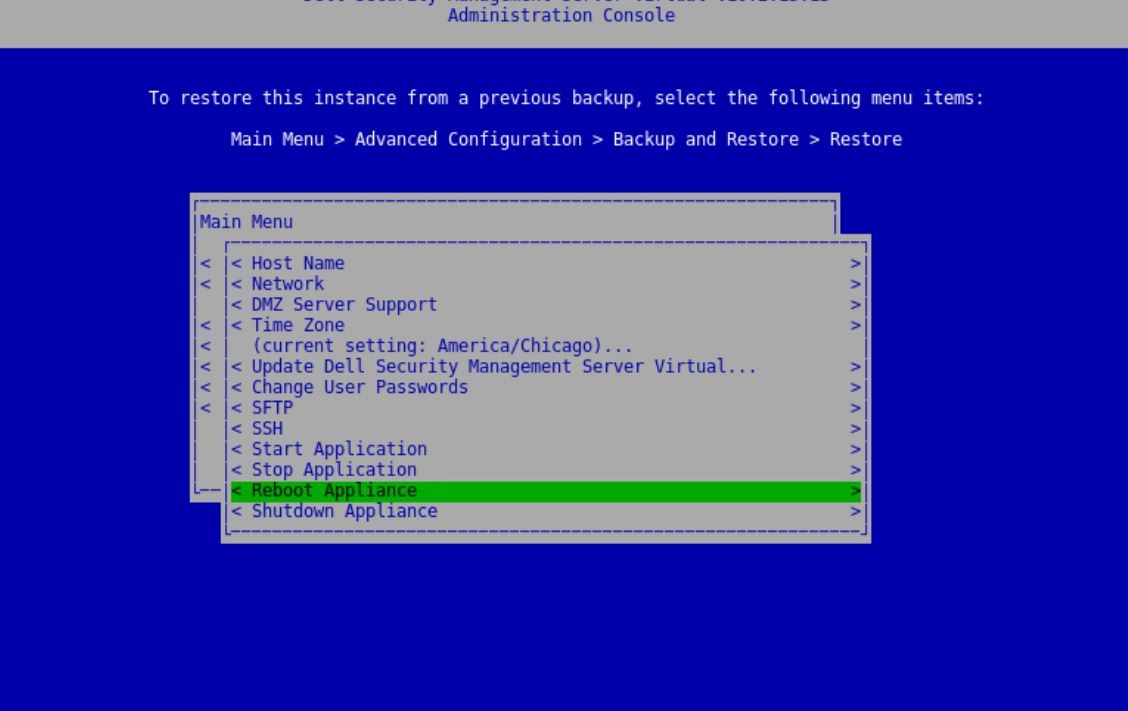
Figure 1: (English Only) Reboot Appliance
- After the reboot, confirm that all services are running by selecting System Dashboard from the Main Menu.
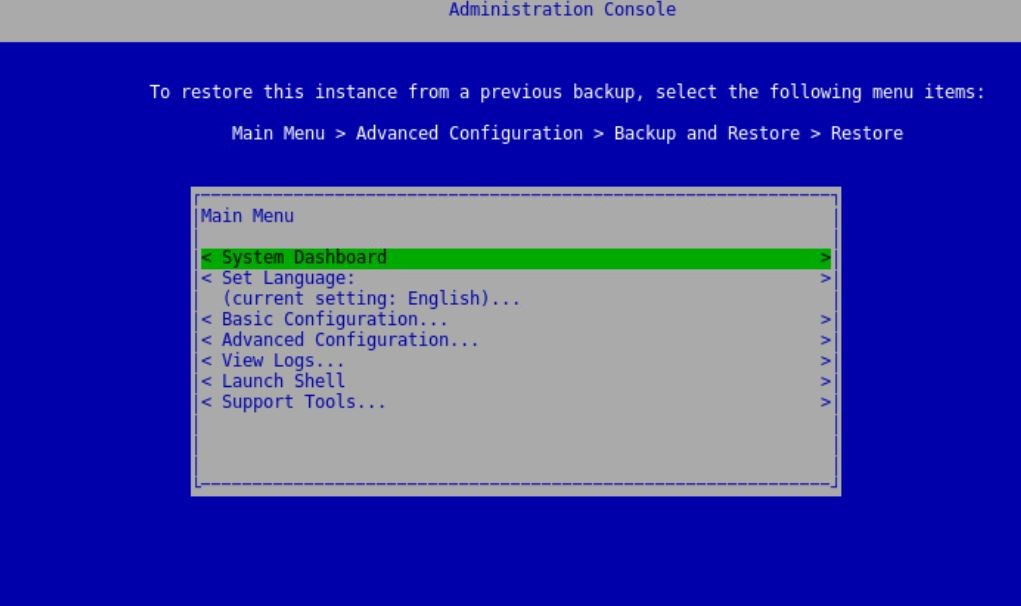
Figure 2: (English Only) System Dashboard
- All services are now show Running.
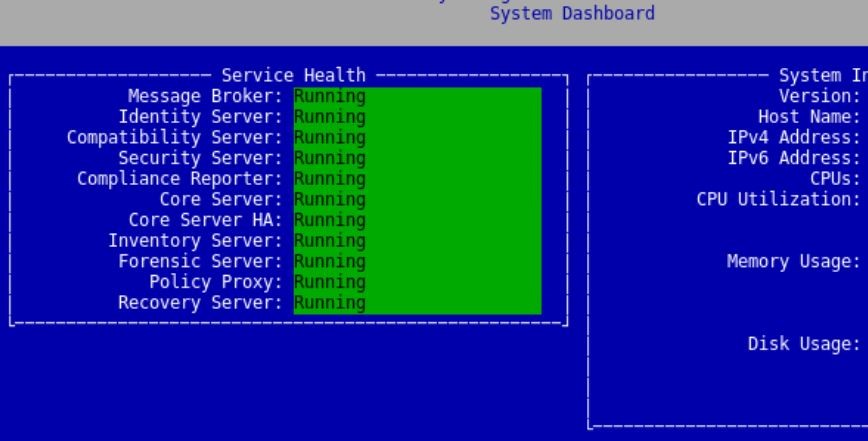
Figure 3: (English Only) Service Running
- Select Reboot Appliance from the Basic Configuration menu.
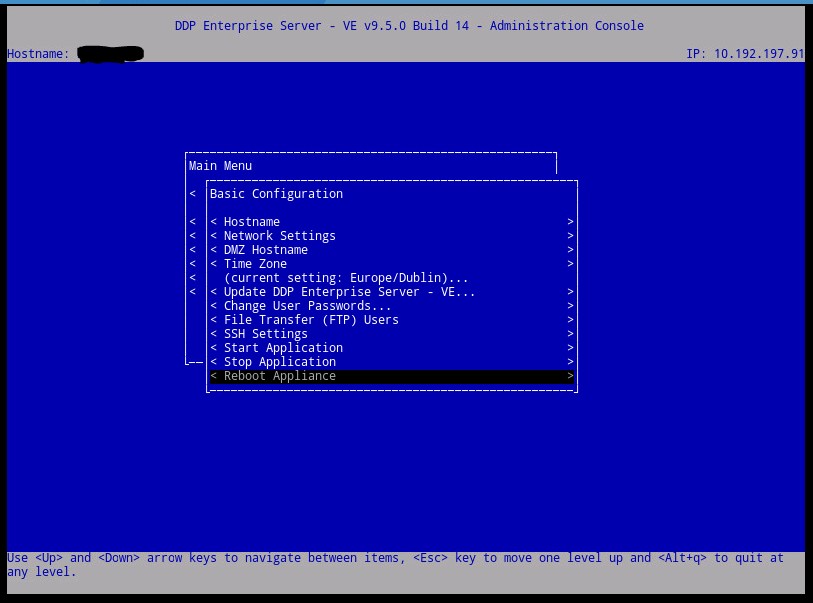
Figure 4: (English Only) Reboot Appliance
- After the reboot, confirm that all services are running by selecting Server Status from the Main Menu.
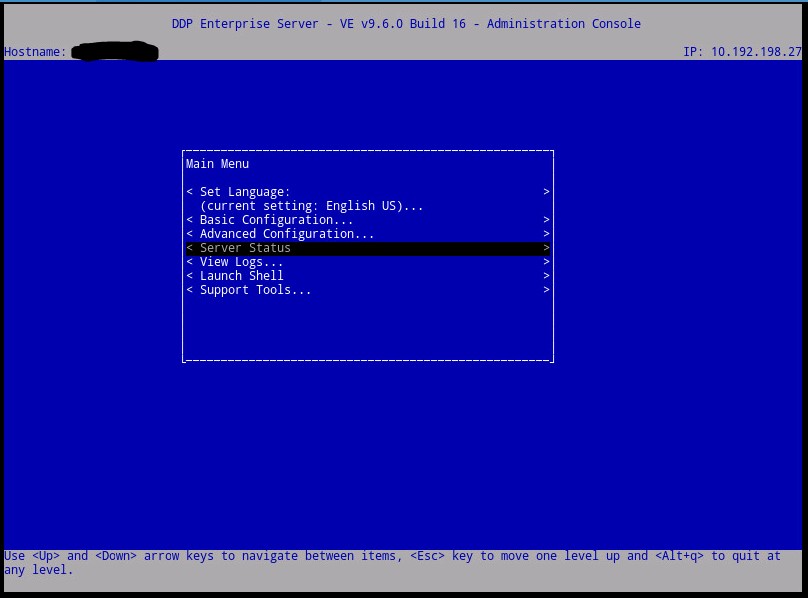
Figure 5: (English Only) Server Status
- All services are now show Running.
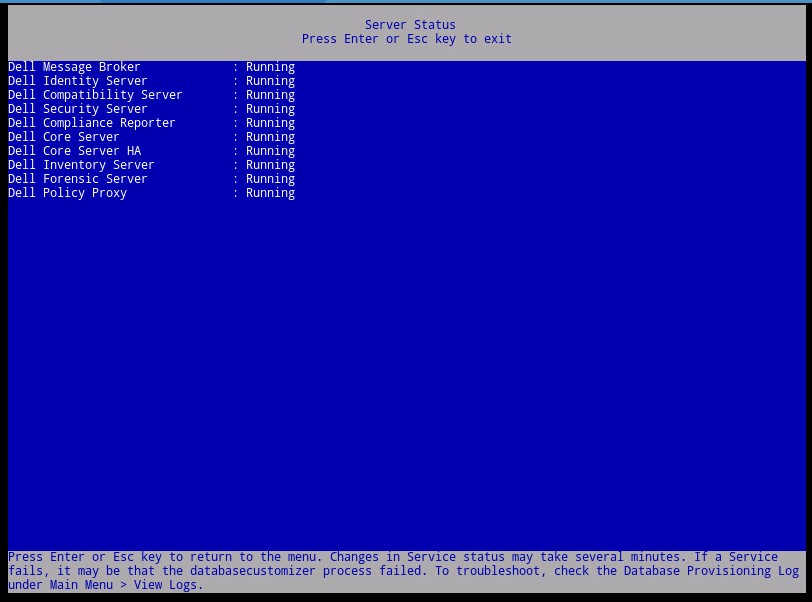
Figure 6: (English Only) Service Running
To contact support, reference Dell Data Security International Support Phone Numbers.
Go to TechDirect to generate a technical support request online.
For additional insights and resources, join the Dell Security Community Forum.
Affected Products
Dell EncryptionArticle Properties
Article Number: 000130651
Article Type: Solution
Last Modified: 21 Mar 2024
Version: 12
Find answers to your questions from other Dell users
Support Services
Check if your device is covered by Support Services.