NVP-vProxy: Backups fail "ServerFaultCode: A specified parameter was not correct: entity"
Summary: NVP-vProxy: Backups fail with "Cannot set custom attribute" or "Failed to lock Virtual Machine for backup" with ServerFaultCode: "A specified parameter was not correct: entity"
This article applies to
This article does not apply to
This article is not tied to any specific product.
Not all product versions are identified in this article.
Symptoms
The NetWorker VMware Protection integration is configured with the vProxy Appliance. The backups were working and then start consistently failing indicating the vCenter Application Programing Interlace (API) call to update the "EMC vProxy Session" custom attribute fails with "ServerFaultCode: A specified parameter was not correct: entity." The backup session log shows:
YYYY/MM/DD HH:MM:SS INFO:   [362] Locking VM.
YYYY/MM/DD HH:MM:SS TRACE:  [362] Setting custom attribute 'EMC vProxy Session' value for object vm-12345 to 'Operation=Backup, StartTime=YYYY-MM-DD HH:MM:SS, vProxy=[VPROXY_NAME], SessionId=f616f2d4-ad1b-485e-9126-d20627996256' ...
YYYY/MM/DD HH:MM:SS TRACE:  [362] Cannot set custom attribute 'EMC vProxy Session' value for object vm-12345: ServerFaultCode: A specified parameter was not correct: entity
YYYY/MM/DD HH:MM:SS ERROR:  [362] Failed to lock Virtual Machine for backup: ServerFaultCode: A specified parameter was not correct: entity.
YYYY/MM/DD HH:MM:SS INFO:   [362] Disconnected from session on vCenter [VCENTER_SERVER_NAME].
The vSphere Web Client does not show any custom attributes in the virtual machine (VM) summary configuration details.

Figure 1: Custom Attribute in the VM summary tab shows No custom attributes assigned.
The vSphere Web Client "Tags & Custom Attributes" section shows vProxy Host type custom attributes:
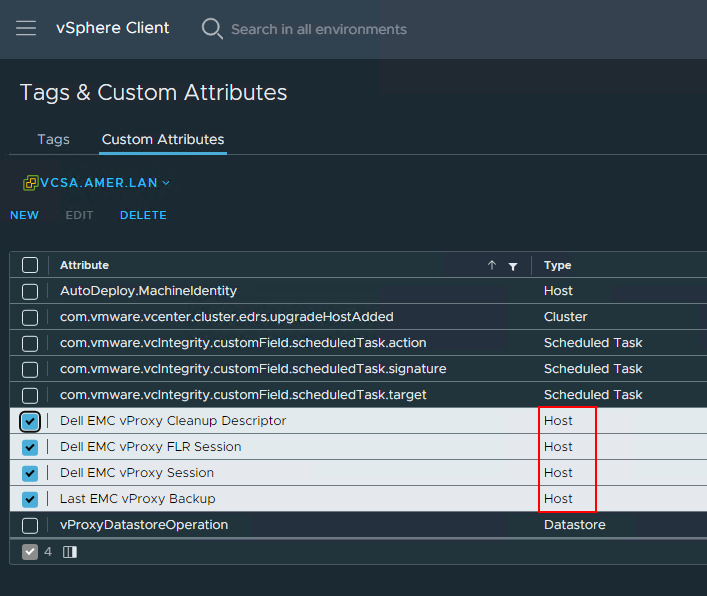
Figure 2: Dell vProxy related attributes show the Type as Host.
Cause
The vCenter custom attributes in the environment were changed from type "Virtual Machine" to "Host," but the cause is unknown. The backup validates if the "Virtual Machine" attributes exist during the start of the backup and they were not found as they were now type "Host." The backup then creates the "Virtual Machine" attributes, and the ServerFaultCode was due to an attribute with the same name (but different type) already existing.
Resolution
Manually delete the "Host" type vProxy attributes from the vSphere Web Client and allow the vProxy backup workflow to re-create the "Virtual Machine" type attributes.
- Open the vSphere Web Client.
- From the Home screen, select the "Tags & Custom Attributes" option in the Navigator pane.
- In the "Tags & Custom Attributes" details window, select the "Custom Attributes" tab.
- Ensure that the correct vCenter is selected in the drop-down. If multiple vCenters are linked together, each vCenter is presented here regardless of which vCenter URL is used to access the vSphere web-UI:
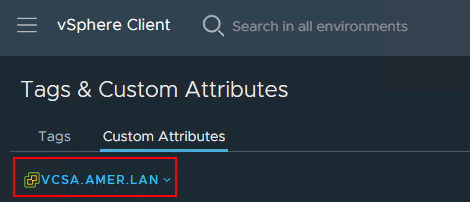
Figure 3: vCenter server selection from the Custom Attribute page
- Select the Dell custom attributes with type "Host" and delete.
EMC vProxy SessionEMC vProxy FLR SessionLast EMC vProxy BackupEMC vProxy Cleanup Descriptor
- Start the vProxy backup workflow from the NetWorker Management Console.
The vSphere Web Client "Tags & Custom Attributes" section shows the Virtual Machine type custom attributes after the vProxy backup workflow:
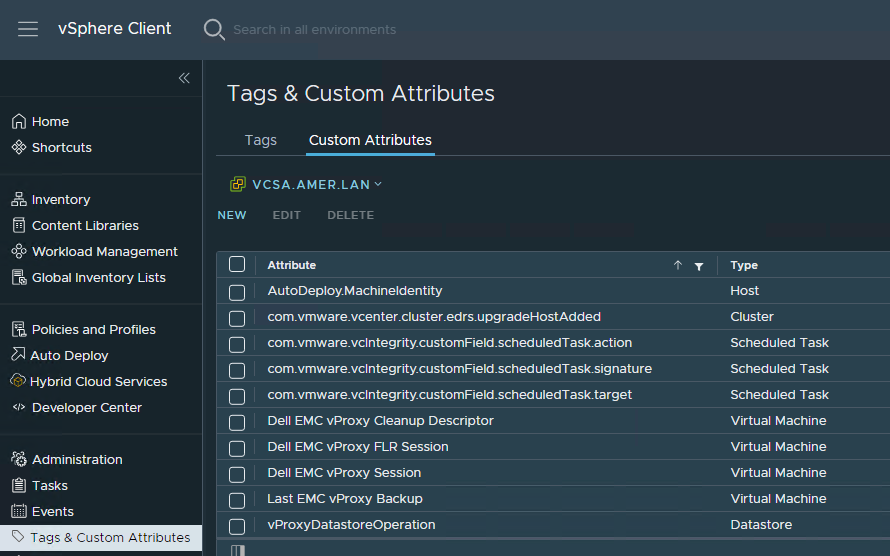
Figure 4: Custom Attributes correctly show they type as Virtual Machine.
Affected Products
NetWorkerArticle Properties
Article Number: 000169880
Article Type: Solution
Last Modified: 07 Nov 2025
Version: 7
Find answers to your questions from other Dell users
Support Services
Check if your device is covered by Support Services.