PowerEdge: How to Launch the Integrated Dell Remote Access Controller (iDRAC) Virtual Console
Summary: The iDRAC virtual console can be launched using a web interface or URL. Using the iDRAC virtual console viewer is also explained.
This article applies to
This article does not apply to
This article is not tied to any specific product.
Not all product versions are identified in this article.
Instructions
The iDRAC's virtual console manages a remote system using the keyboard, video, and mouse of the management station to control the corresponding devices on a managed server. This is a licensed feature for rack and tower servers. It is available by default in blade servers. Contact Sales team if you require an upgrade iDRAC License or to download an iDRAC Trial license from iDRAC, CMC, OpenManage Enterprise, OpenManage Integration with Microsoft Windows Admin Center, OpenManage Integration with ServiceNow, and DPAT Trial Licenses to enable the iDRAC virtual console for a 30-day evaluation.
Table of Contents:
- Launching the iDRAC virtual console using web interface
- Launching the iDRAC virtual console using a URL
- Using the iDRAC virtual console viewer
Before you use the iDRAC virtual console, the iDRAC must be configured with an IP address to access from your management system. For additional information, review the iDRAC User's Guide for the specific iDRAC and firmware version as the steps vary by generation. Reference iDRAC Documentation.
Launching the iDRAC virtual console using web interface
Log in to the iDRAC's web interface from a management system using a supported web browser. Log in using the iDRAC username and the iDRAC password. For more information about the iDRAC password, reference What is the default username and password for Integrated Dell Remote Access Controller (iDRAC)?
For the iDRAC9 virtual console:
- From the iDRAC9 Dashboard (home page), click Launch Virtual Console.
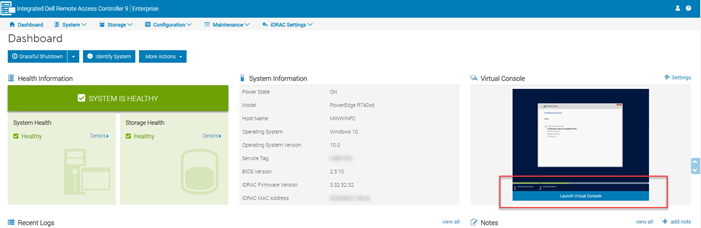
Figure 1: iDRAC9 dashboard
- From the iDRAC9 Configuration menu, select Virtual Console and then click Launch Virtual Console.
For the iDRAC8 and iDRAC7 virtual console:
- Go to Overview, then Server, and then Virtual Console. The Virtual Console page is displayed. Click Launch Virtual Console. The Virtual Console Viewer is launched.
- Go to Overview, then Server, and then Properties. The System Summary page is displayed. Under the Virtual Console Preview section, click Launch. The Virtual Console Viewer is launched.
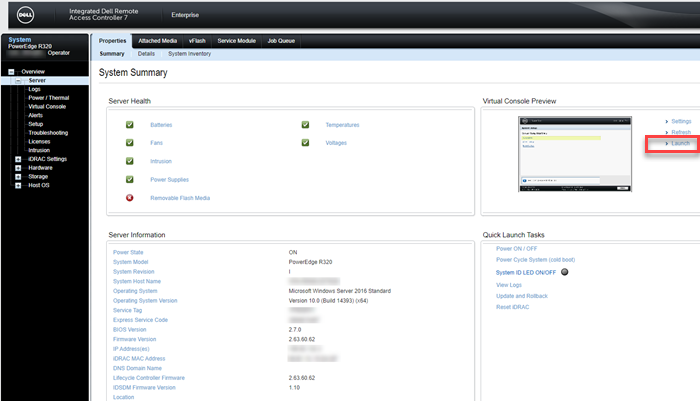
Figure 2: iDRAC8 or iDRAC7 System Summary
Note: A certificate warning message may be displayed indicating that a trusted certificate is not found. Click Continue. For more information, reference Disabling warning messages while launching virtual console or virtual media using Java or ActiveX plug-in.
Note: If the remote server is powered off or the server's embedded video is disabled, the message "No Signal" is displayed.
Launching the iDRAC virtual console using a URL
- Open a supported web browser and in the address box, type the following URL using lowercase:
https://[iDRAC_IP]/consoleNote: [iDRAC_IP] = The IP of the iDRAC in your environment - Log in using the iDRAC username and password
Using the iDRAC virtual console viewer
The Virtual Console Viewer provides various controls. These include mouse synchronization, virtual console scaling, chat options, keyboard macros, power actions, next boot devices, and access to the Virtual Media function. For more information, reference Using the Virtual Media function on iDRAC6, iDRAC7, iDRAC8 and iDRAC9. Virtual media allows the managed server to access media devices on the management station or ISO CD/DVD images on a network share as if they were devices on the managed server. Use the Virtual Media feature to:
- Remotely access media that is connected to a remote system over the network
- Install applications
- Update drivers
- Install an operating system on the managed system
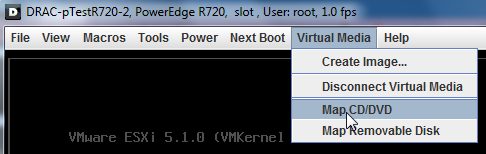
Figure 3: Virtual Media and Map CD/DVD
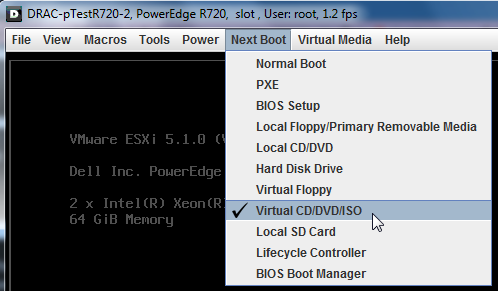
Figure 4: Next Boot and Virtual CD/DVD/ISO
Affected Products
C Series, HS Series, Modular Infrastructure, Rack Servers, Tower Servers, XE Servers, XR Servers, iDRAC7, iDRAC8, iDRAC9, PowerEdge XR2, PowerEdge C4130, Poweredge C4140, PowerEdge c6320, PowerEdge c6320p, PowerEdge C6420, PowerEdge C6520
, PowerEdge C6525, PowerEdge C6615, PowerEdge C6620, Poweredge FC430, Poweredge FC630, PowerEdge FC640, Poweredge FC830, PowerEdge FD332, PowerEdge FM120x4 (for PE FX2/FX2s), PowerEdge FX2/FX2s, PowerEdge HS5610, PowerEdge HS5620, PowerEdge M420, PowerEdge M520, PowerEdge M520 (for PE VRTX), PowerEdge M620, PowerEdge M620 (for PE VRTX), PowerEdge M630, PowerEdge M630 (for PE VRTX), PowerEdge M640, PowerEdge M640 (for PE VRTX), PowerEdge M820, PowerEdge M820 (for PE VRTX), PowerEdge M830, PowerEdge M830 (for PE VRTX), PowerEdge MX740C, PowerEdge MX750c, PowerEdge MX760c, PowerEdge MX840C, PowerEdge R220, PowerEdge R230, PowerEdge R240, PowerEdge R250, PowerEdge R260, PowerEdge R320, PowerEdge R330, PowerEdge R340, PowerEdge R350, PowerEdge R360, PowerEdge R420, PowerEdge R420XR, PowerEdge R430, PowerEdge R440, PowerEdge R450, PowerEdge R520, PowerEdge R530, PowerEdge R530xd, PowerEdge R540, PowerEdge R550, PowerEdge R620, PowerEdge R630, PowerEdge R640, PowerEdge R6415, PowerEdge R650, PowerEdge R650xs, PowerEdge R6515, PowerEdge R6525, PowerEdge R660, PowerEdge R660xs, PowerEdge R6615, PowerEdge R6625, PowerEdge R720, PowerEdge R720XD, PowerEdge R730, PowerEdge R730xd, PowerEdge R740, PowerEdge R740XD, PowerEdge R740XD2, PowerEdge R7415, PowerEdge R7425, PowerEdge R750, PowerEdge R750XA, PowerEdge R750xs, PowerEdge R7515, PowerEdge R7525, PowerEdge R760, PowerEdge R760XA, PowerEdge R760xd2, PowerEdge R760xs, PowerEdge R7615, PowerEdge R7625, PowerEdge R820, PowerEdge R830, PowerEdge R840, PowerEdge R860, PowerEdge R920, PowerEdge R930, PowerEdge R940, PowerEdge R940xa, PowerEdge R960, PowerEdge T130, PowerEdge T140, PowerEdge T150, PowerEdge T160, PowerEdge T320, PowerEdge T330, PowerEdge T340, PowerEdge T350, PowerEdge T360, PowerEdge T420, PowerEdge T430, PowerEdge T440, PowerEdge T550, PowerEdge T560, PowerEdge T620, PowerEdge T630, PowerEdge T640, PowerEdge XE2420, PowerEdge XE7420, PowerEdge XE7440, PowerEdge XE8545, PowerEdge XE8640, PowerEdge XE9680, PowerEdge XR11, PowerEdge XR12, PowerEdge XR4510c, PowerEdge XR4520c, PowerEdge XR5610, PowerEdge XR7620, PowerEdge XR8610t, PowerEdge XR8620t
...
Products
iDRAC7 with Lifecycle Controller Version 2.43.43.43, iDRAC7 with Lifecycle Controller Version 2.41.40.40, iDRAC8 with Lifecycle Controller version 2.84.84.84, iDRAC8 with Lifecycle Controller version 2.85.85.85, iDRAC9 - 7.xx SeriesArticle Properties
Article Number: 000179797
Article Type: How To
Last Modified: 23 Jun 2026
Version: 13
Find answers to your questions from other Dell users
Support Services
Check if your device is covered by Support Services.