How To Set A Uninstall Password for Netskope
Summary: An uninstall password is useful to prevent unauthorized removal of the Netskope client on a Windows Operating System.
This article applies to
This article does not apply to
This article is not tied to any specific product.
Not all product versions are identified in this article.
Instructions
Affected Products:
- Netskope Client
Affected Platforms:
- Windows 10.0 (32-bit & 64-bit)
- Windows 8
- Windows 8.1
- Windows Server 2019
- Windows Server 2016
- Windows Server 2012 R2 (Windows NT 6.3)
- Windows Server 2008 R2 (Windows NT 6.1)
- In a web browser, go to the Netskope web console:
- United States Datacenter: https://[TENANT].goskope.com/
- European Union Datacenter: https://[TENANT].eu.goskope.com/
- Frankfurt Datacenter: https://[TENANT].de.goskope.com/
Note: [TENANT] = The tenant name in your environment
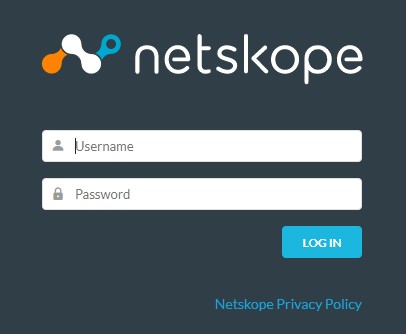
- Log in to the Netskope web console.
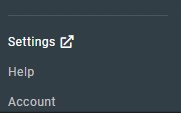
- Click Settings.
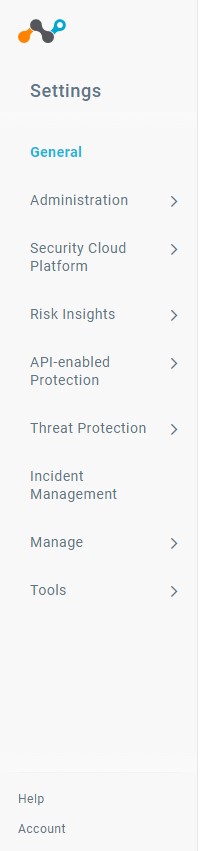
- Click Security Cloud Platform.
- Click Devices.
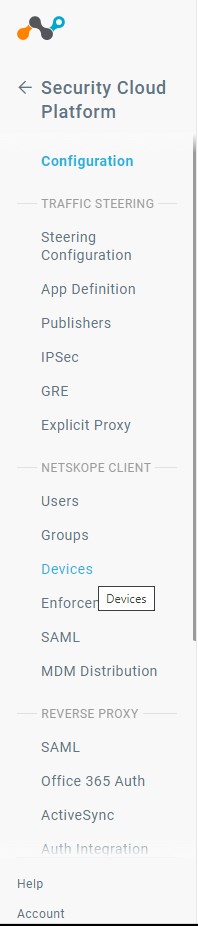
- In Devices click Client Configurations.

- In Client Configuration, click Default Tenant config.
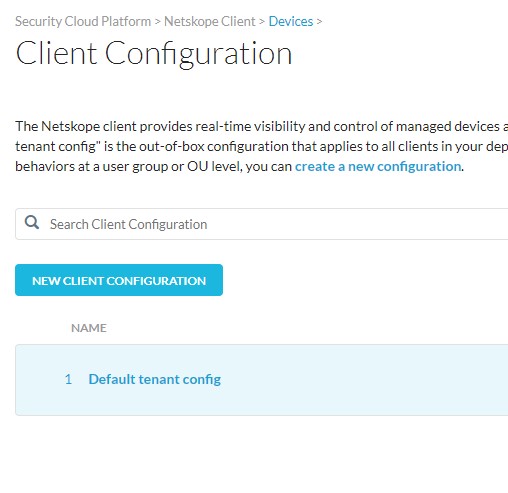 Note: If you have created additional client configurations, ensure you pick the correct configuration that you want to set an uninstall password for.
 - In the Client Configuration window, scroll down until you see the Tamperproof section.
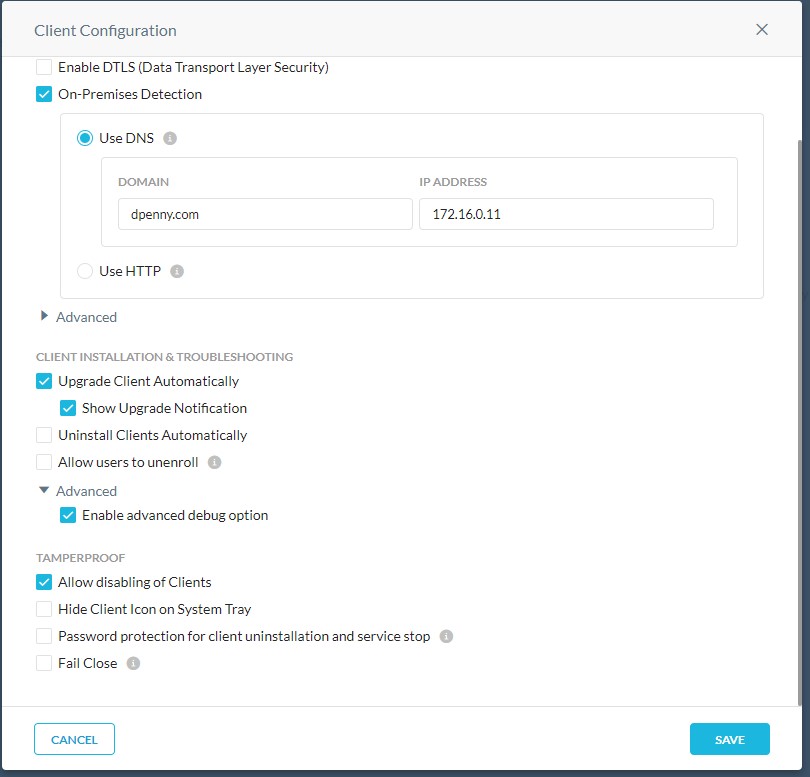
- In the Tamperproof section, click the checkbox for Password protection for client uninstallation and service stop.

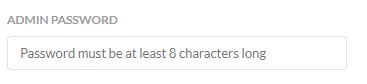
- Enter a password into the Admin Password box.
- Click Save.

- You have now successfully set an uninstallation password. Any deployed endpoints will pick up this policy change the next time that they contact the server.
To contact support, reference Dell Data Security International Support Phone Numbers.
Go to TechDirect to generate a technical support request online.
For additional insights and resources, join the Dell Security Community Forum.
Affected Products
NetskopeArticle Properties
Article Number: 000180646
Article Type: How To
Last Modified: 09 Dec 2024
Version: 8
Find answers to your questions from other Dell users
Support Services
Check if your device is covered by Support Services.