XPS 9500, 9510, 9700, 9710, Precision 5550, 5560, 5750, and 5760 touchpad intermittently is not working around the edges
Summary: The following article provides information about touchpad intermittently not working around the edges on XPS laptops and Precision Mobile Workstations.
This article applies to
This article does not apply to
This article is not tied to any specific product.
Not all product versions are identified in this article.
Instructions
Affected Platforms:
- XPS 9500
- XPS 9510
- XPS 9700
- XPS 9710
- Precision 5550
- Precision 5560
- Precision 5750
- Precision 5760
Users have reported intermittent issues with the touchpad. They advised that the lower left and lower right corners, as well as the left, right, and top edges of the touchpad do not work.
Note: This is the expected behavior of the laptop's touchpad. The touchpad is working as designed.
For ease of use and to prevent an accidental touch on the touchpad, we defined the palm rejection area as:
- 8.2 mm (0.32 inches) in width at the edge of the touchpad
- 1 cm (0.39 inches) x 1 cm (0.39 inches) at the bottom-right and bottom-left corner of the touchpad (The red box in figure.1)
Note: You may think that the touchpad is failing to respond when you touch this area. It was designed like this to make it easier to use.
We defined the lower right of the touchpad as the right-click area (The red dotted box in figure 1).
This functions as the traditional right-click button (the rest of the touchpad area responds as the left click).
Note: If you think the right-click or left-click does not work properly, check that you are using them as directed for these computers.
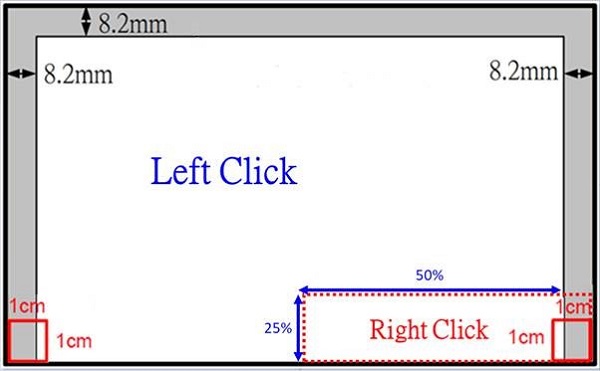
Figure 1: (English Only) Diagram defining the various areas of the touchpad
Improvements to how the touchpad works
Our engineering team has released a new firmware update that makes the touchpad easier to use.
After installing the touchpad update firmware, you will see the following changes to how your touchpad works:
- The update has removed the palmrest rejection area at 1 cm (0.39 inches) x 1 cm (0.39 inches) of lower left and lower right corners. This area is now clickable.

Figure 2: (English Only) Original Design
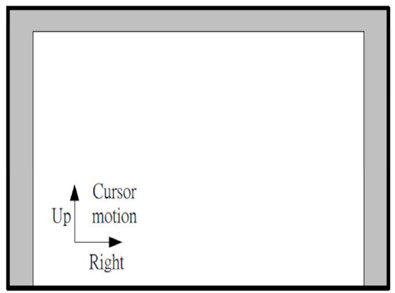
Figure 3: (English Only) Updated Design
- The height of the edge filtering function along the top edge is reduced from 8.2 mm (0.32 inches) to 4 mm (0.15 inches).
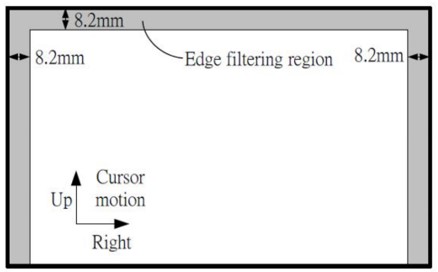
Figure 4: (English Only) Original Design
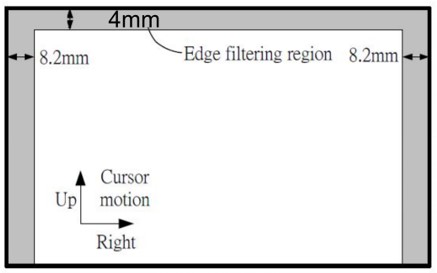
Figure 5: (English Only) Updated Design
How to Update the Touchpad Firmware
Warning: Downloading and installing Dell-developed drivers or software from third-party or unknown sources can cause the computer or device not to work correctly. It can cause the computer to stop responding or to not boot into the operating system. In some rare instances infect the computer with a virus, trojan, or other malicious software.
Note: Drivers for third-party or non-Dell products must be downloaded from the device manufacturer's website (for example, devices such as non-Dell branded printers, docking stations, webcams, scanners, monitors, and so on).
- Browse to https://www.dell.com/support/drivers.
- Identify your Dell computer.
- Click Download and Install SupportAssist to auto-detect your Dell computer. Follow the on-screen instructions to install Dell SupportAssist. For more information, reference the Dell knowledge base article Dell SupportAssist (formerly Dell System Detect): Overview and Common Questions
- Enter the Service Tag of the laptop and click Search.
- Or click Browse all products and select your Dell computer from the catalog.
- Select the Operating System that is installed on the Dell computer.
- Under Category, select Mouse, Keyboard, and Input Devices.
- Locate the latest ELAN Touchpad Firmware Update Utility firmware.
- Click Download and save the file to your computer.
- Open File Explorer and browse to the location where the downloaded file is saved.
- Double-click the downloaded touchpad firmware setup file and follow the on-screen instructions to complete the installation process.
Affected Products
Precision 5550, Precision 5560, Precision 5750, Precision 5760, XPS 15 9500, XPS 15 9510, XPS 17 9700, XPS 17 9710Article Properties
Article Number: 000184090
Article Type: How To
Last Modified: 19 Apr 2025
Version: 9
Find answers to your questions from other Dell users
Support Services
Check if your device is covered by Support Services.