CloudLink: CloudLink 노드가 비상 모드로 중단됨
Summary: CloudLink 노드가 비상 모드로 중단되었습니다.
This article applies to
This article does not apply to
This article is not tied to any specific product.
Not all product versions are identified in this article.
Symptoms
CloudLink 노드를 부팅한 후 다음과 같은 메시지가 표시됩니다.
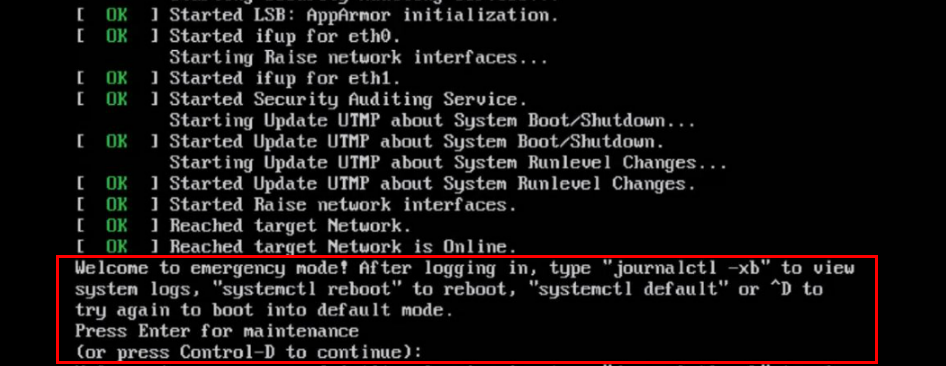
Welcome to emergency mode! After logging in, type "journalctl -xb" to view
system logs, "systemctl reboot" to reboot, "systemctl default" or ^D to
try again to boot into default mode.
Press Enter for maintenance
(or press Control-D to continue):
Cause
이 문제는 복구해야 하는 파일 시스템 문제로 인해 발생합니다.
Resolution
노드에서 파일 시스템 문제를 해결하려면 다음을 수행합니다.
루트 파일 시스템이 깨끗한 경우 위의 동일한 절차를 사용하여 다른 파일 시스템에서 fsck를 실행할 수 있습니다.
journalctl -xb 명령을 실행합니다. 이러한 로그는 복구가 필요한 손상된 파일 시스템이 있는지 여부를 나타낼 수 있습니다.
lsblk 및 blkid 명령을 사용하여 uuid를 해당 파일 시스템과 연결하는 데 도움이 될 수 있습니다.
다음은 journalctl -xb:
/dev/sda6에서 볼 수 있는 오류의 몇 가지 예입니다. 손상된 분리된 연결 목록의 일부인 Inode가 발견되었습니다.
/dev/sda6: 예기치 않은 불일치: 수동으로 fsck를 실행합니다.
/dev/disk/by-uuid/fd782a8-a70d-045513691c7e에서 파일 시스템 검사를 시작하지 못했습니다. fsck를 사용하여 파일 시스템을 복구할 수 없거나 긴급 모드에서 자주 중단되는 Cloudlink 노드가 하나 있는 경우 해당 손상된 Cloudlink 노드를 클러스터에서 제거해야 합니다.
그런 다음 OVA에서 새 Cloudlink 노드를 구축하고 기존 클러스터에 연결합니다.
파일 시스템을 복구할 수 있는 경우 Cloudlink UI에서 클러스터의 상태를 확인해야 합니다.
이 작업은 시스템 > 클러스터에서 수행되며 수신 및 발신 동기화 상태가 정상인지 확인합니다.
- 계속하려면 Control-D를 누르지만 비상 모드로 유지됩니다.
- 유지 보수를 위해 ENTER 키를 누릅니다.
- 루트(/) 파일 시스템에서 파일 시스템 검사를 실행합니다.
root@cloudlink:~# lsblk
- 발견된 오류를 해결하려면 y 를 누릅니다.
- 노드를 재부팅합니다.
루트 파일 시스템이 깨끗한 경우 위의 동일한 절차를 사용하여 다른 파일 시스템에서 fsck를 실행할 수 있습니다.
journalctl -xb 명령을 실행합니다. 이러한 로그는 복구가 필요한 손상된 파일 시스템이 있는지 여부를 나타낼 수 있습니다.
lsblk 및 blkid 명령을 사용하여 uuid를 해당 파일 시스템과 연결하는 데 도움이 될 수 있습니다.
다음은 journalctl -xb:
/dev/sda6에서 볼 수 있는 오류의 몇 가지 예입니다. 손상된 분리된 연결 목록의 일부인 Inode가 발견되었습니다.
/dev/sda6: 예기치 않은 불일치: 수동으로 fsck를 실행합니다.
/dev/disk/by-uuid/fd782a8-a70d-045513691c7e에서 파일 시스템 검사를 시작하지 못했습니다. fsck를 사용하여 파일 시스템을 복구할 수 없거나 긴급 모드에서 자주 중단되는 Cloudlink 노드가 하나 있는 경우 해당 손상된 Cloudlink 노드를 클러스터에서 제거해야 합니다.
그런 다음 OVA에서 새 Cloudlink 노드를 구축하고 기존 클러스터에 연결합니다.
파일 시스템을 복구할 수 있는 경우 Cloudlink UI에서 클러스터의 상태를 확인해야 합니다.
이 작업은 시스템 > 클러스터에서 수행되며 수신 및 발신 동기화 상태가 정상인지 확인합니다.
Affected Products
CloudLinkProducts
CloudLink SecureVMArticle Properties
Article Number: 000197726
Article Type: Solution
Last Modified: 13 May 2026
Version: 6
Find answers to your questions from other Dell users
Support Services
Check if your device is covered by Support Services.