NetWorker: Changing the DDBOOST password in the NMC user interface
Summary: This article details how to update the ddboost user password used by NetWorker devices. The process explains how to approach changing the password in both NetWorker and Data Domain.
This article applies to
This article does not apply to
This article is not tied to any specific product.
Not all product versions are identified in this article.
Symptoms
The Data Domain ddboost user password used for mounting devices in NetWorker must be updated.
Cause
Password change to the ddboost account
Updating password
Updating password
Resolution
- Log in to the NetWorker Management Console (NMC) user interface.
- Under Devices > Device Properties > General tab
- Search for the Devices for the associated Data Domain.
- Unmount those Devices but ensure that the Auto Media Management is not selected or checked.
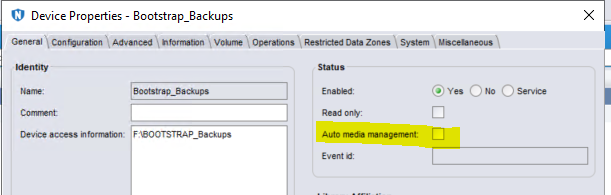
Figure 1: Ensure that Auto Media Management is not selected or checked.
- Change the Device Status to Disabled (No).

Figure 2: Change Device Status to Disable (No).
- Stop the services for NetWorker by following KB article 197148, NetWorker Services verify if running and include stopping and restarting services (both UNIX and Windows)
- Log in to the Data Domain user interface (UI).
- Go to the Data Domain System Manager UI > Protocols > DD Boost > DD Boost Status. Ensure that the status is set to Disable.
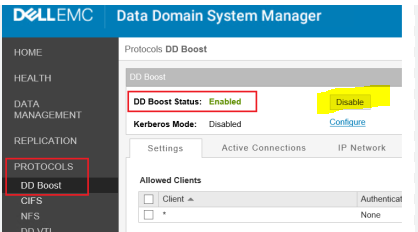
Figure 3: Ensure that DD Boost Status is set to Disable.
- In Data Domain UI > Administration > Access, Change the ddboost password for the account.
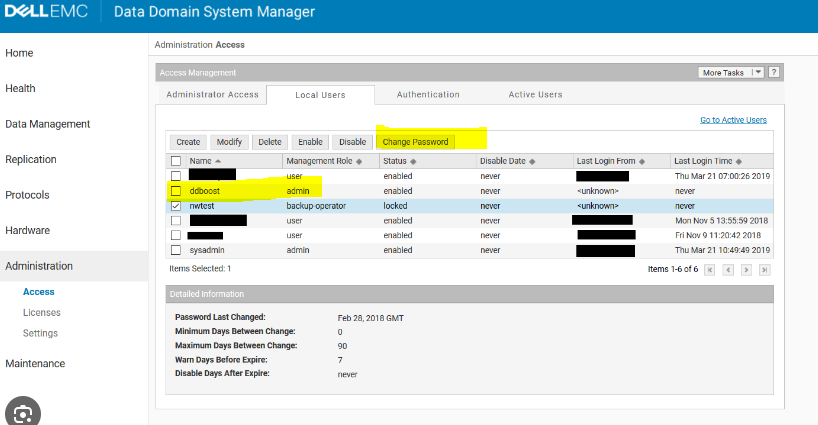
Figure 4: Change the ddboost password for the account.
- Reenable the ddboost protocol.
- Start NetWorker services by following KB article 197148, NetWorker Services verify if running and include stopping and restarting services (both UNIX and Windows).
- Log in to the NetWorker Management Console
- Under > Devices > Devices Properties > Configuration tab
- Open the Device Properties for the Device that the DD password was changed and enter the new (correct) password.
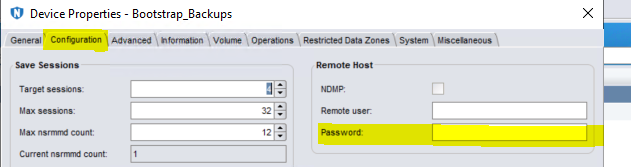
Figure 5: Open the Device Properties for the Device that the DD password was changed and enter the new (correct) password.
- Change the Device Status to Enabled (Yes).
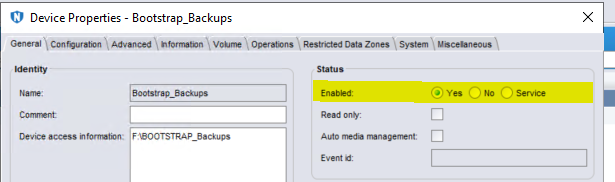
Figure 6: Change the Device Status to Enabled (Yes).
- Right-click the chosen Device and select Mount.
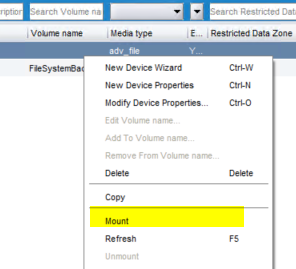
Figure 7: Right-click the chosen Device and select Mount.
- Repeat for each of the devices in the list.
- Run a backup to any of these devices to ensure it working as expected.
Affected Products
NetWorker Family, Data DomainArticle Properties
Article Number: 000215793
Article Type: Solution
Last Modified: 08 Aug 2023
Version: 2
Find answers to your questions from other Dell users
Support Services
Check if your device is covered by Support Services.