How to Collect PCoIP Logs from a Dell Wyse ThinOS with PCoIP Thin Client
Summary: This article explains how to collect the PCoIP logs including PCoIP agent level 3 log files in Dell Wyse ThinOS with PCoIP.
This article applies to
This article does not apply to
This article is not tied to any specific product.
Not all product versions are identified in this article.
Instructions
Affected Platforms:
- Wyse 5060
- Wyse 5070
- Wyse 5470 All-in-One
- Wyse 5470 Mobile
- OptiPlex 3000 Thin client
Affected Operating Systems:
- Dell ThinOS with PCoIP
When a Dell PCoIP thin client is used to access a remote desktop or remote workload from the PCoIP host and experiences an issue, collecting the PCoIP log files, including PCoIP agent level 3 log files for review may be necessary.
Pre-requisite:
Set up the Microsoft Windows desktop host verbosity level for PCoIP Agent log entries
- Log in as Administrator to the Windows desktop host that has the PCoIP agent installed and set the verbosity level by Registry
-
Warning: The next step is a Windows Registry edit:
- Backup the Registry before proceeding, reference How to Back Up and Restore the Registry in Windows
.
- Editing the Registry can cause the computer to become unresponsive on the next reboot.
- Reference How to Get Support for Dell Wyse ThinOS for assistance if you have concerns about performing this step.
Define the following registry key:HKEY_LOCAL_MACHINE\SOFTWARE\Policies\Teradici\PCoIP\pcoip_admin_defaults
- Backup the Registry before proceeding, reference How to Back Up and Restore the Registry in Windows
- Create the following DWORD
pcoip.event_filter_mode
- Set the value to one of the following:
- 0 - (CRITICAL - Least Verbose)
- 1 - (ERROR)
- 2 - (INFO)
- 3 - (Debug - Most Verbose)
Note:
- The registry key may not show up. If so, you must create the key and restart the session before the log files contain the additional verbosity information.
- Only use this key for debugging, after debugging the key can be deleted as the log files can grow to large sizes.
Steps to setup the Dell Thin client local settings to capture the PCoIP log
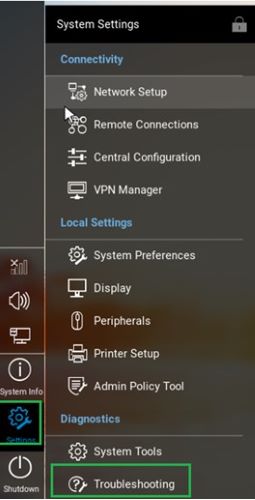
- From the desktop menu, click Settings > Admin Policy Tool.
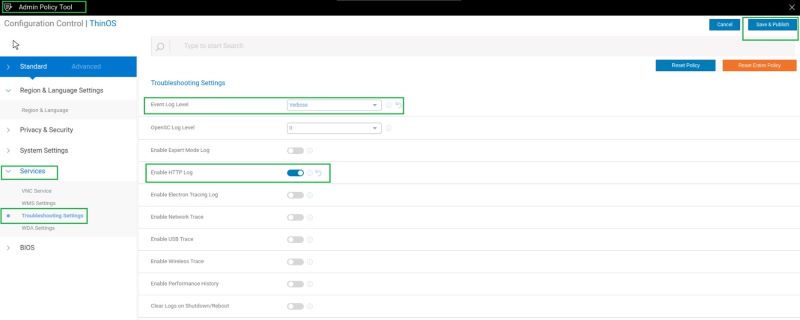
- Expand the Services menu and select Troubleshooting Settings
- From the event log level, select Debug from the drop-down list
- Click the Enable HTTP Log option. The HTTP log feature is now enabled on the thin client
- Click the Save & Publish
- Connect and log in the Dell Thin client into Remote PCoIP Desktop
- Reproduce the issue
- Once the issue has been reproduced, log out from the Remote PCoIP Desktop
- Collect the log using the USB thumb drive:
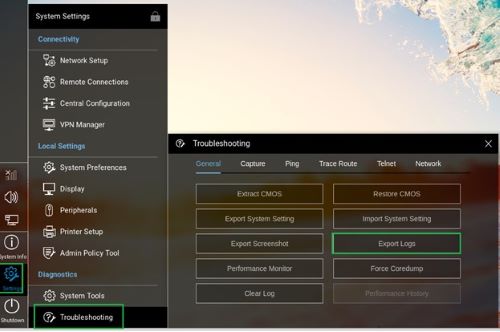
- From the desktop menu, click Settings > Admin Policy Tool
- Expand the Services menu and select Troubleshooting Settings
- Click Export Logs
Affected Products
OptiPlex 3000 Thin Client, Wyse 5060 Thin Client, Wyse 5070 Thin Client, Wyse 5470 All-In-One, Wyse 5470, Dell ThinOSArticle Properties
Article Number: 000216105
Article Type: How To
Last Modified: 09 Jul 2024
Version: 4
Find answers to your questions from other Dell users
Support Services
Check if your device is covered by Support Services.