Dell VxRail: VxRail Manager Redeploy does not show VM Storage Policies
Summary: During a redeploy of VxRail Manager, the VM Storage Policy drop-down box does not show any VM Storage Policies to choose.
This article applies to
This article does not apply to
This article is not tied to any specific product.
Not all product versions are identified in this article.
Symptoms
During a redeploy of VxRail Manager, the VM Storage Policy drop-down box does not show any VM Storage Policies to choose.
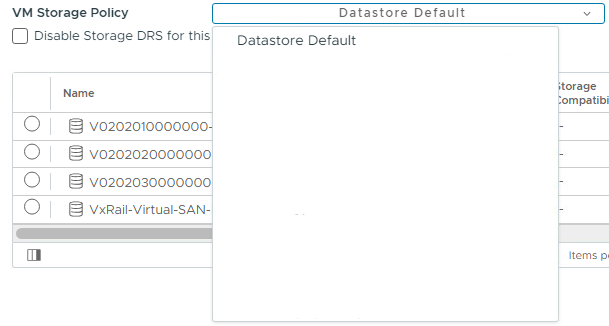
In the vSphere client, right-click the cluster and choose Deploy OVF Template.
At the Select storage section, click the drop-down box for VM Storage Policy.
No Storage Policies show.
When checking the vCenter VAMI, the VMware vSphere Profile-Driven Storage Service shows Health as 'Healthy with errors" (or warnings) and State as 'Started'.
To check the VAMI, login as root to the vCenter VAMI from a web-browser using https://vCenterFQDN_or_IP_address:5480.
Click on Services.
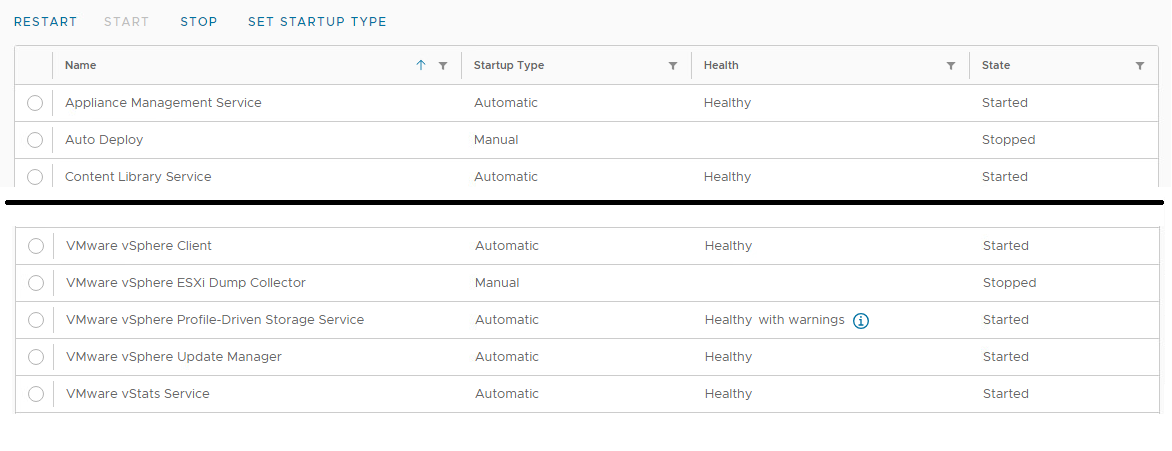
The VMware vSphere Profile-Driven Storage Service shows Health as 'Healthy with errors' and State as 'Started'.
In the vSphere client, right-click the cluster and choose Deploy OVF Template.
At the Select storage section, click the drop-down box for VM Storage Policy.
No Storage Policies show.
When checking the vCenter VAMI, the VMware vSphere Profile-Driven Storage Service shows Health as 'Healthy with errors" (or warnings) and State as 'Started'.
To check the VAMI, login as root to the vCenter VAMI from a web-browser using https://vCenterFQDN_or_IP_address:5480.
Click on Services.
The VMware vSphere Profile-Driven Storage Service shows Health as 'Healthy with errors' and State as 'Started'.
Cause
The VMware vSphere Profile-Driven Storage Service did not start correctly. This is causing issues viewing storage profiles in the vSphere Client.
Resolution
To resolve this issue, follow the steps below to restart the vCenter (and PSC for 6.7 and below):
If the vCenter version is 6.7.X or below:
If the vCenter version is 7.0 or newer:
If the vCenter version is 6.7.X or below:
- In vSphere, click on the vCenter VM.
- Find which host the vCenter VM is running on.
- Then click on the PSC VM.
- Migrate the PSC VM to the same ESXi host as the vCenter VM.
- Log in as root to the ESXi host from a web browser using https and the ESXi FQDN or Management IP Address.
- Left-click on Virtual Machines.
- Left-click the box for the vCenter VM.
- Left-click Actions.
- Hover over Guest operating system.
- Left-click Shut down.
- Left-click on Virtual Machines.
- Left-click the box for the vCenter VM to uncheck it.
- Left-click the box for the PSC VM.
- Left-click Actions.
- Hover over Guest operating system.
- Left-click Restart.
- Wait about 3 - 5 minutes.
- Left-click the box for the PSC VM to uncheck it.
- Left-click the box for the vCenter VM.
- Left-click Actions.
- Hover over Guest operating system.
- Left-click Restart.
If the vCenter version is 7.0 or newer:
- In vSphere, click on the vCenter VM.
- Find which host the vCenter VM is running on.
- Log in as root to the ESXi host from a web browser using https and the ESXi FQDN or Management IP Address.
- Left-click on Virtual Machines.
- Left-click the box for the vCenter VM.
- Left-click Actions.
- Hover over Guest operating system.
- Left-click Restart.
Article Properties
Article Number: 000218568
Article Type: Solution
Last Modified: 24 Oct 2023
Version: 1
Find answers to your questions from other Dell users
Support Services
Check if your device is covered by Support Services.