How to change Network settings on the Secure Connect Gateway appliance after deployment
Summary: This article describes how to re-configure DNS or network settings on the Secure Connect Gateway Appliance (SCG-VE).
This article applies to
This article does not apply to
This article is not tied to any specific product.
Not all product versions are identified in this article.
Instructions
Environment network changes or DNS IP address resolution changes may require the settings in the Secure Connect Gateway Appliance (SCG-VE) to be adjusted. In these cases, the changes to the SCG-VE appliance are adjusted vi the Command Line Interface.
To change the network settings:
To change the network settings:
- Open an SSH connection to the SCG-VE IP address, OR in the Hypervisor (VMware or Hyper-V) open the appliance VM Guest Console.
- Log in using the root credentials established during initial deployment.
- Type the following command:
#yast
- Use the arrow keys to go to System > Network settings and press enter.
- Modify the network information as needed.
- For modifying DNS, for example, press tab to select Overview, then right arrow to select Hostname/DNS, then change the DNS settings accordingly.
An example image showing the Network Configuration Screen to adjust DNS settings: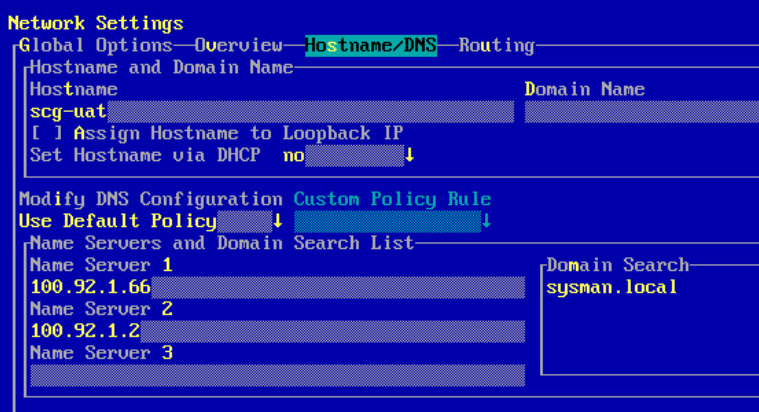
- Once the changes are completed, press TAB and use the arrow keys to select OK, press Enter, then Quit, then press Enter.
- Exit the Guest Console or SSH session.
NOTE: To navigate Yast, use the TAB button or arrow keys and press Enter to move between selections,
Affected Products
Secure Connect Gateway - Virtual EditionArticle Properties
Article Number: 000221734
Article Type: How To
Last Modified: 12 May 2025
Version: 2
Find answers to your questions from other Dell users
Support Services
Check if your device is covered by Support Services.