PowerProtect: Data Manager Alert Notification Issue When Receiving a Daily Email Summarizing Backups for the Previous Day from Reporting Engine
Summary: User has a Reporting Engine and needs to configure how to receive a daily email summarizing backups for the previous day.
This article applies to
This article does not apply to
This article is not tied to any specific product.
Not all product versions are identified in this article.
Symptoms
User is facing a Notification Alert issue while receiving a daily email summarizing backups for the previous day from the Reporting Engine.
Cause
The Email Server was not configured with PowerProtect Data Manager.
Resolution
The Alert Notifications window of the PowerProtect Data Manager UI enables the configuration of email notifications for PowerProtect Data Manager Alerts.
Note: The Add button is disabled until you set up the email server. To add an alert notification, set up the email server in System Settings > Support > Email Setup. Setting up the email server provides more information.
You may configure categories such as Agent, Protection, Server Disaster Recovery, and so forth, to get support as email notification for successful or failure of backup job execution.
Also review the first email with screenshots for more clarification.
Review this article to follow the steps from the Deployment Guide PowerProtect Data Manager: Info Hub Product Documents and Information
Step #1:
Step # 7 Topic: Configure the PowerProtect Data Manager virtual appliance.
Also
Topic: Configure the PowerProtect Data Manager virtual appliance.
Step #2:
Configure Email > Topic: Set up the email server
#3
Alert Configuration > Topic: Configure Alert Notifications.
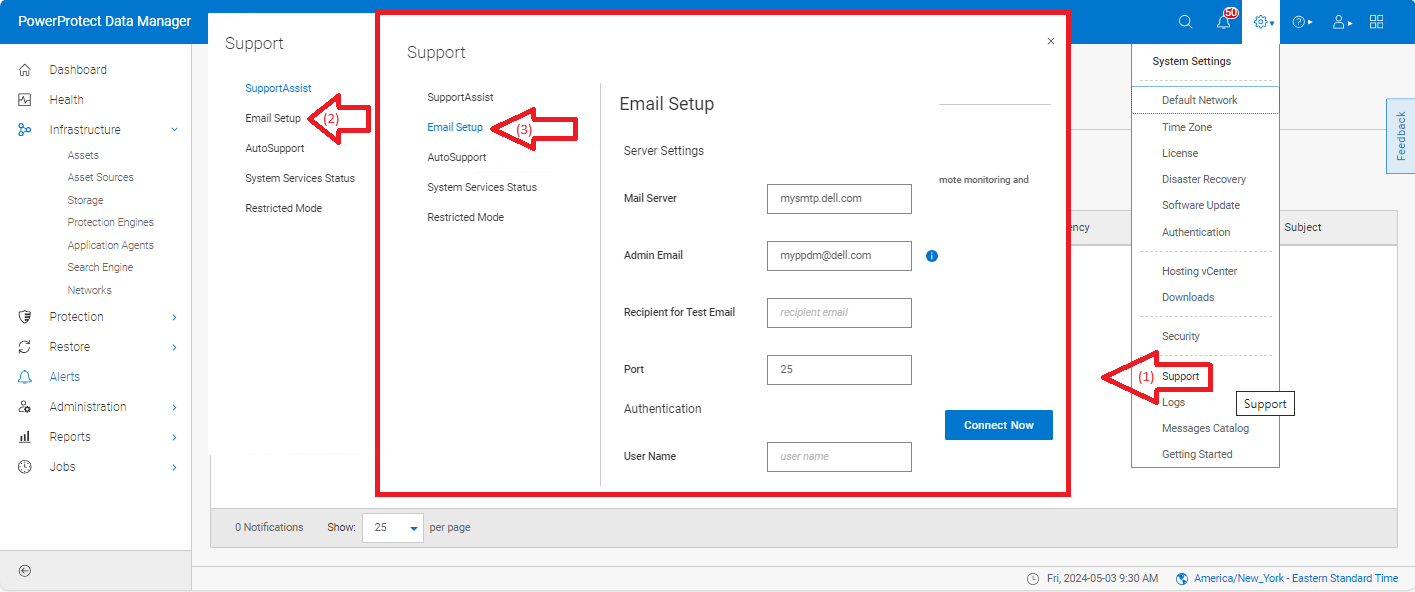
Figure 1: Email Configuration

Figure 2: Email Server Name
#4
Alert Configuration > Protection Policy
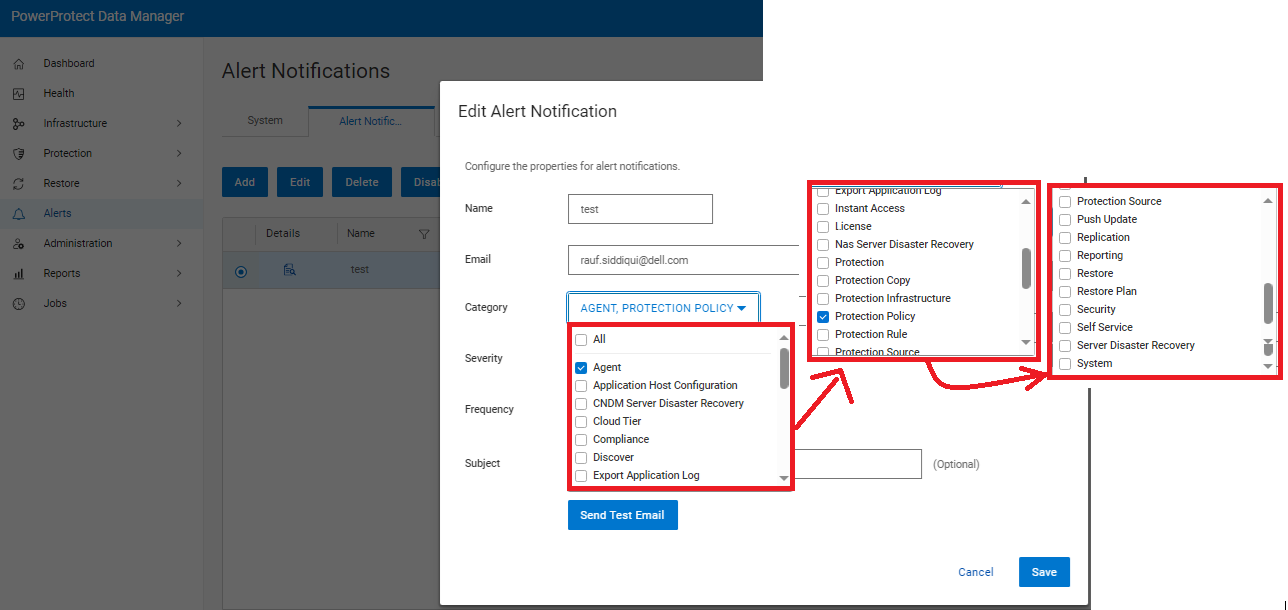
Figure 3: Alert Configuration
#5
Report Browser Configuration

Figure 4: Email Report

Figure 5: Job Type
#6
Report Browser Configuration > Filter

Figure 6: Email Report Selection
#7
Schedule

Figure 7: Email Status
#8
Schedule Frequency

Figure 8: Email Report Time Selection
#9
Recipient Email

Figure 9: Email Report Setup
#10
Summary

Figure 10: Email Report Summary
Note: The Add button is disabled until you set up the email server. To add an alert notification, set up the email server in System Settings > Support > Email Setup. Setting up the email server provides more information.
You may configure categories such as Agent, Protection, Server Disaster Recovery, and so forth, to get support as email notification for successful or failure of backup job execution.
Also review the first email with screenshots for more clarification.
Review this article to follow the steps from the Deployment Guide PowerProtect Data Manager: Info Hub Product Documents and Information
Step #1:
Step # 7 Topic: Configure the PowerProtect Data Manager virtual appliance.
Also
Topic: Configure the PowerProtect Data Manager virtual appliance.
Step #2:
Configure Email > Topic: Set up the email server
#3
Alert Configuration > Topic: Configure Alert Notifications.
Figure 1: Email Configuration
Figure 2: Email Server Name
#4
Alert Configuration > Protection Policy
Figure 3: Alert Configuration
#5
Report Browser Configuration
Figure 4: Email Report
Figure 5: Job Type
#6
Report Browser Configuration > Filter
Figure 6: Email Report Selection
#7
Schedule
Figure 7: Email Status
#8
Schedule Frequency
Figure 8: Email Report Time Selection
#9
Recipient Email
Figure 9: Email Report Setup
#10
Summary
Figure 10: Email Report Summary
Article Properties
Article Number: 000226116
Article Type: Solution
Last Modified: 18 Oct 2024
Version: 2
Find answers to your questions from other Dell users
Support Services
Check if your device is covered by Support Services.