PowerEdge: Troubleshooting FAN0000 and FAN0001 Errors
Summary: Fans reporting FAN0000/FAN0001 errors (RPM below warning or critical) should be removed and swapped to another connector; if the error follows the fan, replace it.
This article applies to
This article does not apply to
This article is not tied to any specific product.
Not all product versions are identified in this article.
Symptoms
The Server shows either FAN0000 or FAN0001 error messages in the system logs or management interface.
FAN0000 - Fan speed (RPM) is reported below the lower warning threshold.FAN0001 - Fan speed (RPM) is reported below the lower critical threshold.

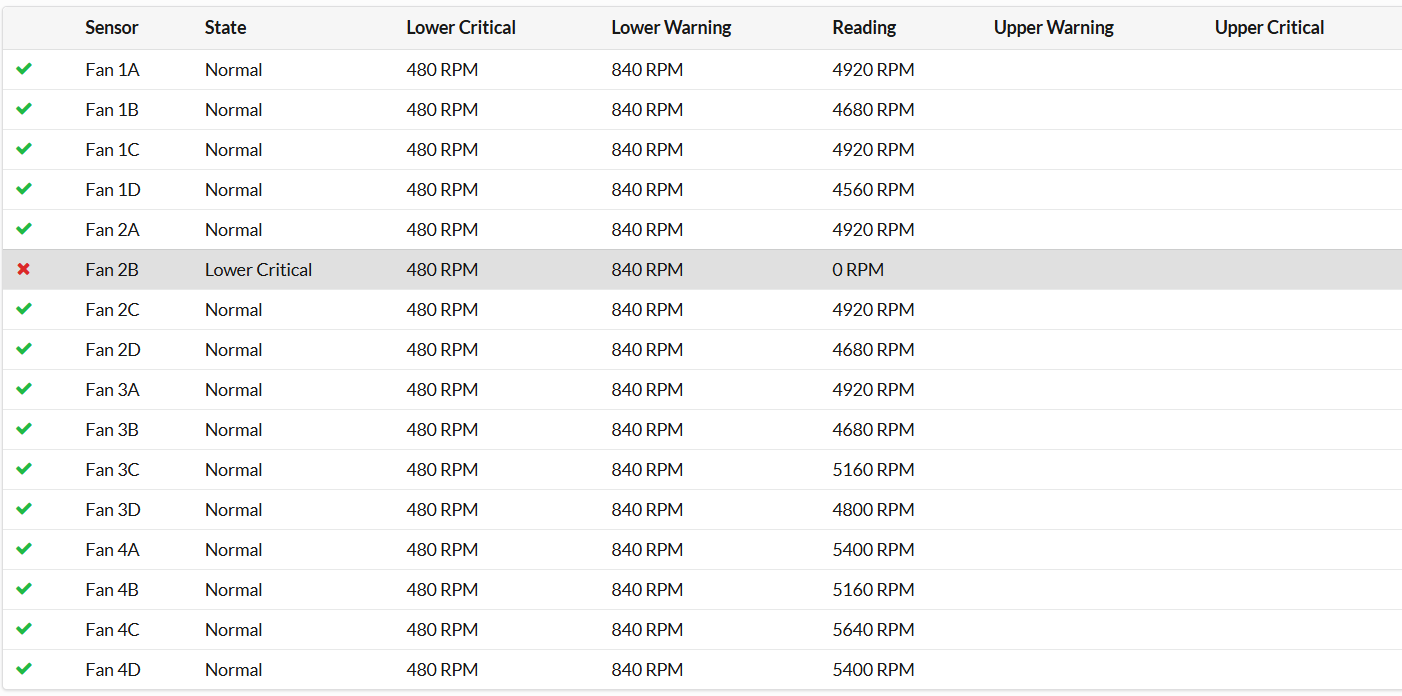
Cause
The system generates FAN0000 and FAN0001 alerts when a fan’s rotational speed falls below defined warning or critical limits. This condition originates from one or more of the following factors:
- Hardware defect within the fan causing insufficient RPM
- Poor electrical contact between the fan and the motherboard connector, often due to inadequate pressure on the fan’s touch point during installation.
- Improper seating of the fan connector, especially because the connector is offset from the fan’s main body.
- Firmware related misreporting of the fan sensors
Resolution
Troubleshooting FAN0000 or FAN0001 Errors
Step‑by‑step procedure:
- Open the chassis according to the server's Installation and Service Manual.
- Locate the fan reporting the error (such as, FAN 1).
- Gently release the fan from its connector.
- For additional help, refer to: PowerEdge: How to Remove and Install Cooling Fans and Assembly.
- Swap the suspect fan with a known‑good fan from another slot (for example, exchange FAN 1 with FAN 2.
- When reinstalling each fan, press down firmly on the fan’s touch point to ensure a solid connection to the motherboard connector.
- Reassemble the chassis, reconnect power, and power the server back on.
- Monitor the system for fan errors from the iDRAC.
Verification
- Check iDRAC → Overview → System → Cooling.
- Open up Fans section to view all fans and their status.
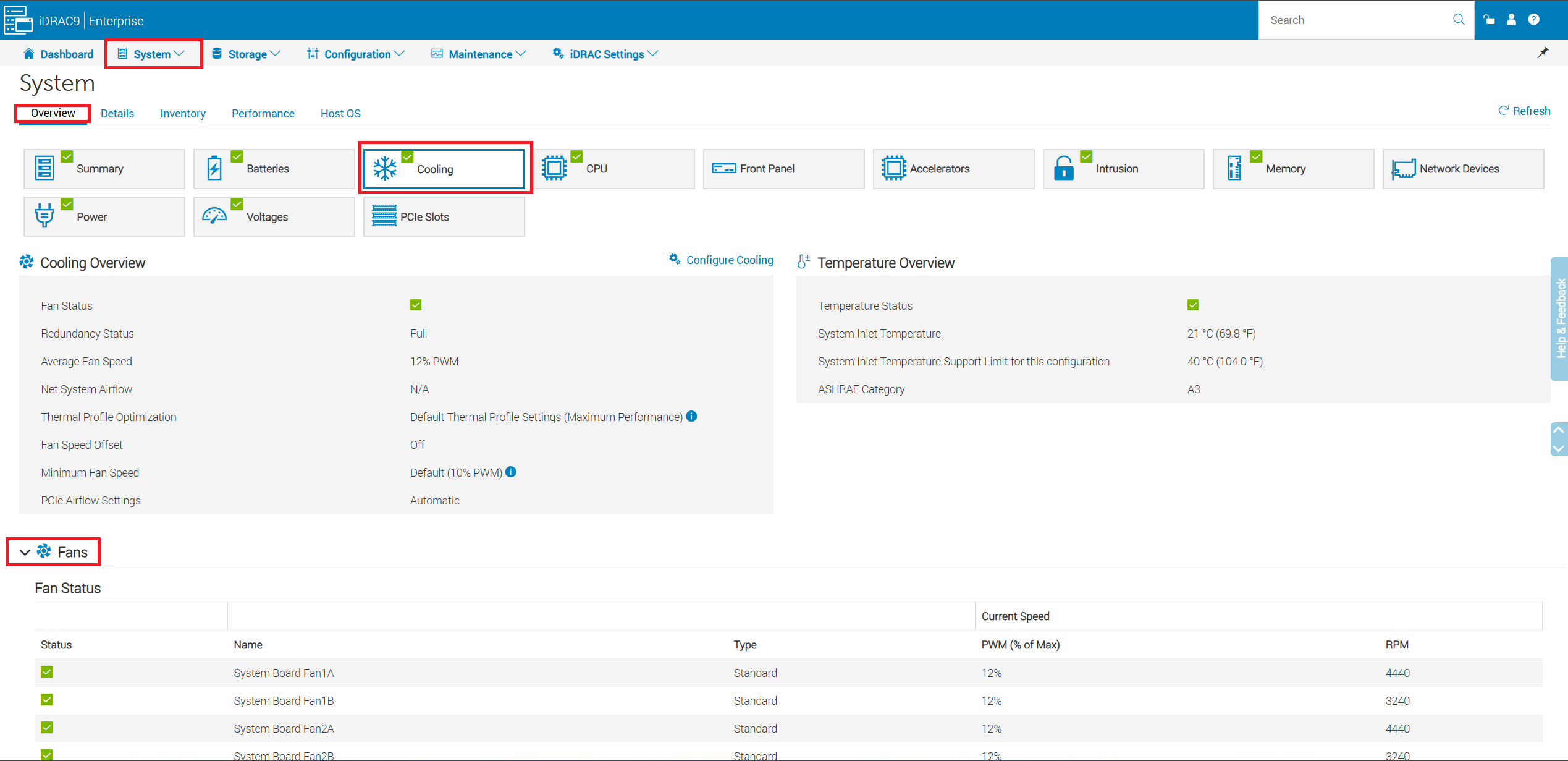
- If the error now appears on the slot where the suspect fan was moved, the fan should be replaced.
- If the fans all show normal range after swap the fan may of only needed to be reseated, monitor the server health to confirm no errors return.
- If the error returns for on the original fan location with a different fan, update IDRAC and BIOS firmware to rule out false positive errors.
Affected Products
HS Series, PowerEdge M7701, PowerEdge M7725, PowerEdge R240, PowerEdge R250, PowerEdge R260, PowerEdge R340, PowerEdge R350, PowerEdge R360, PowerEdge R440, PowerEdge R450, PowerEdge R470, PowerEdge R540, PowerEdge R550, PowerEdge R570
, PowerEdge R640, PowerEdge R6415, PowerEdge R650, PowerEdge R650xs, PowerEdge R6515, PowerEdge R6525, PowerEdge R660, PowerEdge R660xs, PowerEdge R6615, PowerEdge R6625, PowerEdge R670, PowerEdge R6715, PowerEdge R6725, PowerEdge R740, PowerEdge R740XD, PowerEdge R740XD2, PowerEdge R7415, PowerEdge R7425, PowerEdge R750, PowerEdge R750XA, PowerEdge R750xs, PowerEdge R7515, PowerEdge R7525, PowerEdge R760, PowerEdge R760XA, PowerEdge R760xd2, PowerEdge R760xs, PowerEdge R7615, PowerEdge R7625, PowerEdge R770, PowerEdge R770AP, PowerEdge R7715, PowerEdge R7725, PowerEdge R7725xd, PowerEdge R840, PowerEdge R860, PowerEdge R940, PowerEdge R940xa, PowerEdge R960, PowerEdge T340, PowerEdge T350, PowerEdge T360, PowerEdge T440, PowerEdge T550, PowerEdge T560, PowerEdge T640
...
Article Properties
Article Number: 000391086
Article Type: Solution
Last Modified: 17 Nov 2025
Version: 2
Find answers to your questions from other Dell users
Support Services
Check if your device is covered by Support Services.