How to boot to an external device using USB TYPE-C connection
Sommaire: BIOS settings to select to boot to an external device using USB TYPE-C connection for XPS, Precision, and Latitude laptops.
Cet article s’applique à
Cet article ne s’applique pas à
Cet article n’est lié à aucun produit spécifique.
Toutes les versions de produits ne sont pas identifiées dans cet article.
Symptômes
Follow the steps provided in this article to boot to an external device using USB TYPE-C connection for XPS, Precision, and Latitude laptops.
Cannot boot to an external USB-C Connected device.
XPS, Precision, and Latitude users may report that they are unable to boot to externally connected USB Type-C devices.
The computer may report a "Device not identified" error.
Cause
The default specification bypasses the USB boot sequence to reduce the boot times in the default configuration. Due to this default configuration, the computer does not boot to the external device.
Résolution
Enable below two options to support boot from an external device.
- At boot, Press the F2 key (or alternately press the F12 key then select the option to enter the BIOS setup).
- In POST Behavior, Select - Fastboot the select the Thorough option (Figure 1):
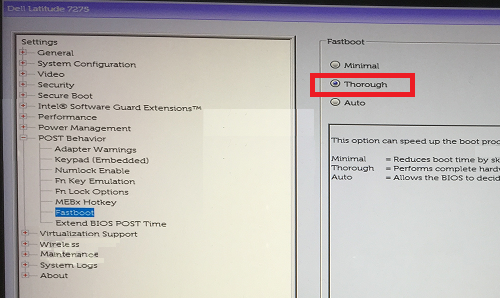
Figure 1: Select the Thorough setting for the Fastboot configuration in the BIOS - In System Configuration -Select USB/Thunderbolt Configuration -Enable Thunderbolt Boot Support (Figure 2):

Figure 2: Enable Thunderbolt Boot Support under the USB/Thunderbolt Configuration settings in the BIOSNote: You may also need to check to Enable USB Boot Support to recognize the USB boot device. - In the General Tab, Advanced Boot Configuration, check Enable Legacy Option ROMs & Enable UEFI Network Stack if not already checked (Figure 3):

Figure 3: Enable UEFI Network Stack under the Advanced Boot Options settings in the BIOS - Reboot the computer, the USB Type-C device should now appear in the boot options.
See these Dell Knowledge Base articles for related information:
Produits touchés
Latitude 7275, Precision 3520, Precision 5520, Precision 3510, Precision 5510, XPS 12 9250Propriétés de l’article
Numéro d’article: 000131221
Type d’article: Solution
Dernière modification: 19 avr. 2025
Version: 10
Obtenez des réponses à vos questions auprès d’autre utilisateurs de Dell
Services de soutien
Vérifiez si votre appareil est couvert par les services de soutien.