How to Find Your Dell PPID: Locate Component Serial Numbers
概要: Discover how to quickly locate the 20-digit Dell PPID (Part Piece Identification) number on any Dell component. Complete walkthrough for batteries, adapters, monitors, docking stations, keyboards, mice, and motherboards with both physical and digital methods. ...
この記事は次に適用されます:
この記事は次には適用されません:
この記事は、特定の製品に関連付けられていません。
すべての製品パージョンがこの記事に記載されているわけではありません。
手順
Ever been on a call with Dell Technical Support and suddenly asked for a "PPID"? Don't panic—you're not alone. The PPID (Part Piece Identification) number is one of those technical details that seems mysterious until you know where to look. Think of it as your Dell component's serial number.
What Is a Dell PPID?
The PPID is Dell's way of keeping track of a component. This 20-character code (a mix of letters and numbers) acts like a “serial number” for certain parts in your Dell system. Whether you're dealing with a battery that's acting up, a monitor with display issues, or need a replacement keyboard, Dell uses this number to identify exactly which component you have and what replacement parts or support you need.
The format looks something like this: XX-XXXXXX-XXXXX-XXX-XXXX. It might seem random, but each section tells Dell's system specific information about each part. Here are some examples of different variations of the first two characters:
- CN-XXXXXX-XXXXX-XXX-XXXX
- KR-XXXXXX-XXXXX-XXX-XXXX
- MX-XXXXXX-XXXXX-XXX-XXXX
- PH-XXXXXX-XXXXX-XXX-XXXX
Note: In many cases, the PPID is actually the same as the component's serial number. Don't be surprised if you see the same 20-digit code listed as both the PPID and serial number on component labels—Dell often uses these terms interchangeably for the same identifier.
Why Dell Needs Your PPID
Component identification serves several critical functions in technical support processes. While components may appear identical externally, internal specifications and configurations can vary. The PPID enables:
- Precise component matching for replacement services
- Accurate warranty status verification
- Appropriate technical guidance based on component specifications
- Compatibility assurance for software and firmware updates
This identification system ensures that customers receive the correct components and technical assistance tailored to their specific hardware configuration.
Finding PPIDs on Components
1. Dell Battery
Remove the battery from your laptop (if removable) or locate it if it’s built-in but accessible. Look for a white or black sticker-the PPID will be clearly labelled, often right next to other information like the model number and manufacturing date.
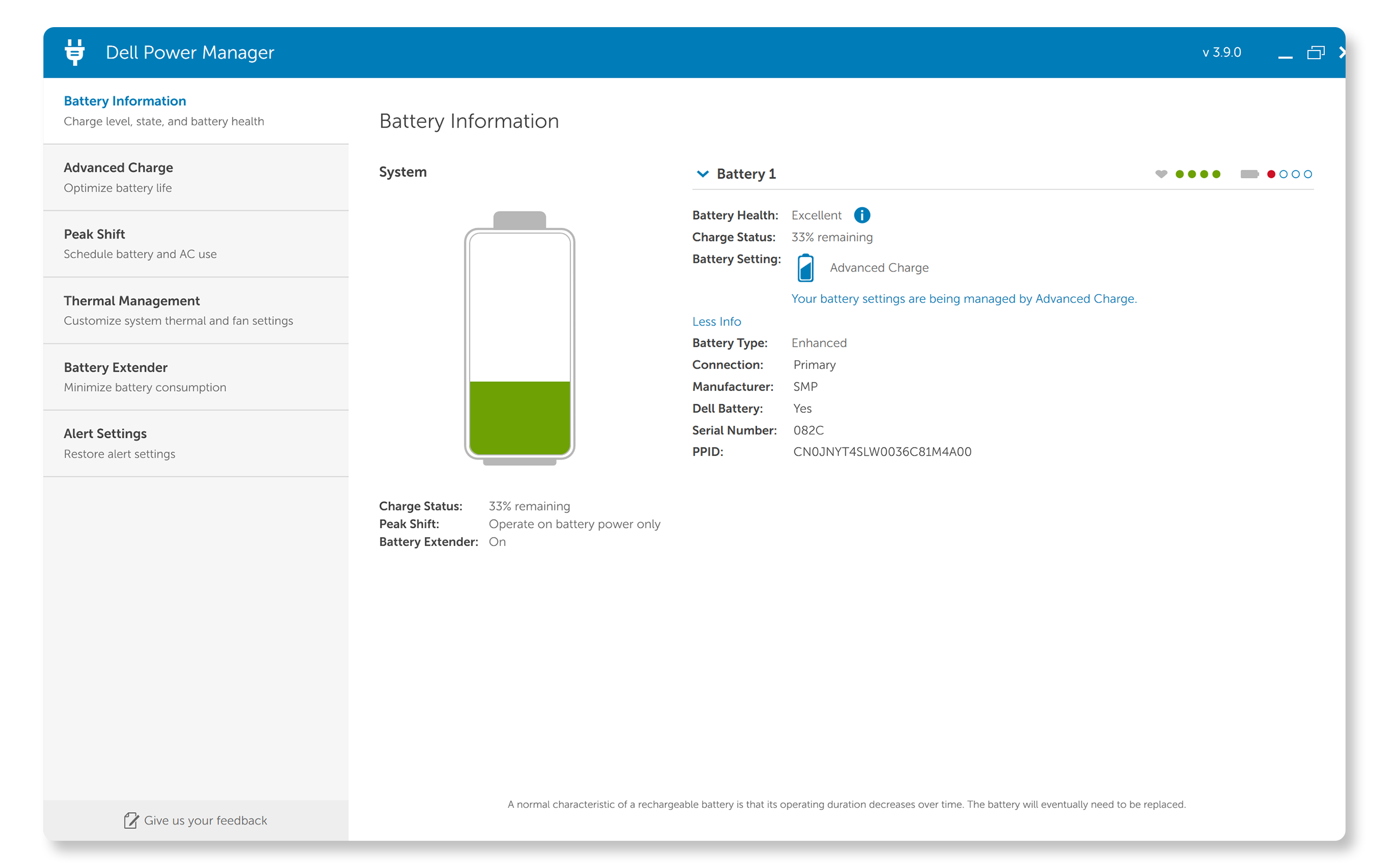
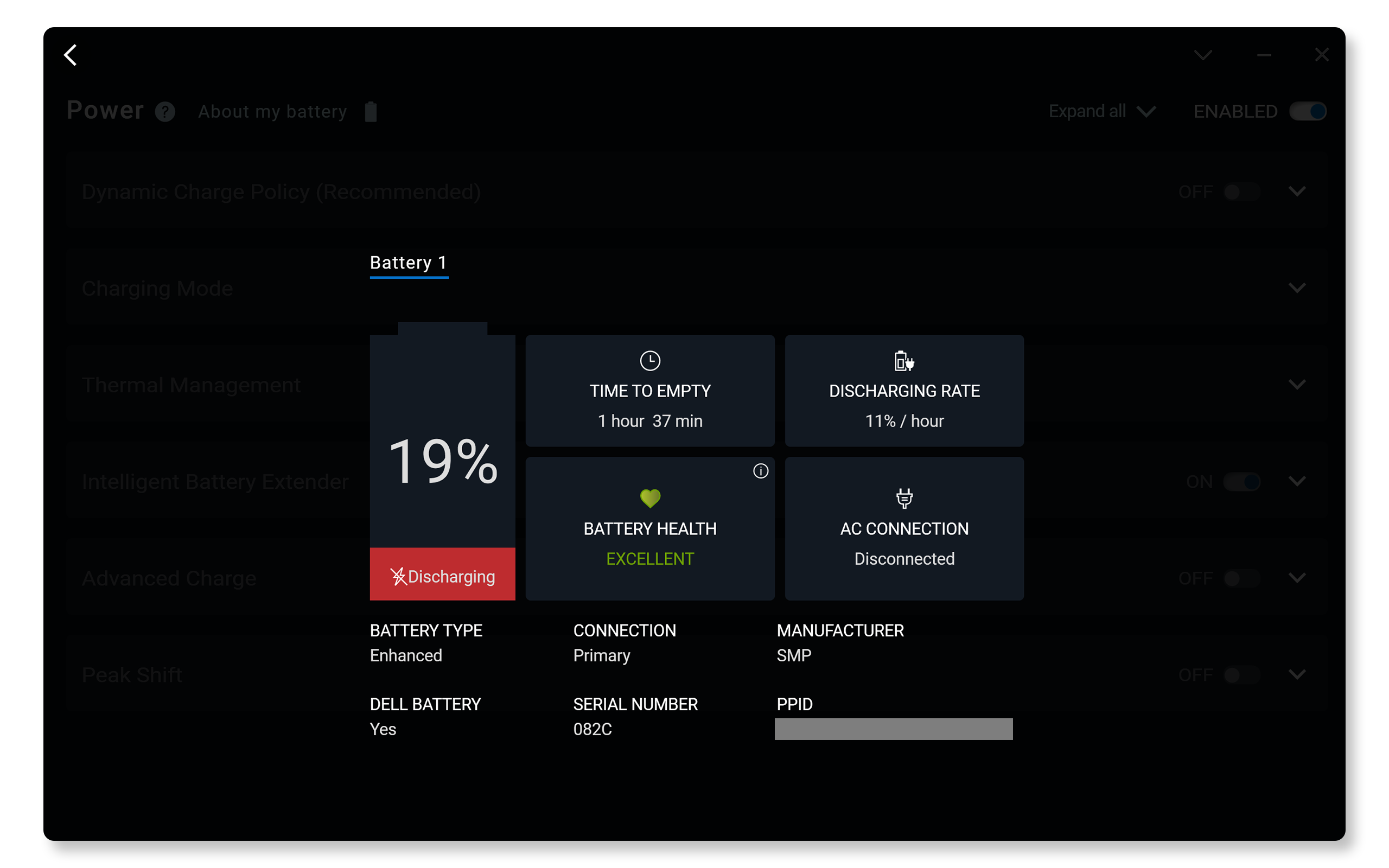
Can't access the battery? This is where Dell’s battery management software tools can help access the PPID or serial number without having to remove the battery. These methods are particularly useful for laptops where the battery isn’t easily removable-no need to turn off or disassemble anything.
- Dell Power Manager - Battery Information section shows the PPID of the battery
- Dell Optimizer - About my battery section shows the PPID of the battery
2. Dell AC Adapter
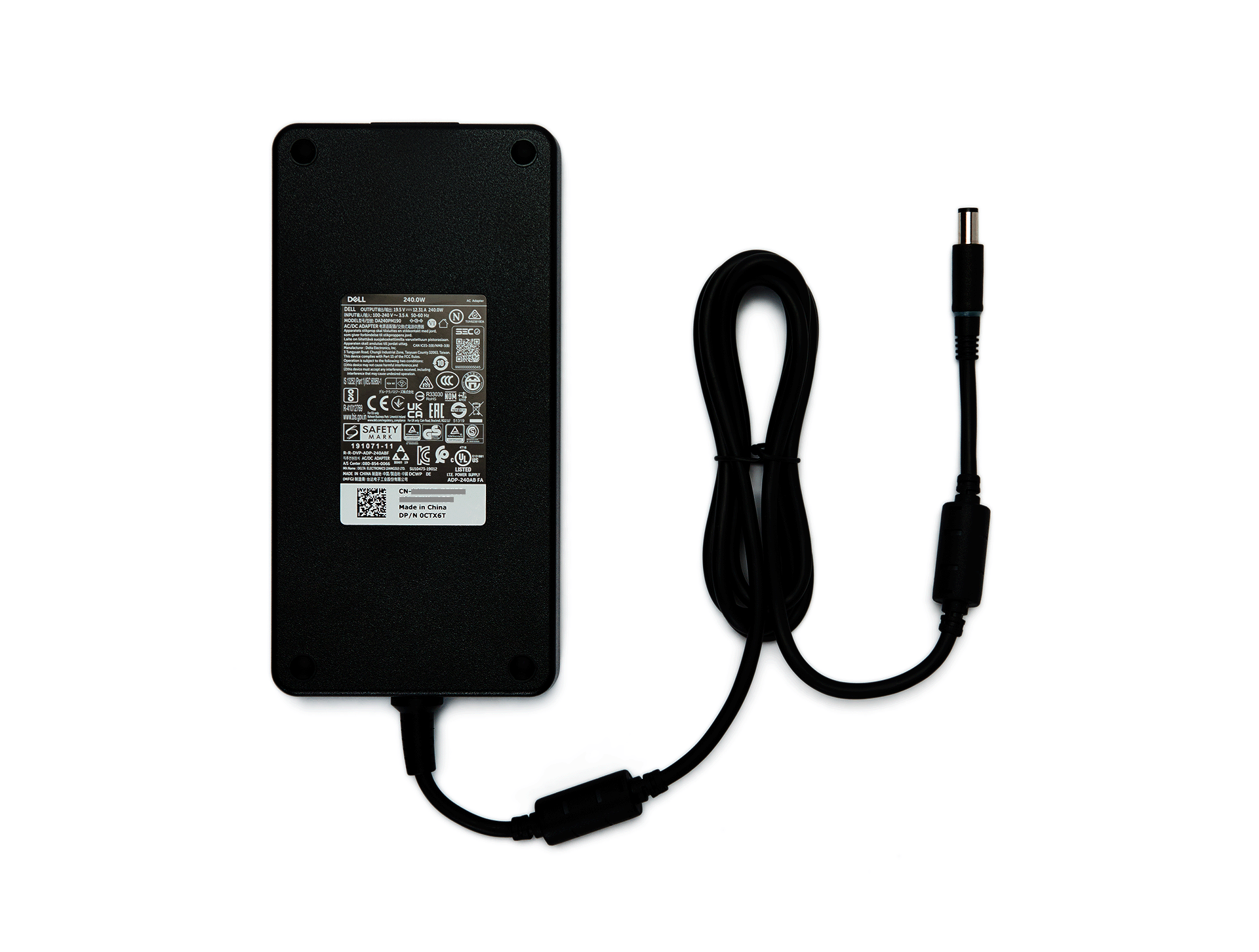
Flip it over and look for the label on the back. Dell usually places this information on a white sticker that includes the PPID along with power specifications, safety certifications, and manufacturing details.
Tip: If the text is too small to read easily, use your phone’s camera to zoom in-the label will be much clearer on your screen.
3. Dell Monitor
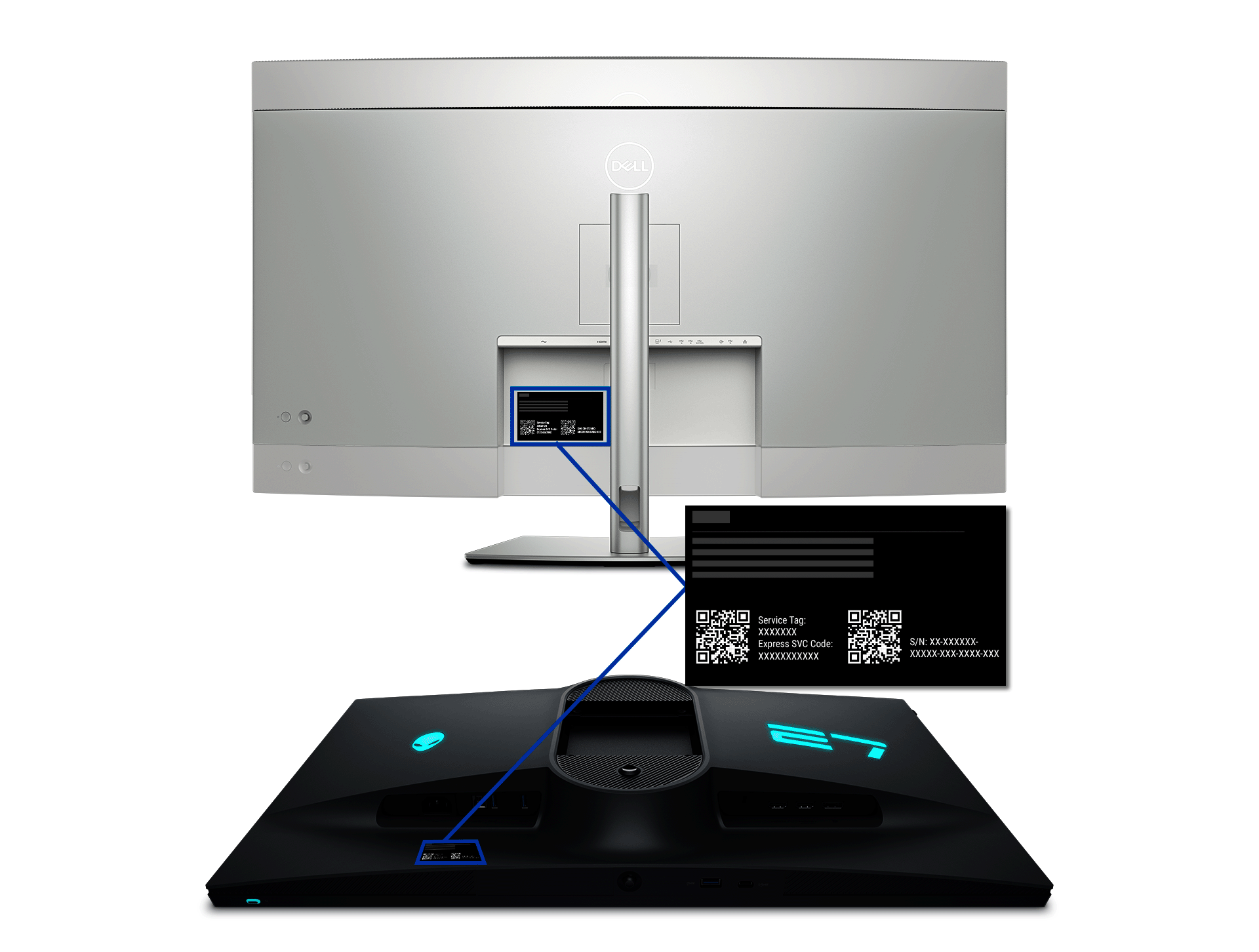
Monitor PPID or serial number is located on the back panel, usually on a sticker near the ports or stand attachment point. You’ll find it grouped with other important information like the Service Tag, Express Service Code, and manufacturing date. The PPID or Serial Number may be noted as S/N.
4. Dell Docking Station
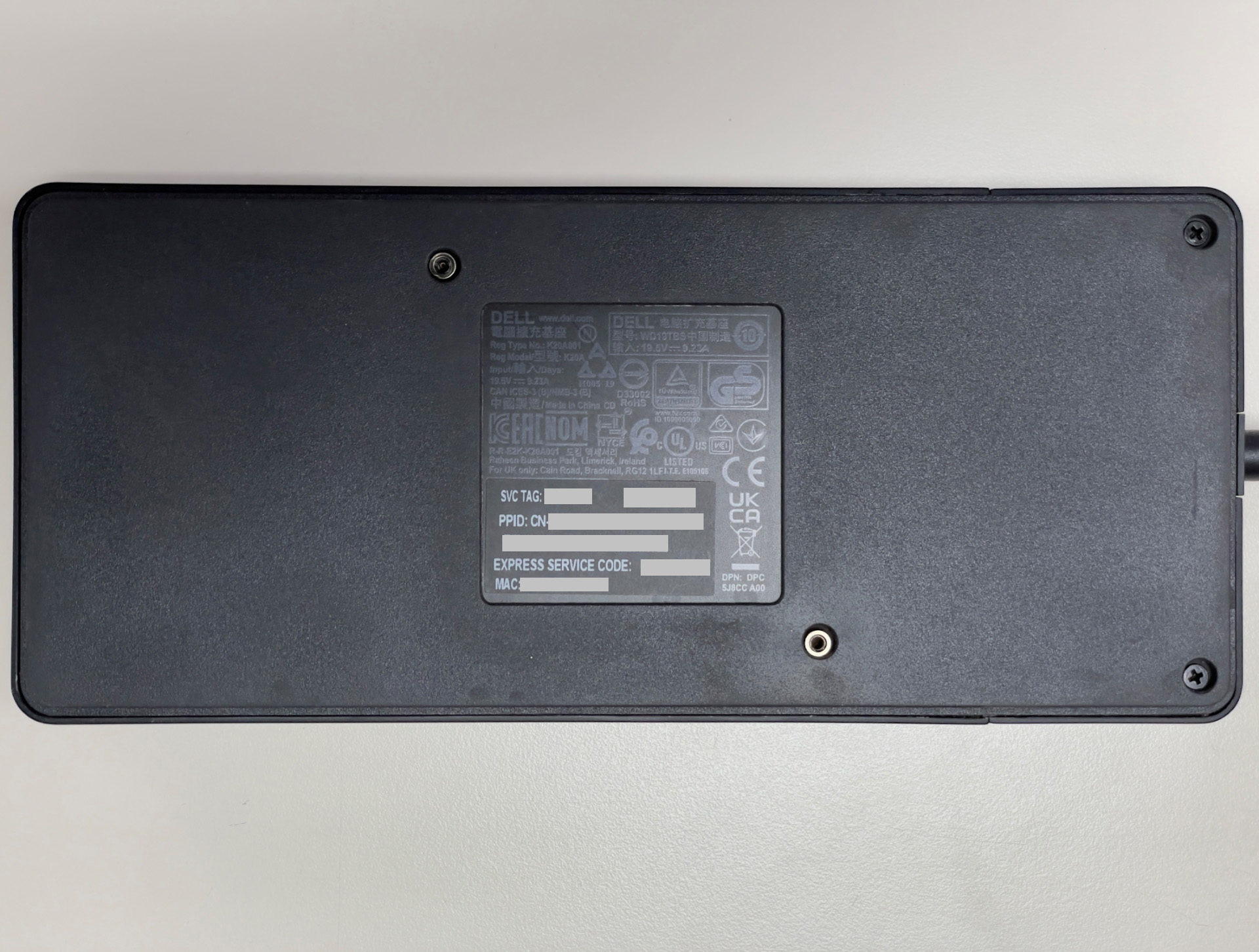
Docking stations are straightforward-flip them over and look at the bottom. Dell places a comprehensive label there that includes not just the PPID, but also the Service Tag, Express Service Code, and MAC address.
5. Keyboards and Mice
For keyboards, flip the device over and look for a label on the bottom panel. It’s usually positioned where it won’t interfere with the keyboard’s stability when typing.

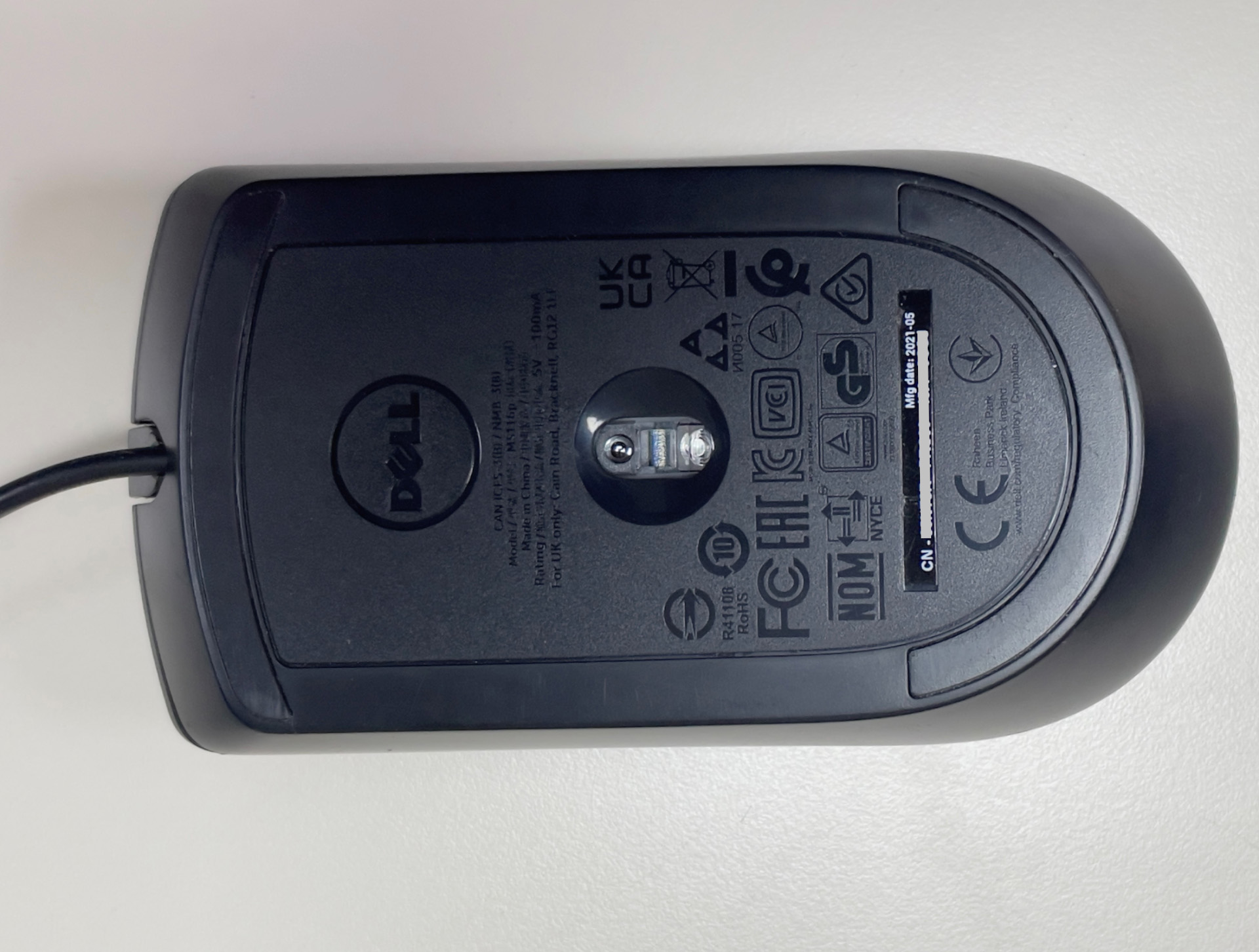
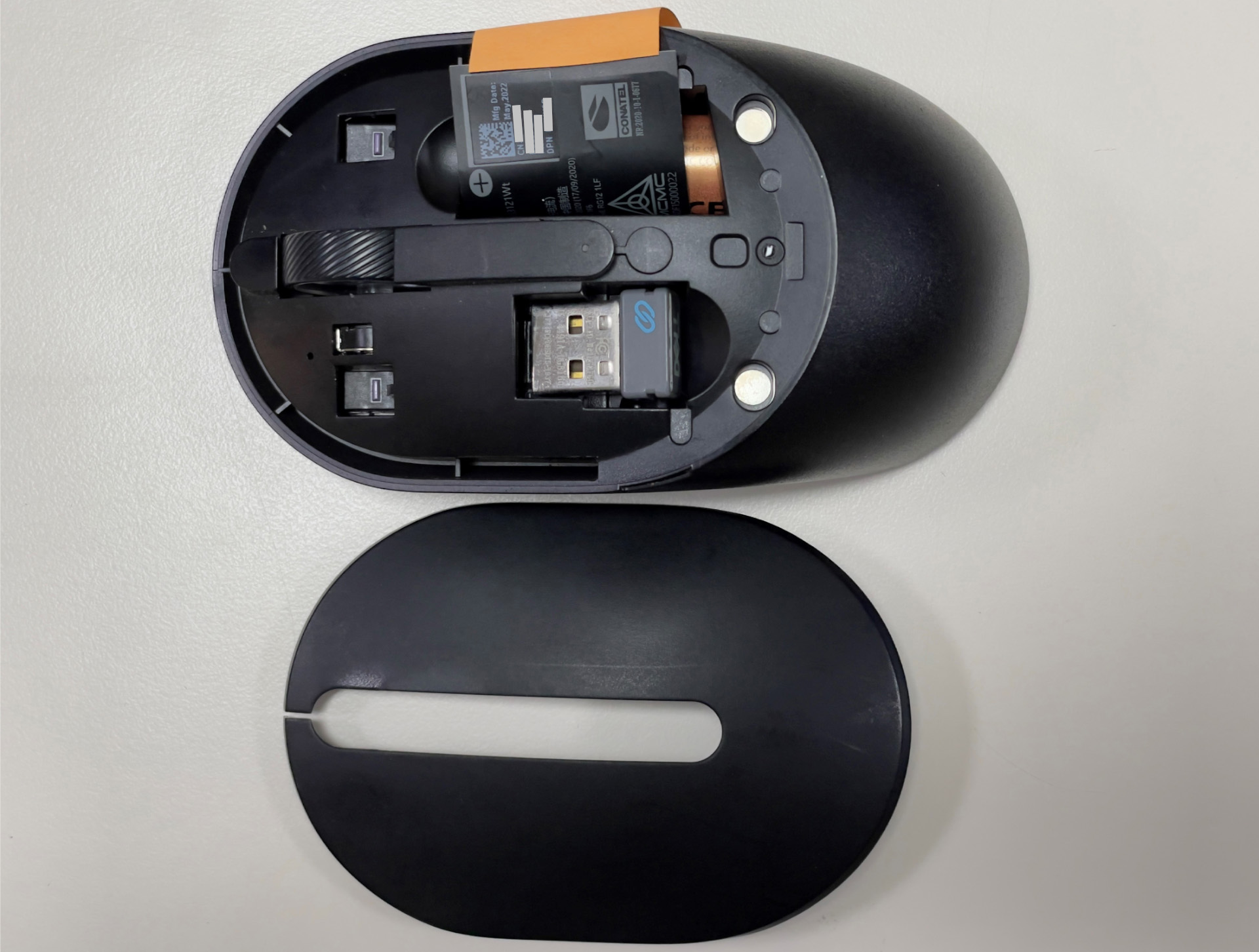
For mice, the label is similarly placed on the bottom. You might need to lift the mouse and look directly underneath-the PPID will be on a white sticker along with other regulatory information. If you're using a wireless or Bluetooth mouse, this information may be on the information tab inside the battery compartment.
Finding the Motherboard PPID
The motherboard (or system board) PPID is trickier since you can’t access the part easily and read a sticker. Here are two methods for retrieving this information on a Dell computer:
Option 1: Using Windows PowerShell
This is the fastest method if Windows is running normally:
- Open PowerShell: Click Start and type PowerShell.
- Run as administrator: Right-click on Windows PowerShell and select “Run as administrator”.
- Run this command: Copy and paste this command exactly
(Get-CimInstance -ClassName Win32_BaseBoard).SerialNumber.Split('/')[2].Substring(0,2)+(Get-CimInstance -ClassName Win32_BaseBoard).Product+(Get-CimInstance -ClassName Win32_BaseBoard).SerialNumber.Split('/')[2].Substring(2) - Press Enter: The system will process the command and return your motherboard’s PPID.
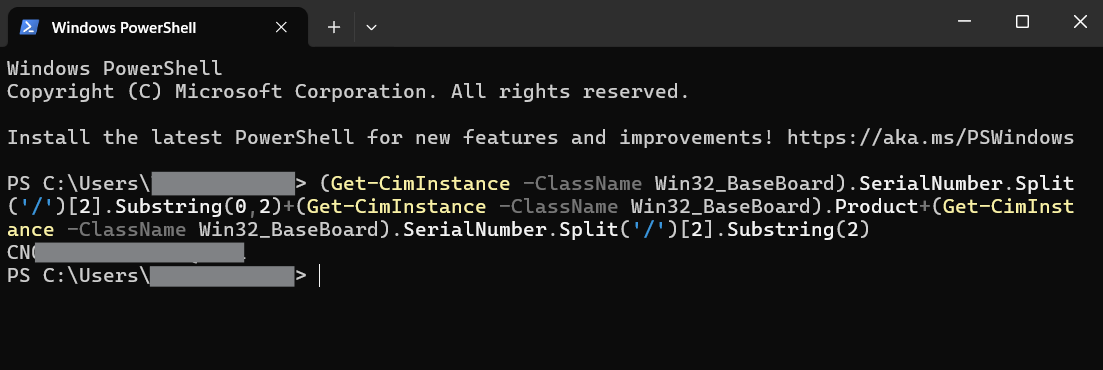
This command is essentially asking Windows to look into the system information and identify the motherboard’s PPID number from several different data points.
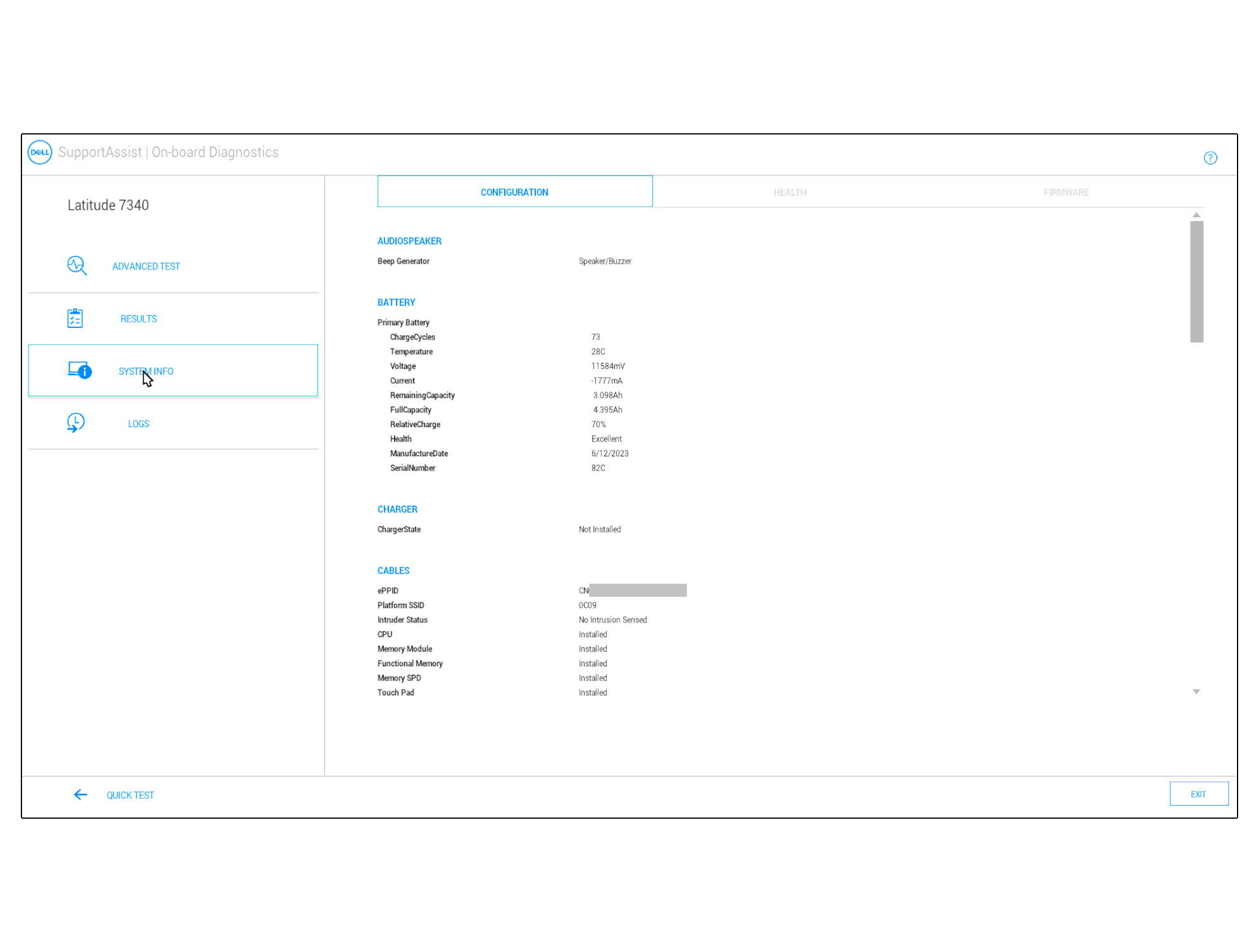
Option 2: Using Dell's On-board Diagnostics (For Linux or Non-Bootable Systems)
This method is helpful when Windows won’t boot, or you’re working with a Linux or Ubuntu system:
Note: This method requires newer version of Dell diagnostics and BIOS/UEFI compatibility.
- Prepare your USB drive: Format a USB drive as FAT32.
- Access boot menu: Restart your computer and press F12 repeatedly during the initial boot screen (when you see the Dell logo).
- Select diagnostics: Choose “Diagnostics” from the boot menu-this launches Dell’s built-in hardware diagnostics.
- Let diagnostics run: The system will perform various hardware tests. This can take several minutes depending on your system configuration.
- Navigate to system info: Once testing completes, look for “Advanced” options and then “System Info”
- Find the motherboard PPID: Under the “Cables” section, the first value listed is your motherboard’s PPID.
- Save the results: When prompted, save the diagnostic results to your USB drive for future reference.
Tips for Success
- Always double-check the PPID format: XX-XXXXXX-XXXXX-XXX-XXXX. If what you’re looking at doesn’t match this format, you might be looking at a different identifier.
- If you're unsure, take a photo of the label and zoom in for clarity. Component labels can be surprisingly small, especially on compact devices like mice or keyboards. Your phone’s camera with zoom capability often provides a clearer view than trying to read tiny text directly.
PPIDs are different from Service Tag or Express Service Code. While a Service Tag or Express Service Code identifies your entire system, PPIDs might identify individual components within that system.
対象製品
Alienware, Dell All-in-One, Dell Pro All-in-One, Dell Pro Max Micro, Dell Pro Max Slim, Dell Pro Max Tower, Dell Pro Micro, Dell Pro Slim, Dell Pro Tower, Dell Slim, Dell Tower, Inspiron, Legacy Desktop Models, OptiPlex, Vostro, XPS, G Series
, Alienware and Dell Gaming Monitors, C Series, D Series, E Series, P Series, S Series, SE Series, UltraSharp Premier (UP) Series, UltraSharp (U) Series, Dell Monitors, Dell Plus Monitors, Dell Pro Monitors, Dell Pro Plus Monitors, G Series, Alienware, Dell Laptops, Dell Plus, Dell Pro, Dell Pro Max, Dell Pro Plus, Dell Pro Premium, Inspiron, Latitude, Dell Pro Rugged, Vostro, XPS, Legacy Laptop Models, Fixed Workstations, Mobile Workstations, D/Dock Expansion-Station, D/Port Advanced Port Replicator, Dell Dock WD15, Dell Dual Charge Dock HD22Q, Dell Dual Video USB3.0 Docking Station D1000, Dell Pro Max Micro XE FCM2250, Dell Pro Max Slim XE FCS1250, Dell Pro Max Tower T2 XE FCT2250, Dell Pro Max 16 XE MC16250, Dell Pro Micro Plus XE QBM1250, Dell Pro Slim Plus XE5 QBS1250, Dell Pro Tower Plus XE5 QBT1250, Dell Pro Smart Dock SD25, Dell Pro Thunderbolt 4 Smart Dock SD25TB4, Dell Pro Dock WD25, Dell Pro Thunderbolt 4 Dock WD25TB4, Dell Pro Dock WD25Z, Dell Powered USB Hub, Dell Rugged Desk Dock, Dell SuperSpeed USB 3.0 Docking Station, Dell Thunderbolt Dock TB15, Dell Thunderbolt Dock TB16, Dell Precision Dual USB-C Thunderbolt Dock - TB18DC, Dell Universal Dock D6000, Dell Universal Dock - D6000S, Dell Universal Dock UD22, Dell USB3.0 dock D3100, Dell Dock WD19, Dell Performance Dock - WD19DC, Dell Performance Dock – WD19DCS, Dell Dock – WD19S, Dell Thunderbolt Dock - WD19TB, Dell Thunderbolt Dock – WD19TBS, Dell Wireless Dock, Dell Wireless Docking Station WLD15, E-Port, E-Port Plus, C/Dock Expansion Station, C/Dock II Expansion Station, C/Port APR, C/Port II APR, Dell Thunderbolt Dock – WD22TB4
...
文書のプロパティ
文書番号: 000125347
文書の種類: How To
最終更新: 10 7月 2025
バージョン: 13
質問に対する他のDellユーザーからの回答を見つける
サポート サービス
お使いのデバイスがサポート サービスの対象かどうかを確認してください。