Dell Display Pixel Guidelines
Sammanfattning: Discover Dell's display resolution guidelines for LCD panels on our monitors and laptops. We explain what dots and pixels are, introduce you to the Premium Panel Exchange, and show you how to spot bright or dead pixels on your screen. ...
Den här artikeln gäller för
Den här artikeln gäller inte för
Den här artikeln är inte kopplad till någon specifik produkt.
Alla produktversioner identifieras inte i den här artikeln.
Instruktioner
Table of contents
- What is a pixel?
- What are pixel and subpixel defects?
- Illustration of subpixel defects
- What is a Premium Panel Exchange?
- Dell Pixel Policy
Having trouble with your laptop or monitor display? Do not worry, we have got you covered! Check out our troubleshooting guide to fix common display issues on a laptop, resolve display problems on a monitor, display issues with laptop screen, or troubleshoot multiple monitor issues.
What is a pixel?
A pixel, short for picture element, is a single point in a graphic image. LCD devices display images by dividing the display screen into thousands (or millions) of pixels, arranged in rows and columns. The pixels are placed close together so that they appear connected. A full pixel is a combination of one red, one green, and one blue subpixel.

What are pixel and subpixel defects?
A full-pixel defect is a bright white dot or a noticeable black dot on the display.
- A bright pixel defect is where the red, green, and blue subpixels are all permanently on. It is always visible as a white dot on the display.
- Dark pixel defect is where the red, green, and blue subpixels are all permanently off, resulting in a black or colored dot on a White background.
A subpixel defect is also called as a dot effect.
- Bright dot subpixel defects are permanently on, displaying a red, green, or blue dot.
- Dark dot subpixel defects are permanently off, resulting in a black or colored dot on a White background.
During the LCD manufacturing process, it is not uncommon for one or more subpixels to get into an unchanging state, causing a bright or dead pixel. A display with 1 to 5 fixed subpixels is considered normal and within industry standards.
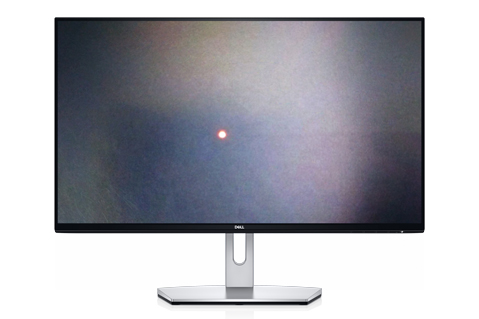
Bright subpixel defect
A subpixel remains permanently on, resulting in a white or colored dot on a black background. Bright pixels can be white, red, blue, or green and visible on a black background.

Dark subpixel defect
A subpixel remains permanently off, resulting in a black dot on a white background. Dead pixels are visible on any background color, except on a black background. Dark subpixel defect is also called as dead subpixel defect.
What is a Premium Panel Exchange?
Dell offers a Premium Panel Exchange that ensures zero bright pixel defects on select Dell Consumer, Professional, UltraSharp, and Gaming monitors, including Alienware monitors.
Defective pixels do not necessarily reduce the performance of the monitor. However, they can be distracting, especially if the pixels are in positions where viewing quality is reduced.
Unyielding commitment to quality and customer satisfaction has driven Dell to offer a Premium Panel Exchange as part of the standard limited hardware warranty. The commitment is to have zero pixels stuck in the "on" position — a factor that results in a bright dot on the display.
Premium Panel Exchange is available for select Dell Consumer, Professional, UltraSharp, and Gaming (including Alienware) monitors sold with computers or as standalone units, with a standard 1-year or 3-year limited hardware warranty. Customers who purchase an optional extended warranty benefit from this coverage during the limited hardware warranty period.
NOTE: The availability of specific warranty services varies across different regions.
Dell Pixel Policy
The pixel policy that applies to your device varies across each model. See the tables below to learn about the number of bright and dark subpixel defects that are allowed. If the number of defective pixels exceeds the applicable numbers in the tables below during the warranty period, contact Dell Technical Support for assistance.
NOTE: Only fixed subpixels or dots (bright or dark) visible to the naked eye at normal viewing distance are considered defects.
NOTE: Partial subpixel/dot anomalies with size not making up half of a subpixel are not uncommon in the LCD manufacturing process. Partial subpixel/dot anomalies appear as bright dots to the naked eye but are not considered as subpixel defect.
| Dell monitor | Bright subpixel defects | Dark subpixel defects | Total combined bright and dark subpixel defects |
|---|---|---|---|
Flat-panel monitors with Premium Panel Exchange:
|
0 allowed | Up to 5 allowed | Up to 5 allowed |
Flat-panel monitors with Premium Panel Exchange:
|
0 allowed | Up to 12 allowed | Up to 12 allowed |
|
Up to 5 allowed | Up to 8 allowed | Up to 8 allowed |
Dell C-series monitors (55 inches and larger)
|
Up to 5 allowed | Up to 12 allowed Up to 15 allowed |
Up to 12 allowed Up to 15 allowed |
| All other Dell flat panel monitors S, SE, E and IN series monitors (including S2716DG and S2417DG). | Up to 5 allowed | Up to 5 allowed | Up to 5 allowed |
| Dell laptop | Bright subpixel defects | Dark subpixel defects | Total subpixel defects |
|---|---|---|---|
| Dell laptop LCD screen with HD (1366 x 768) or below resolution | Up to 2 allowed | Up to 5 allowed | Up to 5 allowed |
| Dell laptop LCD screen with HD+ (1600 x 900) and above resolution | 0 allowed | Up to 5 allowed | Up to 5 allowed |
| DELL All in One | Bright subpixel defects | Dark subpixel defects | Total subpixel defects |
|---|---|---|---|
| Dell AIO Screen with Premium Panel Display | 0 allowed | Up to 5 allowed | Up to 5 allowed |
| Dell AIO with Standard Display | Up to 5 allowed | Up to 5 allowed | Up to 5 allowed |
Ytterligare information
Frequently asked questions
Let us help you with some frequently asked questions about subpixel defects on the LCD panel of a Dell monitor or laptop.
A bright subpixel is a subpixel with a defect in its ability to display the correct color output. It may look like a tiny black or white spot on the screen. When the subpixel remains permanently lit, it is known as a bright subpixel.
No. A defective subpixel remains permanently lit until the monitor is turned off.
Dell Premium Panel Exchange applies to Dell Consumer, Professional, UltraSharp, and Gaming (including Alienware) monitors with bright subpixel defects only. The Premium Panel Exchange does not cover monitors with dark subpixels or dead subpixels.
Dell Premium Panel Exchange applies to all Dell Consumer, Professional, UltraSharp, and Gaming (including Alienware) monitors purchased directly from Dell, or from retail stores.
NOTE: If you purchased a Dell Consumer, Professional, UltraSharp, or Gaming (including Alienware) monitor through Best Buy in the USA, exchange it at any Best Buy store in the USA. To receive in-warranty service at a Best Buy store, you must have the original sales receipt of the purchase.
- Turn off the computer and the monitor.
- Disconnect the video cable (VGA, DVI, HDMI, or DisplayPort) from the monitor.
- Clean the screen with a lint-free cloth, as dust may be the
spot
that is seen. - Connect the power cable to the monitor and turn on the monitor.
- A floating box on a black background is displayed.
- Inspect the screen for bright subpixels. These subpixels are turned on resulting in a white, red, green, or a blue dot on a black background. Alternatively, consider running a diagnostic test. See the Dell Knowledge Base article How to Run a Diagnostic Test on a Dell Monitor or How to Run the LCD Built-in Self-Test on a Dell Laptop.
- Inspect the screen for bright dots or bright subpixels, or any other type of distortion on the screen.
- If you notice a defect, contact Dell Technical Support for repair options in your location.
NOTE: Dell's limited hardware warranty covers the monitor against a defective unit or workmanship. If a part fails during the Limited Warranty period, contact Dell Technical Support to troubleshoot the unit. If the issue is identified as a bright subpixel or dark subpixel after troubleshooting, Dell ships a replacement unit depending on the status of the limited hardware warranty of the affected unit.
- Turn off the computer and the monitor.
- Disconnect the video cable(VGA, DVI, HDMI, or DisplayPort) from the monitor.
- Clean the screen with a lint-free cloth, as dust may be the
spot
that is seen. - Connect the power cable to the monitor and turn on the monitor.
- Run a diagnostic test. See the Dell Knowledge Base article How to Run the Built-In Diagnostics on a Dell Monitor or How to Run the LCD Built-in Self-Test on a Dell Laptop.
- The screen should now alternate between multiple colors (white, red, green, blue, and black).
- Inspect the screen for bright dots or bright subpixels, or any other type of distortion on the screen.
- If you notice a defect, contact Dell Technical Support for repair options in your location.
NOTE: Dell's limited hardware warranty covers the monitor against a defective unit or workmanship. If a part fails during the Limited Warranty period, contact Dell Technical Support to troubleshoot the unit. If the issue is identified as a bright subpixel or dark subpixel after troubleshooting, Dell ships a replacement unit depending on the status of the limited hardware warranty of the affected unit.
Dell's limited hardware warranty covers the monitor against a defective unit or workmanship. If a part fails during the Limited Warranty period, contact Dell Technical Support to troubleshoot the unit. If the issue is identified as a bright subpixel after troubleshooting, Dell ships a replacement unit the next business day.
During the term of the limited hardware warranty, Dell monitors include all the benefits of Dell's 24x7 toll-free technical support and Advanced Exchange Service.
NOTE: If you purchased a Dell UltraSharp, Professional, or Alienware monitor through Best Buy in the USA, exchange it at any Best Buy store in the USA. To receive in-warranty service at a Best Buy store, you must have the original sales receipt of the purchase.
While most manufacturers only provide a 30-day zero bright subpixel guarantee, Dell Premium Panel Exchange is valid for the entire term of the limited hardware warranty of 1 year or 3 years, and an extended warranty term of 4 or 5 years.
The limited hardware warranty for Dell monitors purchased independent of a computer, lasts for the period that is indicated on the packing slip, invoice, or receipt. Dell monitors purchased with a computer are covered under the limited hardware warranty of the computer.
Display issues on a Dell laptop or flat panel monitor can be caused by either the LCD panel, video card (GPU), or display settings. Some of the symptoms that indicate a display or video issue are:
- Blank or black screen
- Horizontal or vertical lines
- Color fade
- Fuzzy or blurry image
- Distorted or stretched image
- Geometric distortion
- Light leaks or light bleeding
- Flickering
- Light or dark patches
- Bright or dead pixels
If you're dealing with something else—like connecting a new monitor, fixing common display problems, laptop screen not working, setting up multiple monitors, or troubleshooting touchscreen issues—check out our other helpful guides.
Berörda produkter
Chromebox, Alienware, Dell All-in-One, Dell Pro All-in-One, Dell Pro Max Micro, Dell Pro Max Slim, Dell Pro Max Tower, Dell Pro Micro, Dell Pro Slim, Dell Pro Tower, Dell Slim, Dell Tower, Inspiron, Legacy Desktop Models, OptiPlex, Vostro, XPS
, G Series, Alienware and Dell Gaming Monitors, C Series, D Series, E Series, Legacy Monitors, P Series, S Series, SE Series, UltraSharp Premier (UP) Series, UltraSharp (U) Series, Dell Monitors, Dell Plus Monitors, Dell Pro Monitors, Dell Pro Plus Monitors, Chromebook, G Series, Alienware, Dell Laptops, Dell Plus, Dell Pro, Dell Pro Max, Dell Pro Plus, Dell Pro Premium, Inspiron, Latitude, Dell Pro Rugged, Vostro, XPS, Legacy Laptop Models, Fixed Workstations, Mobile Workstations, Dell Pro Max Micro XE FCM2250, Dell Pro Max Slim XE FCS1250, Dell Pro Max Tower T2 XE FCT2250, Dell Pro Max 16 XE MC16250, Dell Pro Micro Plus XE QBM1250, Dell Pro Slim Plus XE5 QBS1250, Dell Pro Tower Plus XE5 QBT1250
...
Artikelegenskaper
Artikelnummer: 000126004
Artikeltyp: How To
Senast ändrad: 07 okt. 2025
Version: 39
Få svar på dina frågor från andra Dell-användare
Supporttjänster
Kontrollera om din enhet omfattas av supporttjänster.