PowerFlex 3.X: Discover new disks in PFxM after adding them in the Presentation Server
Summary: Details how to make added volumes display in PowerFlex Manager after adding them in the Presentation Server.
This article applies to
This article does not apply to
This article is not tied to any specific product.
Not all product versions are identified in this article.
Instructions
Making New Volumes display in PowerFlex Manager after adding them into the Presentation Server -
1. In PowerFlex Manager, click the 'Resources' menu at the top of the user interface.

2. Find and check the box next to the gateway.

3. Click the button 'Run Inventory' at the top and close the pop-up box.
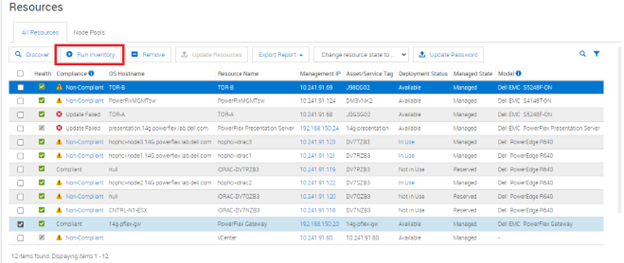

4. Wait for the job to be complete.

5. Go to the 'Services' section and then select the service where the drives were added.

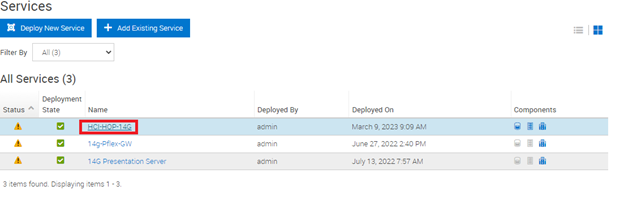
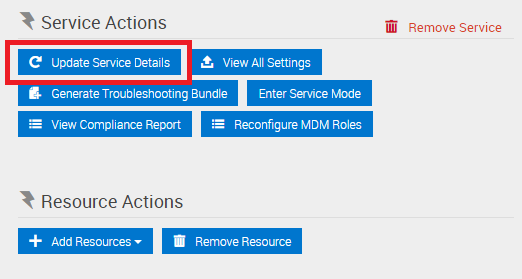
6. On the right under 'Service Actions', select the 'Update Service Details' button.
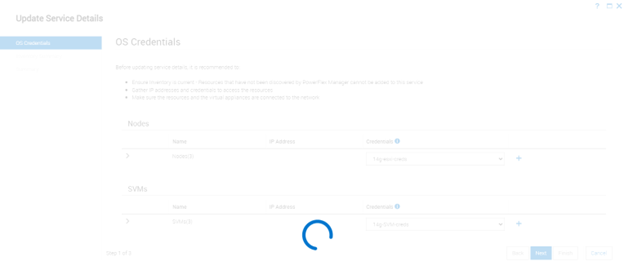
7. On the menu, verify the operating system and SVMs are using the correct credentials from your credential manager and then select next. Give it some time to reach out to all the servers.
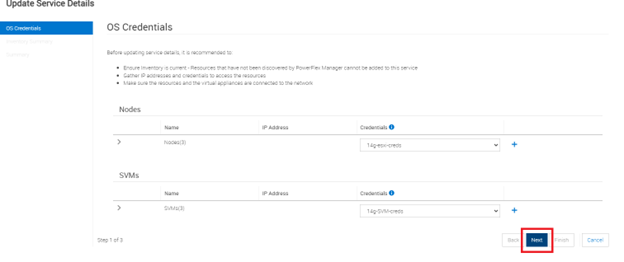
8. On the next screen, verify that it sees the new drives and select next. In our example, there was nothing changed, but you should see an inventory change in a live environment.


9. Now the service should contain the added drive.
Affected Products
PowerFlex rack, PowerFlex rack connectivity, PowerFlex rack HWArticle Properties
Article Number: 000213012
Article Type: How To
Last Modified: 08 Dec 2025
Version: 4
Find answers to your questions from other Dell users
Support Services
Check if your device is covered by Support Services.